# Welcome to TradeQloud

At TradeQloud our mission is to innovate and deliver exceptional Apps for NetSuite (add-on apps) tailored for NetSuite ERP, with a keen focus on businesses using NetSuite for inventory management.

## Overview

Utilizing NetSuite as a core platform, TradeQloud develops Apps for NetSuite that enhance and extend standard NetSuite capabilities.

{% hint style="info" %}
The **TradeQloud Setup and Licensing** app must be installed first — it controls all features and settings across the TradeQloud Apps. See [Setup & Version Management](/setup-and-version-management).
{% endhint %}

## Our Apps

<table data-view="cards"><thead><tr><th></th><th></th><th data-hidden data-card-target data-type="content-ref"></th></tr></thead><tbody><tr><td><strong>TradeQloud Setup</strong></td><td>Licensing, feature control and configuration for the whole suite.</td><td><a href="/pages/qvfIw31tJQWOabL33CFc">/pages/qvfIw31tJQWOabL33CFc</a></td></tr><tr><td><strong>Qloud Margin Control</strong></td><td>Landed cost, sales cost and margin insight on your transactions.</td><td><a href="/pages/E17rrpSkbuvRS5BixtR1">/pages/E17rrpSkbuvRS5BixtR1</a></td></tr></tbody></table>

## Get Started

This documentation provides a complete overview of all TradeQloud functionality, including an overview of each App with setup and configuration instructions.

{% content-ref url="/pages/laxCWmft2JBnoosfI4B4" %}
[Quick Start](/quick-start)
{% endcontent-ref %}

{% content-ref url="/pages/WjHjc75DTXqOMmXoIBrr" %}
[Setup & Version Management](/setup-and-version-management)
{% endcontent-ref %}

{% content-ref url="/pages/oNUUcoMEfh6wWbE1nPRo" %}
[License Validation](/tradeqloud-setup/administrators-guide/license-validation)
{% endcontent-ref %}


# Quick Start

A quick start guide to get up and running.

## Required Features

Before installing any TradeQloud apps, enable the following NetSuite features (**Setup → Company → Enable Features**):

* Custom Records
* Client SuiteScript
* Server SuiteScript
* Custom Segments
* REST Web Services
* SuiteCloud Development Framework

## Installation

Provide administrator access to the TradeQloud deployment team — your account manager will tell you which email address to use. Once access is provisioned, TradeQloud installs the **Setup** application along with the TradeQloud Apps you have purchased.

## Post Installation

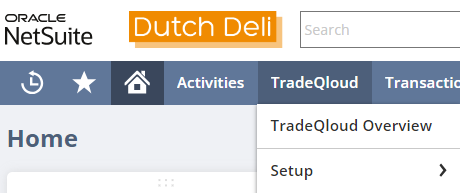
After installation, a **TradeQloud** Center Tab is added to your NetSuite account, with a link to the Setup page.

<div align="left" data-full-width="false"><figure><img src="/files/apj1CJukuOsC8h1AyQNy" alt=""><figcaption></figcaption></figure></div>

## Next steps

Review your licences and installed versions on the Setup record, then configure each app:

{% content-ref url="/pages/WjHjc75DTXqOMmXoIBrr" %}
[Setup & Version Management](/setup-and-version-management)
{% endcontent-ref %}

{% content-ref url="/pages/bqX77f8uEiB1HmtDjibc" %}
[Getting Started](/qloud-margin-control/getting-started)
{% endcontent-ref %}


# Setup & Version Management

Manage TradeQloud licensing, configuration and versions from the Setup record.

## Setup

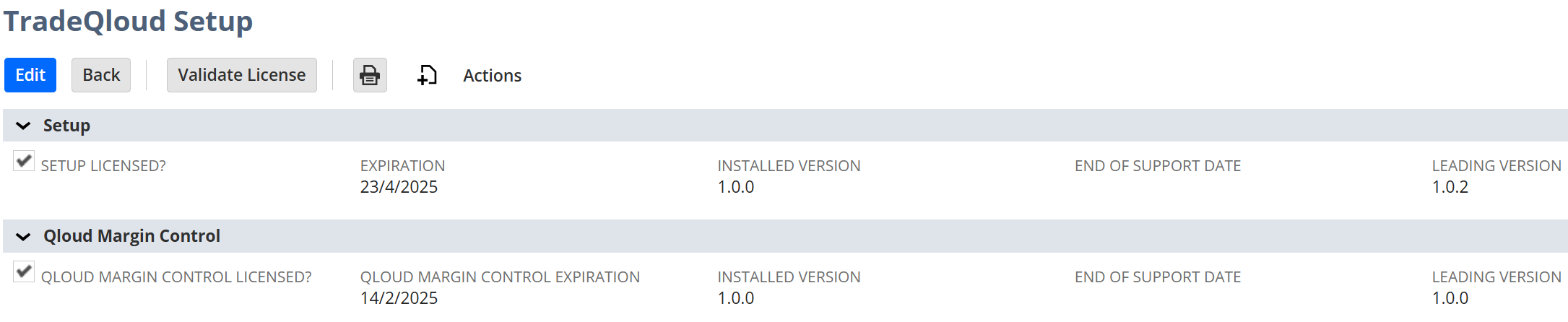
The Setup page is the central hub of all TradeQloud functionality, holding key information for each application:

<div data-full-width="false"><figure><img src="/files/drnyN59dIJAjhlVxsLeL" alt=""><figcaption></figcaption></figure></div>

* **Licensed** — Is the application licensed? If checked, the application can be configured and used in your NetSuite instance.
* **Expiration** — The expiration date for the licence.
* **Installed Version** — The version currently installed in your NetSuite instance.
* **End of Support Date** — The end-of-support date for the installed version. If empty, the version is Leading or Lagging, is in support, and an end-of-support date has not yet been set.
* **Leading Version** — The most up-to-date version, thoroughly tested by TradeQloud.

For who can open the Setup record and how licensing is enforced, see [License Validation](/tradeqloud-setup/administrators-guide/license-validation) and [User Roles & Permissions](/tradeqloud-setup/administrators-guide/user-roles-and-permissions).

## Version Management

We are continually improving TradeQloud Apps for NetSuite to:

* Add new features and modules
* Improve performance
* Implement bug fixes

New versions are communicated by email, supported by release notes and version highlights.

Release notes can be found here: [Release Notes](/qloud-margin-control/release-notes).


# Introduction

## Overview

On the TradeQloud setup page, a field group exists for each application TradeQloud has developed.

* If the TradeQloud App has been purchased, the Licensed checkbox will be flagged. An expiration date will be also be visible based on the Software Services Agreement.
* If the application is installed, the installed version and leading version will be displayed
* A sub-tab is displayed containing application-specific settings

The TradeQloud Setup includes two basic modules.

***

### Supply Order

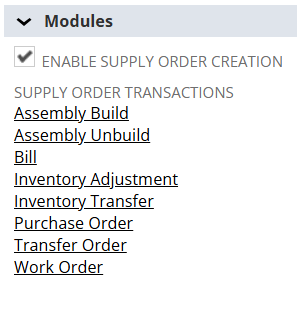
Enable this feature to track inventory from procurement (via purchase order or work order) to final sale using Supply Orders (a custom record/segment).

Once enabled, a custom record and segment will be generated for each supply order and supply order line.

***

### Demand Order

Enable this feature to track inventory from estimate to invoicing using Demand Orders (a custom record/segment).

Once enabled, a custom record and segment will be generated for each demand order and demand order line.

{% hint style="warning" %}
TradeQloud functionality relies on the Demand & Supply Order records to function as intended.
{% endhint %}


# Administrator's Guide

The Administrator's Guide is the technical reference for TradeQloud Setup. It covers how to validate your licence, the access roles and permissions the app installs, and the custom records, fields and workflows that make up its data model.

<table data-view="cards"><thead><tr><th></th><th></th><th data-hidden data-card-target data-type="content-ref"></th></tr></thead><tbody><tr><td><strong>License Validation</strong></td><td>How to validate and manage your TradeQloud Setup licence.</td><td><a href="/pages/oNUUcoMEfh6wWbE1nPRo">/pages/oNUUcoMEfh6wWbE1nPRo</a></td></tr><tr><td><strong>User Roles &#x26; Permissions</strong></td><td>The roles and permissions the app installs and how to assign them.</td><td><a href="/pages/z5ogppfloJXzNq6LAZ5L">/pages/z5ogppfloJXzNq6LAZ5L</a></td></tr><tr><td><strong>Custom Objects</strong></td><td>The custom records, fields and workflows that make up the data model.</td><td><a href="/pages/gLAkA2dk9BiLR6AJVmOj">/pages/gLAkA2dk9BiLR6AJVmOj</a></td></tr></tbody></table>


# License Validation

The TradeQloud Setup App provides ongoing license validation and updates.

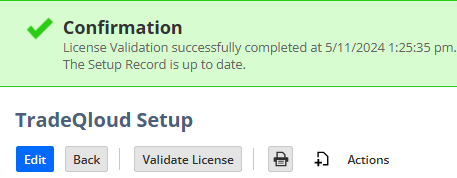
As part of the TradeQloud installation, a unique token is generated. This unique token is used for communication to TradeQloud to manage version control and licensing.

* If the TradeQloud Setup record is saved, the validation occurs immediately
* The validation also occurs on a scheduled basis at 12:30AM every night
* There is a manual option to validate the license by pushing the 'Validate License' button on the TradeQloud Setup page:

<div align="left"><figure><img src="/files/2gEjxAnCAzml65Zed0u9" alt=""><figcaption></figcaption></figure></div>

As part of this validation, the TradeQloud NetSuite environment will receive the unique token and update the source NetSuite environment with the following information:

* Licensed
* Expiration
* End of Support Date
* Leading Version


# User Roles & Permissions

Access to the TradeQloud Setup Page and the TradeQloud Transaction Configuration is defined on each custom role. If the '***Enable TradeQloud Setup Access***' field is set to TRUE on the role, users with that role can edit and modify the records.

{% hint style="danger" %}
Any user with the Administrator role can edit both of those records.
{% endhint %}

No additional permissions are required for the TradeQloud Setup application to function.


# Custom Objects

How the TradeQloud Setup custom records and fields fit together, and a reference to every object.

TradeQloud Setup is the **control layer** for the whole TradeQloud suite — it licenses each app, decides which transactions are processed, defines the reusable cost strategies the other apps rely on, and provides end-to-end Supply/Demand Order traceability. This section is the technical reference for every TradeQloud Setup object; each object name links straight to its reference.

## How TradeQloud Setup is organised

### Licensing & feature control

The [TradeQloud Setup](/tradeqloud-setup/administrators-guide/custom-objects/custom-records#tradeqloud-setup) record is the central control panel: it records which TradeQloud apps are licensed (Setup, Qloud Margin Control, and the rest), the licence expiry dates, and the per-account feature toggles that switch capabilities on and off.

### Transaction configuration

[TradeQloud Transaction Configuration](/tradeqloud-setup/administrators-guide/custom-objects/custom-records#tradeqloud-transaction-configuration) records decide, per transaction type, which processing is enabled — Sales Cost, Landed Cost, Supply Order and Demand Order. The [Transaction Type](/tradeqloud-setup/administrators-guide/custom-objects/custom-records#fq-transaction-type) record classifies transactions that TradeQloud creates automatically.

### Cost strategies (shared with Qloud Margin Control)

Reusable method records define *how* costs behave and are referenced by QMC budgets:

* [Cost PO Creation Method](/tradeqloud-setup/administrators-guide/custom-objects/custom-records#fq-cost-po-creation-method) — how purchase orders are generated for costs.
* [Landed Cost Variance Method](/tradeqloud-setup/administrators-guide/custom-objects/custom-records#fq-landed-cost-variance-method) — how estimate-vs-actual differences are posted.
* [Custom Price Handling](/tradeqloud-setup/administrators-guide/custom-objects/custom-records#fq-custom-price-handling) — when Sales Cost may change custom pricing.

### Supply & Demand Orders

The [Supply Order](/tradeqloud-setup/administrators-guide/custom-objects/custom-records#supply-order-fq) and [Demand Order](/tradeqloud-setup/administrators-guide/custom-objects/custom-records#demand-order-fq) custom segments — with their [Supply Order Line](/tradeqloud-setup/administrators-guide/custom-objects/custom-records#supply-order-line-fq) and [Demand Order Line](/tradeqloud-setup/administrators-guide/custom-objects/custom-records#demand-order-line-fq) counterparts — give end-to-end traceability of inbound procurement and outbound sales as they flow across NetSuite transactions.

### Background processing

[Setup Async Execution Request](/tradeqloud-setup/administrators-guide/custom-objects/custom-records#fq-setup-async-execution-request) records queue deferred and bulk work so it runs in the background.

## Reference

<table data-view="cards"><thead><tr><th></th><th></th><th data-hidden data-card-target data-type="content-ref"></th></tr></thead><tbody><tr><td><strong>Custom Records</strong></td><td>Every record type and its fields.</td><td><a href="/pages/oMVAwqc149A4iSjYzFyX">/pages/oMVAwqc149A4iSjYzFyX</a></td></tr><tr><td><strong>Transaction Body Fields</strong></td><td>Header-level fields added to transactions.</td><td><a href="/pages/wemPMry1dcugbuMp7ttd">/pages/wemPMry1dcugbuMp7ttd</a></td></tr><tr><td><strong>Transaction Line Fields</strong></td><td>Line-level fields added to transactions.</td><td><a href="/pages/Vg2blAkQeGP6cHsGlmwa">/pages/Vg2blAkQeGP6cHsGlmwa</a></td></tr><tr><td><strong>Other Record Fields</strong></td><td>Fields added to other standard records.</td><td><a href="/pages/1cgKy4EHAyUQFlT3SyTe">/pages/1cgKy4EHAyUQFlT3SyTe</a></td></tr><tr><td><strong>Custom Center / Category / Tabs</strong></td><td>The TradeQloud UI menus and subtabs.</td><td><a href="/pages/biAlAKpQoazMkBYDAURT">/pages/biAlAKpQoazMkBYDAURT</a></td></tr><tr><td><strong>Workflows</strong></td><td>Automation behind TradeQloud Setup.</td><td><a href="/pages/O80PT7vZJX8887UbGzjM">/pages/O80PT7vZJX8887UbGzjM</a></td></tr></tbody></table>


# Transaction Line Fields

These read-only line fields surface links to the **Supply Order** and **Demand Order** records that TradeQloud generated for a transaction line, giving quick traceability from the source transaction to its procurement / sales chain.

<table data-full-width="false"><thead><tr><th>Field Name</th><th width="230">Field ID</th><th width="262">Field Help</th><th>Field Type</th></tr></thead><tbody><tr><td>View Supply Order</td><td>custcol_fq_setup_io_txt</td><td>This is the related Supply Order generated by TradeQloud</td><td>Text</td></tr><tr><td>View Supply Order Line</td><td>custcol_fq_setup_iol_txt</td><td>This is the related Supply Order Line generated by TradeQloud.</td><td>Text</td></tr><tr><td>View Demand Order</td><td>custcol_fq_setup_oo_txt</td><td>This is the related Demand Order generated by TradeQloud.</td><td>Text</td></tr><tr><td>View Demand Order Line</td><td>custcol_fq_setup_ool_txt</td><td>This is the related Demand Order Line generated by TradeQloud.</td><td>Text</td></tr></tbody></table>


# Transaction Body Fields

TradeQloud Setup adds one header-level field to transactions. **FQ Transaction Type** marks transactions that TradeQloud created automatically (for example a cost purchase order) and links to the [Transaction Type](/tradeqloud-setup/administrators-guide/custom-objects/custom-records#fq-transaction-type) record.

<table data-full-width="false"><thead><tr><th width="139">Field Name</th><th width="199">Field ID</th><th width="279">Field Help</th><th>Field Type</th></tr></thead><tbody><tr><td>FQ Transaction Type</td><td>custbody_fq_transtype</td><td>This field indicates the type of transaction if the transaction is automatically created as part of TradeQloud.</td><td>Select</td></tr></tbody></table>


# Workflows

TradeQloud Setup uses one workflow to drive background processing.

| Workflow                 | Internal ID                      | What it does                                                                                                                                                                                                                                                                                                                                                        |
| ------------------------ | -------------------------------- | ------------------------------------------------------------------------------------------------------------------------------------------------------------------------------------------------------------------------------------------------------------------------------------------------------------------------------------------------------------------- |
| FQ Setup Async Execution | `customworkflow_fq_setup_aer_wf` | Runs when a [Setup Async Execution Request](/tradeqloud-setup/administrators-guide/custom-objects/custom-records#fq-setup-async-execution-request) record is created. If the request is still unprocessed, it invokes the queued function (module path + callback + parameters) so deferred and bulk operations run in the background instead of blocking the user. |


# Other Record Fields

Fields TradeQloud Setup adds to other standard NetSuite records. **Enable TradeQloud Setup Access** is added to the **Role** record and controls whether a role can open the [TradeQloud Setup](/tradeqloud-setup/administrators-guide/custom-objects/custom-records#tradeqloud-setup) control record — see [User Roles & Permissions](/tradeqloud-setup/administrators-guide/user-roles-and-permissions).

<table data-full-width="false"><thead><tr><th width="162">Field Name</th><th width="176">Field ID</th><th width="277">Field Help</th><th>Field Type</th></tr></thead><tbody><tr><td>Enable TradeQloud Setup Access</td><td>custrecord_fq_role_setup_access_cb</td><td>Does the role have access to the TradeQloud Setup record?</td><td>Check Box</td></tr></tbody></table>


# Custom Center / Category / Tabs

TradeQloud Setup installs a custom Center, Category, Tab and subtabs so the TradeQloud menus and record subtabs appear in the NetSuite UI. These are structural UI objects — administrators rarely interact with them directly.

## Custom Center

<table data-full-width="false"><thead><tr><th width="204">Field Name</th><th>Field ID</th></tr></thead><tbody><tr><td>TradeQloud</td><td>custcenter_fq_setup</td></tr></tbody></table>

## Custom Center Category

<table data-full-width="false"><thead><tr><th>Field Name</th><th>Field ID</th></tr></thead><tbody><tr><td>Setup</td><td>custcentercategory_fq_setup_cat</td></tr></tbody></table>

## Custom Center Tab

<table data-full-width="false"><thead><tr><th width="204">Field Name</th><th>Field ID</th></tr></thead><tbody><tr><td>TradeQloud</td><td>custcentertab_fq_setup_tab</td></tr></tbody></table>

## Custom Tabs

<table data-full-width="false"><thead><tr><th width="204">Field Name</th><th>Field ID</th></tr></thead><tbody><tr><td>TradeQloud</td><td>custtab_fq_setup_crm</td></tr><tr><td>TradeQloud</td><td>custtab_fq_setup_entity</td></tr><tr><td>TradeQloud</td><td>custtab_fq_setup_item</td></tr><tr><td>TradeQloud</td><td>custtab_fq_setup_tran</td></tr></tbody></table>


# Custom Records

This page is the full field-level reference for every custom **record type** in TradeQloud Setup. For how these records relate — licensing, transaction configuration, cost strategies and Supply/Demand Orders — see the [Custom Objects overview](/tradeqloud-setup/administrators-guide/custom-objects). Internal IDs (e.g. `customrecord_fq_setup`) are shown so administrators and developers can cross-reference NetSuite directly.

## Record Types

### Demand Order FQ

<table data-header-hidden data-full-width="true"><thead><tr><th width="301"></th><th></th></tr></thead><tbody><tr><td>cseg_fq_setup_oo</td><td>This Segment tracks a Demand Order from estimate through to the final sale for analysis.</td></tr><tr><td>customrecord_cseg_fq_setup_oo</td><td></td></tr></tbody></table>

<table data-full-width="true"><thead><tr><th width="176">Field Name</th><th width="372">Field ID</th><th>Field Help</th><th width="109">Field Type</th></tr></thead><tbody><tr><td>Amount (Base Currency)</td><td>custrecord_fq_setup_oo_amt_basecur_flt</td><td>This is the amount from the transaction in base currency.</td><td>Float</td></tr><tr><td>Amount (Subsidiary Currency)</td><td>custrecord_fq_setup_oo_amt_subscur_flt</td><td>This is the amount from the transaction in subsidiary currency.</td><td>Float</td></tr><tr><td>Amount (Transaction Currency)</td><td>custrecord_fq_setup_oo_amt_transcur_flt</td><td>This is the amount from the transaction.</td><td>Float</td></tr><tr><td>Base Currency</td><td>custrecord_fq_setup_oo_base_curr_lst</td><td>This is the base currency of the NetSuite account.</td><td>Select</td></tr><tr><td>Base Exchange Rate</td><td>custrecord_fq_setup_oo_base_exrate_flt</td><td>This is the exchange rate between source transaction and base currency.</td><td>Float</td></tr><tr><td>Class</td><td>custrecord_fq_setup_oo_class_lst</td><td>This is the class on the source transaction.</td><td>Select</td></tr><tr><td>Date</td><td>custrecord_fq_setup_oo_date_dt</td><td>This is the date of the source transaction.</td><td>Date</td></tr><tr><td>Department</td><td>custrecord_fq_setup_oo_department_lst</td><td>This is the department on the source transaction.</td><td>Select</td></tr><tr><td>Entity</td><td>custrecord_fq_setup_oo_entity_lst</td><td>This is the entity on the source transaction.</td><td>Select</td></tr><tr><td>Location</td><td>custrecord_fq_setup_oo_location_lst</td><td>This is the location on the source transaction.</td><td>Select</td></tr><tr><td>Net Amount</td><td>custrecord_fq_apm_oo_scamt_net_flt</td><td>This is the Net Amount.</td><td>Float</td></tr><tr><td>Net Amount (Base Currency)</td><td>custrecord_fq_apm_oo_scamt_net_bc_flt</td><td>This is the Net Amount in Base Currency.</td><td>Float</td></tr><tr><td>Net Amount (Subsidiary Currency)</td><td>custrecord_fq_apm_oo_scamt_net_sc_flt</td><td>This is the Net Amount in Subsidiary Currency.</td><td>Float</td></tr><tr><td>SC Billed Amount</td><td>custrecord_fq_apm_oo_scamt_billed_flt</td><td>This is the Sales Cost Billed Amount.</td><td>Float</td></tr><tr><td>SC Billed Amount (Base Currency)</td><td>custrecord_fq_apm_oo_scamt_billed_bc_flt</td><td>This is the Sales Cost Billed Amount in Base Currency.</td><td>Float</td></tr><tr><td>SC Billed Amount (Subsidiary Currency)</td><td>custrecord_fq_apm_oo_scamt_billed_sc_flt</td><td>This is the Sales Cost Billed Amount in Subsidiary Currency</td><td>Float</td></tr><tr><td>SC Budgeted Amount</td><td>custrecord_fq_apm_oo_scamt_budget_flt</td><td>This is the Sales Cost Budgeted Amount.</td><td>Float</td></tr><tr><td>SC Budgeted Amount (Base Currency)</td><td>custrecord_fq_apm_oo_scamt_budget_bc_flt</td><td>This is the Sales Cost Budgeted Amount in Base Currency.</td><td>Float</td></tr><tr><td>SC Budgeted Amount (Subsidiary Currency)</td><td>custrecord_fq_apm_oo_scamt_budget_sc_flt</td><td>This is the Sales Cost Budgeted Amount in Subsidiary Currency.</td><td>Float</td></tr><tr><td>SC Variance Amount</td><td>custrecord_fq_apm_oo_scamt_var_flt</td><td>This is the Sales Cost Variance Amount.</td><td>Float</td></tr><tr><td>SC Variance Amount (Base Currency)</td><td>custrecord_fq_apm_oo_scamt_var_bc_flt</td><td>This is the Sales Cost Variance Amount in Base Currency.</td><td>Float</td></tr><tr><td>SC Variance Amount (Subsidiary Currency)</td><td>custrecord_fq_apm_oo_scamt_var_sc_flt</td><td>This is the Sales Cost Variance Amount in Subsidiary Currency.</td><td>Float</td></tr><tr><td>Source Transaction</td><td>custrecord_fq_setup_oo_source_lst</td><td>This is the source transaction.</td><td>Select</td></tr><tr><td>Subsidiary</td><td>custrecord_fq_setup_oo_subsidiary_lst</td><td>This is the source transaction subsidiary.</td><td>Select</td></tr><tr><td>Subsidiary Currency</td><td>custrecord_fq_setup_oo_subs_cur_lst</td><td>This is the currency from the subsidiary.</td><td>Select</td></tr><tr><td>Subsidiary Exchange Rate</td><td>custrecord_fq_setup_oo_subs_exrate_flt</td><td>This is the exchange rate between source transaction and the subsidiary (1 / exchange rate).</td><td>Float</td></tr><tr><td>Transaction Currency</td><td>custrecord_fq_setup_oo_currency_lst</td><td>This is the currency on the source transaction.</td><td>Select</td></tr><tr><td>Transaction Exchange Rate</td><td>custrecord_fq_setup_oo_exchange_rate_flt</td><td>This is the exchange rate on the source transaction.</td><td>Float</td></tr></tbody></table>

### Demand Order Line FQ

<table data-header-hidden data-full-width="true"><thead><tr><th width="296"></th><th></th></tr></thead><tbody><tr><td>cseg_fq_setup_ool</td><td>This Segment tracks a Demand Order from estimate through to the final sale for analysis.</td></tr><tr><td>customrecord_cseg_fq_setup_ool</td><td></td></tr></tbody></table>

<table data-full-width="true"><thead><tr><th width="184">Field Name</th><th width="382">Field ID</th><th>Field Help</th><th width="109">Field Type</th></tr></thead><tbody><tr><td>Amount (Base Currency)</td><td>custrecord_fq_setup_ool_amt_basecur_flt</td><td>This is the amount from the transaction in base currency.</td><td>FLOAT</td></tr><tr><td>Amount (Subsidiary Currency)</td><td>custrecord_fq_setup_ool_amt_subscur_flt</td><td>This is the amount from the transaction in subsidiary currency.</td><td>FLOAT</td></tr><tr><td>Amount (Transaction Currency)</td><td>custrecord_fq_setup_ool_amt_transcur_flt</td><td>This is the amount from the transaction.</td><td>FLOAT</td></tr><tr><td>Base Currency</td><td>custrecord_fq_setup_ool_base_curr_lst</td><td>This is the base currency of the NetSuite account.</td><td>SELECT</td></tr><tr><td>Base Exchange Rate</td><td>custrecord_fq_setup_ool_base_exrate_flt</td><td>This is the exchange rate between source transaction and base currency.</td><td>FLOAT</td></tr><tr><td>Class</td><td>custrecord_fq_setup_ool_class_lst</td><td>This is the class on the source transaction.</td><td>SELECT</td></tr><tr><td>Demand Order</td><td>custrecord_fq_setup_ool_oo_lst</td><td>This is the Demand Order.</td><td>SELECT</td></tr><tr><td>Department</td><td>custrecord_fq_setup_ool_department_lst</td><td>This is the department on the source transaction.</td><td>SELECT</td></tr><tr><td>Entity</td><td>custrecord_fq_setup_ool_entity_lst</td><td>This is the entity on the source transaction.</td><td>SELECT</td></tr><tr><td>Item</td><td>custrecord_fq_setup_ool_item_lst</td><td>This is the item on the source transaction.</td><td>SELECT</td></tr><tr><td>Line ID</td><td>custrecord_fq_setup_ool_lineid_int</td><td>This displays the line ID. This is auto generated by the system.</td><td>INTEGER</td></tr><tr><td>Line Unique Key</td><td>custrecord_fq_setup_ool_lnuniqkey_int</td><td>This displays the line unique key. This is auto generated by the system.</td><td>INTEGER</td></tr><tr><td>Location</td><td>custrecord_fq_setup_ool_location_lst</td><td>This is the location on the source transaction.</td><td>SELECT</td></tr><tr><td>Net Amount</td><td>custrecord_fq_apm_ool_scamt_net_flt</td><td>This is the Net Amount.</td><td>FLOAT</td></tr><tr><td>Net Amount (Base Currency)</td><td>custrecord_fq_apm_ool_scamt_net_bc_flt</td><td>This is the Net Amount in Base Currency.</td><td>FLOAT</td></tr><tr><td>Net Amount (Subsidiary Currency)</td><td>custrecord_fq_apm_ool_scamt_net_sc_flt</td><td>This is the Net Amount in Subsidiary Currency.</td><td>FLOAT</td></tr><tr><td>Net Rate</td><td>custrecord_fq_apm_ool_scrat_net_flt</td><td>This is the Net Rate.</td><td>FLOAT</td></tr><tr><td>Net Rate (Base Currency)</td><td>custrecord_fq_apm_ool_scrat_net_bc_flt</td><td>This is the Net Rate in Base Currency.</td><td>FLOAT</td></tr><tr><td>Net Rate (Subsidiary Currency)</td><td>custrecord_fq_apm_ool_scrat_net_sc_flt</td><td>This is the Net Rate in Subsidiary Currency.</td><td>FLOAT</td></tr><tr><td>Quantity</td><td>custrecord_fq_setup_ool_qty_flt</td><td>This is the quantity on the transaction.</td><td>FLOAT</td></tr><tr><td>Quantity Fulfilled</td><td>custrecord_fq_setup_ool_qty_fulfill_flt</td><td>This is the quantity fulfilled on the transaction.</td><td>FLOAT</td></tr><tr><td>Quantity Invoiced/Credited</td><td>custrecord_fq_setup_ool_qty_invcred_flt</td><td>This is the quantity invoiced/credited on the transaction.</td><td>FLOAT</td></tr><tr><td>Rate (Base Currency)</td><td>custrecord_fq_setup_ool_rate_basecur_flt</td><td>This is the rate from the transaction in base currency.</td><td>FLOAT</td></tr><tr><td>Rate (Subsidiary Currency)</td><td>custrecord_fq_setup_ool_rate_subscur_flt</td><td>This is the rate from the transaction in subsidiary currency.</td><td>FLOAT</td></tr><tr><td>Rate (Transaction Currency)</td><td>custrecord_fq_setup_ool_rate_trancur_flt</td><td>This is the rate from the transaction currency.</td><td>FLOAT</td></tr><tr><td>SC Billed Amount</td><td>custrecord_fq_apm_ool_scamt_bill_flt</td><td>This is the Sales Cost Billed Amount.</td><td>FLOAT</td></tr><tr><td>SC Billed Amount (Base Currency)</td><td>custrecord_fq_apm_ool_scamt_bill_bc_flt</td><td>This is the Sales Cost Billed Amount in Base Currency.</td><td>FLOAT</td></tr><tr><td>SC Billed Amount (Subsidiary Currency)</td><td>custrecord_fq_apm_ool_scamt_bill_sc_flt</td><td>This is the Sales Cost Billed Amount in Subsidiary Currency.</td><td>FLOAT</td></tr><tr><td>SC Budgeted Amount</td><td>custrecord_fq_apm_ool_scamt_budg_flt</td><td>This is the Sales Cost Budgeted Amount.</td><td>FLOAT</td></tr><tr><td>SC Budgeted Amount (Base Currency)</td><td>custrecord_fq_apm_ool_scamt_budg_bc_flt</td><td>This is the Sales Cost Budgeted Amount in Base Currency.</td><td>FLOAT</td></tr><tr><td>SC Budgeted Amount (Subsidiary Currency)</td><td>custrecord_fq_apm_ool_scamt_budg_sc_flt</td><td>This is the Sales Cost Budgeted Amount in Subsidiary Currency.</td><td>FLOAT</td></tr><tr><td>SC Variance Amount</td><td>custrecord_fq_apm_ool_scamt_var_flt</td><td>This is the Sales Cost Variance Amount.</td><td>FLOAT</td></tr><tr><td>SC Variance Amount (Base Currency)</td><td>custrecord_fq_apm_ool_scamt_var_bc_flt</td><td>This is the Sales Cost Variance Amount in Base Currency.</td><td>FLOAT</td></tr><tr><td>SC Variance Amount (Subsidiary Currency)</td><td>custrecord_fq_apm_ool_scamt_var_sc_flt</td><td>This is the Sales Cost Variance Amount in Subsidiary Currency.</td><td>FLOAT</td></tr><tr><td>Source Transaction</td><td>custrecord_fq_setup_ool_source_tran_lst</td><td>This is the source transaction.</td><td>SELECT</td></tr><tr><td>Starting Rate</td><td>custrecord_fq_apm_ool_startrate_flt</td><td>The starting price for Sales Cost Calculations.</td><td>FLOAT</td></tr><tr><td>Starting Rate (Base Currency)</td><td>custrecord_fq_apm_ool_scrate_bc_flt</td><td>The starting price for Sales Cost Calculations in Base Currency</td><td>FLOAT</td></tr><tr><td>Starting Rate (Subsidiary Currency)</td><td>custrecord_fq_apm_ool_startrate_sc_flt</td><td>The starting price for Sales Cost Calculations in Subsidiary Currency.</td><td>FLOAT</td></tr><tr><td>Subsidiary Currency</td><td>custrecord_fq_setup_ool_subs_cur_lst</td><td>This is the currency from the subsidiary.</td><td>SELECT</td></tr><tr><td>Subsidiary Exchange Rate</td><td>custrecord_fq_setup_ool_subs_exrate_flt</td><td>This is the exchange rate between source transaction and the subsidiary (1 / exchange rate).</td><td>FLOAT</td></tr><tr><td>Transaction Currency</td><td>custrecord_fq_setup_ool_currency_lst</td><td>This is the currency on the source transaction.</td><td>SELECT</td></tr><tr><td>Transaction Exchange Rate</td><td>custrecord_fq_setup_ool_exch_rate_flt</td><td>This is the exchange rate on the source transaction.</td><td>FLOAT</td></tr><tr><td>Units</td><td>custrecord_fq_setup_ool_units_lst</td><td>This is the units on the transaction.</td><td>SELECT</td></tr></tbody></table>

### TradeQloud Setup

<table data-header-hidden data-full-width="true"><thead><tr><th width="236"></th><th></th></tr></thead><tbody><tr><td>customrecord_fq_setup</td><td>This record is used to store setup for all TradeQloud-related modules and functionalities.</td></tr></tbody></table>

<table data-full-width="true"><thead><tr><th width="233">Field Name</th><th width="251">Field ID</th><th>Field Help</th><th width="144">Field Type</th></tr></thead><tbody><tr><td>Qloud Margin Control End of Support Date</td><td>custrecord_fq_setup_apm_eosupport_dt</td><td>The date of end of support for the installed Setup App version.</td><td>DATE</td></tr><tr><td>Automatically Process Landed Cost Variance</td><td>custrecord_fq_setup_apm_autovariance_cb</td><td>If this is checked, when a Landed Cost Vendor Bill is processed , a script will compare the rates between the Vendor Bill and Item Receipt.&#x26;#xd;</td><td>CHECKBOX</td></tr><tr><td>Date of Last License Check</td><td>custrecord_fq_setup_date_license_dtt</td><td>The last date the license was checked by the system</td><td>DATETIMETZ</td></tr><tr><td>Default Landed Cost PO Creation Method</td><td>custrecord_fq_setup_apm_lccostpometh_lst</td><td>The Cost PO Creation Method defines the standard procedure for generating Purchase Orders (POs) for costs.</td><td>SELECT</td></tr><tr><td>Default Percentage Decrease Rate Calculation Method</td><td>custrecord_fq_setup_apm_sc_perdemeth_lst</td><td>Select the default value to use as the starting value when a Sales Cost is used to decrease the rate.</td><td>SELECT</td></tr><tr><td>Default Percentage Increase Rate Calculation Method</td><td>custrecord_fq_setup_apm_sc_perinmeth_lst</td><td>Select the default value to use as the starting value when a Sales Cost is used to increase the rate.</td><td>SELECT</td></tr><tr><td>Default Primary Landed Cost Variance Method</td><td>custrecord_fq_setup_apm_prilcvarmeth_lst</td><td>Select a Primary method for handling discrepancies between estimated and actual landed costs.</td><td>SELECT</td></tr><tr><td>Default Sales Cost Custom Price Handling Method</td><td>custrecord_fq_setup_apm_sc_cstprmeth_lst</td><td>This setting allows for the differentiation between custom pricing derived from customer master data and custom pricing set on a transaction by a user. &#x26;#xd;</td><td>SELECT</td></tr><tr><td>Default Sales Cost PO Creation Method</td><td>custrecord_fq_setup_apm_sccostpometh_lst</td><td>The Cost PO Creation Method defines the standard procedure for generating Purchase Orders (POs) for costs.</td><td>SELECT</td></tr><tr><td>Default Sales Cost Processing Method</td><td>custrecord_fq_setup_apm_processmeth_lst</td><td>The FQ Sales Cost Processing defines strategy for processing the Sales Cost record when transacting.</td><td>SELECT</td></tr><tr><td>Default Secondary Landed Cost Variance Method</td><td>custrecord_fq_setup_apm_seclcvarmeth_lst</td><td>Select a Secondary method for handling discrepancies between estimated and actual landed costs. This is mandatory if the primary method is Update Inventory Cost (Open Period Only)</td><td>SELECT</td></tr><tr><td>Demand Order Transactions</td><td>custrecord_fq_setup_ooc_tran_mlst</td><td>Select the transactions to which Demand Orders will be generated.</td><td>MULTISELECT</td></tr><tr><td>Enable Demand Order Creation</td><td>custrecord_fq_setup_ooc_cb</td><td>Enable this feature to track inventory from estimate to invoicing using Demand Orders (a custom record/segment)</td><td>CHECKBOX</td></tr><tr><td>Enable Demand Order Line Creation</td><td>custrecord_fq_setup_oolc_cb</td><td>Enable this feature to track inventory from estimate to invoicing using Demand Order lines (a custom record/segment).</td><td>CHECKBOX</td></tr><tr><td>Enable Inventory Number Allocation</td><td>custrecord_fq_setup_eim_ina_cb</td><td>Enable this feature to allow inventory number allocation to transaction lines.</td><td>CHECKBOX</td></tr><tr><td>Enable Landed Costs</td><td>custrecord_fq_setup_apm_lc_cb</td><td>Enable this feature to enhance the standard NetSuite landed cost functionality.</td><td>CHECKBOX</td></tr><tr><td>Enable Sales Costs</td><td>custrecord_fq_setup_apm_sc_cb</td><td>Enable this feature to track sales costs in addition to the cost of goods sold.</td><td>CHECKBOX</td></tr><tr><td>Enable Supply Order Creation</td><td>custrecord_fq_setup_ioc_cb</td><td>Enable this feature to track inventory from procurement (via purchase order or work order) to final sale using Supply Orders (a custom record/segment)</td><td>CHECKBOX</td></tr><tr><td>Enable Supply Order Line Creation</td><td>custrecord_fq_setup_iolc_cb</td><td>Enable this feature to track inventory from procurement (via purchase order or work order) to final sale using Supply Order lines (a custom record/segment).</td><td>CHECKBOX</td></tr><tr><td>Enhanced Inventory Management End of Support Date</td><td>custrecord_fq_setup_eim_eosupport_dt</td><td>The date of end of support for the installed Setup App version.</td><td>DATE</td></tr><tr><td>Enhanced Inventory Management Expiration</td><td>custrecord_fq_setup_eim_expiry_dt</td><td>The date of expiration for the Enhanced Inventory Management App</td><td>DATE</td></tr><tr><td>Enhanced Inventory Management Installed Version</td><td>custrecord_setup_vercur_eim</td><td>The current version installed for the Enhanced Inventory Management App.</td><td>TEXT</td></tr><tr><td>Enhanced Inventory Management Leading Version</td><td>custrecord_setup_verlead_eim</td><td>The current released version containing the latest features and updates for the Enhanced Inventory Management App.</td><td>TEXT</td></tr><tr><td>Enhanced Inventory Management Licensed?</td><td>custrecord_fq_setup_eim_cb</td><td></td><td>CHECKBOX</td></tr><tr><td>Excise Duty Management End of Support Date</td><td>custrecord_fq_setup_edm_eosupport_dt</td><td>The date of end of support for the installed Setup App version.</td><td>DATE</td></tr><tr><td>Excise Duty Management Expiration</td><td>custrecord_fq_setup_edm_expiry_dt</td><td>The date of expiration for Excise Duty Management App</td><td>DATE</td></tr><tr><td>Excise Duty Management Installed Version</td><td>custrecord_fq_setup_vercur_edm</td><td>The current version installed for the Excise Duty Management App.</td><td>TEXT</td></tr><tr><td>Excise Duty Management Leading Version</td><td>custrecord_fq_setup_verlead_edm</td><td>The current released version containing the latest features and updates for the Excise Duty Management App.</td><td>TEXT</td></tr><tr><td>Excise Duty Management Licensed?</td><td>custrecord_fq_setup_edm_cb</td><td>Is the Excise Duty Management App Licensed?</td><td>CHECKBOX</td></tr><tr><td>External ID</td><td>custrecord_fq_setup_externalid_str</td><td>This displays the external ID. The external ID is set by a script.</td><td>TEXT</td></tr><tr><td>Inventory Number Allocation Page Size</td><td>custrecord_fq_setup_eim_ina_pg_size_int</td><td>Enter the number of results to be returned when the inventory number allocation window page is loaded.</td><td>INTEGER</td></tr><tr><td>Landed Cost Rounding</td><td>custrecord_fq_setup_apm_lc_rounding_int</td><td>Landed Cost Rounding allows you to specify the rounding precision for calculated landed cost values. &#x26;#xd;</td><td>INTEGER</td></tr><tr><td>Landed Cost Transactions</td><td>custrecord_fq_setup_apm_lc_tran_mlst</td><td>Select the procurement transactions to which landed costs will be applied.</td><td>MULTISELECT</td></tr><tr><td>Product Specifications End of Support Date</td><td>custrecord_fq_setup_ps_eosupport_dt</td><td>The date of end of support for the installed Setup App version.</td><td>DATE</td></tr><tr><td>Product Specifications Expiration</td><td>custrecord_fq_setup_ps_expiry_dt</td><td>The date of expiration for Product Specifications App</td><td>DATE</td></tr><tr><td>Product Specifications Installed Version</td><td>custrecord_fq_setup_vercur_ps</td><td>The current version installed for the Product Specifications App.</td><td>TEXT</td></tr><tr><td>Product Specifications Leading Version</td><td>custrecord_fq_setup_verlead_ps</td><td>The current released version containing the latest features and updates for the Product Specifications App.</td><td>TEXT</td></tr><tr><td>Product Specifications Licensed?</td><td>custrecord_fq_setup_ps_cb</td><td>Is the Product Specifications App Licensed?</td><td>CHECKBOX</td></tr><tr><td>Qloud Margin Control Expiration</td><td>custrecord_fq_setup_apm_expiry_dt</td><td>The date of expiration for the Qloud Margin Control App</td><td>DATE</td></tr><tr><td>Qloud Margin Control Installed Version</td><td>custrecord_fq_setup_vercur_apmtrack</td><td>The current version installed for the Qloud Margin Control App.</td><td>TEXT</td></tr><tr><td>Qloud Margin Control Leading Version</td><td>custrecord_fq_setup_verlead_apmtrack</td><td>The current released version containing the latest features and updates for the Qloud Margin Control App.</td><td>TEXT</td></tr><tr><td>Qloud Margin Control Licensed?</td><td>custrecord_fq_setup_apm_cb</td><td>Is the Qloud Margin Control App Licensed?</td><td>CHECKBOX</td></tr><tr><td>REST Feedback</td><td>custrecord_fq_setup_rest_feedback</td><td>This field contains any rest response that would contain an atypical response.</td><td>CLOBTEXT</td></tr><tr><td>Sales Cost Rounding</td><td>custrecord_fq_setup_apm_sc_rounding_int</td><td>Sales Cost Rounding allows specifying the rounding precision for calculated sales cost values. &#x26;#xd;</td><td>INTEGER</td></tr><tr><td>Sales Cost Transactions</td><td>custrecord_fq_setup_apm_sc_tran_mlst</td><td>Select the demand transactions to which sales costs can be applied.</td><td>MULTISELECT</td></tr><tr><td>Setup End of Support Date</td><td>custrecord_fq_setup_eosupport_dt</td><td>The date of end of support for the installed App version.</td><td>DATE</td></tr><tr><td>Setup Expiration</td><td>custrecord_fq_setup_expiry_dt</td><td>The date of expiration for the Setup App</td><td>DATE</td></tr><tr><td>Setup Installed Version</td><td>custrecord_fq_setup_vercur_setup</td><td>The current version installed for the Setup App.</td><td>TEXT</td></tr><tr><td>Setup Leading Version</td><td>custrecord_fq_setup_verlead_setup</td><td>Setup Leading Version.</td><td>TEXT</td></tr><tr><td>Setup Licensed?</td><td>custrecord_fq_setup_cb</td><td>Is the Setup App Licensed?</td><td>CHECKBOX</td></tr><tr><td>Supply Order Transactions</td><td>custrecord_fq_setup_ioc_tran_mlst</td><td>Select the transactions to which Supply orders will be generated.</td><td>MULTISELECT</td></tr><tr><td>Sustainable Packaging End of Support Date</td><td>custrecord_fq_setup_sp_eosupport_dt</td><td>The date of end of support for the installed Setup App version.</td><td>DATE</td></tr><tr><td>Sustainable Packaging Expiration</td><td>custrecord_fq_setup_sp_expiry_dt</td><td>The date of expiration for the Sustainable Packaging App</td><td>DATE</td></tr><tr><td>Sustainable Packaging Installed Version</td><td>custrecord_fq_setup_vercur_sp</td><td>The current version installed for the Sustainable Packaging App.</td><td>TEXT</td></tr><tr><td>Sustainable Packaging Leading Version</td><td>custrecord_fq_setup_verlead_sp</td><td>The current released version containing the latest features and updates for the Sustainable Packaging App.</td><td>TEXT</td></tr><tr><td>Sustainable Packaging Licensed?</td><td>custrecord_fq_setup_sp_cb</td><td>Is the Sustainable Packaging App Licensed?</td><td>CHECKBOX</td></tr><tr><td>Unique ID</td><td>custrecord_fq_setup_uniqueid_str</td><td>The unique ID for the account / App. This is generated by a script.</td><td>TEXT</td></tr><tr><td>Update IR Rate based on Vendor Bill Rate</td><td>custrecord_fq_setup_apm_updt_ir_rate_cb</td><td>If this is checked, when a Vendor Bill is saved , a script will compare the rates between the Vendor Bill and Item Receipt. If there is a variance, the rate will be updated on the Item Receipt .</td><td>CHECKBOX</td></tr><tr><td>Update IR Rate Saved Search</td><td>custrecord_fq_setup_apm_updt_ir_srch_lst</td><td>If this is checked, when a Vendor Bill is saved , a script will compare the rates between the Vendor Bill and Item Receipt. If there is a variance, the rate will be updated on the Item Receipt.</td><td>SELECT</td></tr></tbody></table>

### TradeQloud Transaction Configuration

<table data-header-hidden data-full-width="true"><thead><tr><th width="382"></th><th></th></tr></thead><tbody><tr><td>customrecord_fq_setup_tran_module_config</td><td>This record is used to define which transactions are available for TradeQloud Modules. All standard records have been pre-configured however new records will be required for any custom transactions.</td></tr></tbody></table>

<table data-full-width="true"><thead><tr><th width="182">Field Name</th><th width="340">Field ID</th><th>Field Help</th><th width="121">Field Type</th></tr></thead><tbody><tr><td>Create Outgoing Request</td><td>custrecord_fq_setup_tmc_ooc_cb</td><td>Enable this transaction to have it available for Outgoing Request selection. Once enabled, and the transaction is selected on TradeQloud Setup, Demand Orders will be created on the transaction.</td><td>CHECKBOX</td></tr><tr><td>Create Supply Order</td><td>custrecord_fq_setup_tmc_ioc_cb</td><td>Enable this transaction to have it available for Supply Order selection. Once enabled, and the transaction is selected on TradeQloud Setup, Supply Order will be created on the transaction.</td><td>CHECKBOX</td></tr><tr><td>Landed Cost Transactions</td><td>custrecord_fq_setup_tmc_lc_cb</td><td>Enable this transaction to have it available for Landed Cost selection. Once enabled, and the transaction is selected on TradeQloud Setup, Landed Costs will be enabled on the transaction.</td><td>CHECKBOX</td></tr><tr><td>Sales Cost Transcation</td><td>custrecord_fq_setup_tmc_sc_cb</td><td>Enable this transaction to have it available for Sales Cost selection. Once enabled, and the transaction is selected on TradeQloud Setup, Sales Cost will be enabled on the transaction.</td><td>CHECKBOX</td></tr><tr><td>Transaction Type</td><td>custrecord_fq_setup_tmc_transaction_lst</td><td>Select the transactions to specify which modules are available. After selection, a script will ensure the transaction has only been selected once.</td><td>SELECT</td></tr></tbody></table>

### FQ Cost PO Creation Method

<table data-header-hidden data-full-width="true"><thead><tr><th width="401"></th><th></th></tr></thead><tbody><tr><td>customrecord_fq_setup_cost_po_createmeth</td><td>This record defines the strategies for generating Purchase Orders (POs) related to costs.</td></tr></tbody></table>

<table data-full-width="true"><thead><tr><th width="158">Field Name</th><th width="359">Field ID</th><th>Field Help</th><th width="127">Field Type</th></tr></thead><tbody><tr><td>Available for Landed Costs?</td><td>custrecord_fq_apm_cpocm_lc_available_cb</td><td>If checked, the Cost PO Creation method is available to be selected during landed cost processing.</td><td>CHECKBOX</td></tr><tr><td>Available for Sales Costs?</td><td>custrecord_fq_apm_cpocm_sc_available_cb</td><td>If checked, the Cost PO Creation method is available to be selected during sales cost processing.</td><td>CHECKBOX</td></tr><tr><td>Description</td><td>custrecord_fq_apm_cpocm_description_txt</td><td>The 'Description' field provides a detailed explanation of the selected Cost PO Creation Method, illustrating how purchase orders will be generated.</td><td>TEXTAREA</td></tr></tbody></table>

### FQ Custom Price Handling

<table data-header-hidden data-full-width="true"><thead><tr><th width="367"></th><th></th></tr></thead><tbody><tr><td>customrecord_fq_setup_custpricehandling</td><td>This list defines the custom price handling for Sales Costs.</td></tr></tbody></table>

<table data-full-width="true"><thead><tr><th width="133">Field Name</th><th width="309">Field ID</th><th>Field Help</th><th width="127">Field Type</th></tr></thead><tbody><tr><td>Description</td><td>custrecord_fq_setup_cph_description</td><td>The Description field provides a detailed explanation of the Custom Price Handling Method</td><td>TEXTAREA</td></tr></tbody></table>

### FQ Landed Cost Variance Method

<table data-header-hidden data-full-width="true"><thead><tr><th width="324"></th><th></th></tr></thead><tbody><tr><td>customrecord_fq_setup_lc_var_meth</td><td>The 'Landed Cost Variance Management' record is designed to streamline the process of managing landed cost variances within NetSuite. This record enables users to select a preferred method for handling discrepancies between estimated and actual landed costs. By providing multiple options for variance handling, the record ensures that users can align the variance management process with their specific accounting practices and business needs.</td></tr></tbody></table>

<table data-full-width="true"><thead><tr><th width="213">Field Name</th><th width="301">Field ID</th><th>Field Help</th><th width="122">Field Type</th></tr></thead><tbody><tr><td>Description</td><td>custrecord_fq_apm_lcvar_desc_txt</td><td>The 'Description' field provides a detailed explanation of the Landed Cost Variance Method.</td><td>TEXTAREA</td></tr><tr><td>Primary Landed Cost Variance Method</td><td>custrecord_fq_apm_lcvar_isprim_cb</td><td></td><td>CHECKBOX</td></tr><tr><td>Secondary Landed Cost Variance Method</td><td>custrecord_fq_apm_lcvar_issec_cb</td><td></td><td>CHECKBOX</td></tr></tbody></table>

### FQ Setup Async Execution Request

<table data-header-hidden data-full-width="true"><thead><tr><th width="383"></th><th></th></tr></thead><tbody><tr><td>customrecord_fq_setup_async_exec_request</td><td>This is a Custom Record used to store instruction for Asynchronous Processing.</td></tr></tbody></table>

<table data-full-width="true"><thead><tr><th width="155">Field Name</th><th width="346">Field ID</th><th>Field Help</th><th width="122">Field Type</th></tr></thead><tbody><tr><td>Callback Parts</td><td>custrecord_fq_setup_aer_callback_txt</td><td>This stores the Callback Parts for the function that needs to be executed.</td><td>TEXT</td></tr><tr><td>Error</td><td>custrecord_fq_setup_aer_error_txt</td><td>In case of Error during the Async Execution Request, the message is stored here.</td><td>TEXT</td></tr><tr><td>Module Path</td><td>custrecord_fq_setup_aer_modulepath_txt</td><td>This stores the Module Path for the File that contains the function that needs to be processed.</td><td>TEXT</td></tr><tr><td>Parameters</td><td>custrecord_fq_setup_aer_params_ltxt</td><td>This stores the Parameters for the function that needs to be executed.</td><td>CLOBTEXT</td></tr><tr><td>Processed</td><td>custrecord_fq_setup_aer_processed_cb</td><td>This indicates if the Async Execution Request has been processed.</td><td>CHECKBOX</td></tr></tbody></table>

### FQ Transaction Type

<table data-header-hidden data-full-width="true"><thead><tr><th width="290"></th><th></th></tr></thead><tbody><tr><td>customrecord_fq_tran_type</td><td>This record is used to define which attributes the transaction has in relation to the TradeQloud functionality.</td></tr></tbody></table>

<table data-full-width="true"><thead><tr><th width="133">Field Name</th><th width="309">Field ID</th><th>Field Help</th><th width="127">Field Type</th></tr></thead><tbody><tr><td>Description</td><td>custrecord_fq_tran_type_description</td><td>This field acts as a description to the transaction type.</td><td>TEXTAREA</td></tr></tbody></table>

### Supply Order FQ

<table data-header-hidden data-full-width="true"><thead><tr><th width="290"></th><th></th></tr></thead><tbody><tr><td>cseg_fq_setup_io</td><td>This Segment tracks a Supply Order from procurement through to the final sale for analysis.</td></tr><tr><td>customrecord_cseg_fq_setup_io</td><td></td></tr></tbody></table>

<table data-full-width="true"><thead><tr><th width="231">Field Name</th><th width="366">Field ID</th><th>Field Help</th><th width="112">Field Type</th></tr></thead><tbody><tr><td>Amount (Base Currency)</td><td>custrecord_fq_setup_io_amt_basecur_flt</td><td>This is the amount from the transaction in base currency.</td><td>FLOAT</td></tr><tr><td>Amount (Subsidiary Currency)</td><td>custrecord_fq_setup_io_amt_subscur_flt</td><td>This is the amount from the transaction in subsidiary currency.</td><td>FLOAT</td></tr><tr><td>Amount (Transaction Currency)</td><td>custrecord_fq_setup_io_amt_transcur_flt</td><td>This is the amount from the transaction.</td><td>FLOAT</td></tr><tr><td>Base Currency</td><td>custrecord_fq_setup_io_base_curr_lst</td><td>This is the base currency of the NetSuite account.</td><td>SELECT</td></tr><tr><td>Base Exchange Rate</td><td>custrecord_fq_setup_io_base_exrate_flt</td><td>This is the exchange rate between source transaction and base currency.</td><td>FLOAT</td></tr><tr><td>Class</td><td>custrecord_fq_setup_io_class_lst</td><td>This is the class on the source transaction</td><td>SELECT</td></tr><tr><td>Date</td><td>custrecord_fq_setup_io_date_dt</td><td>This is the date of the source transaction.</td><td>DATE</td></tr><tr><td>Department</td><td>custrecord_fq_setup_io_department_lst</td><td>This is the department on the source transaction</td><td>SELECT</td></tr><tr><td>Entity</td><td>custrecord_fq_setup_io_entity_lst</td><td>This is the entity on the source transaction</td><td>SELECT</td></tr><tr><td>LC Billed Amount</td><td>custrecord_fq_apm_io_lcamt_billed_flt</td><td>This is the Landed Cost Billed Amount.</td><td>FLOAT</td></tr><tr><td>LC Billed Amount (Base Currency)</td><td>custrecord_fq_apm_io_lcamt_billed_bc_flt</td><td>This is the Landed Cost Billed Amount in Base Currency.</td><td>FLOAT</td></tr><tr><td>LC Billed Amount (Subsidiary Currency)</td><td>custrecord_fq_apm_io_lcamt_billed_sc_flt</td><td>This is the Landed Cost Billed Amount in Subsidiary Currency.</td><td>FLOAT</td></tr><tr><td>LC Budgeted Amount</td><td>custrecord_fq_apm_io_lcamt_budget_flt</td><td>This is the Landed Cost Budgeted Amount.</td><td>FLOAT</td></tr><tr><td>LC Budgeted Amount (Base Currency)</td><td>custrecord_fq_apm_io_lcamt_budget_bc_flt</td><td>This is the Landed Cost Budgeted Amount in Base Currency.</td><td>FLOAT</td></tr><tr><td>LC Budgeted Amount (Subsidiary Currency)</td><td>custrecord_fq_apm_io_lcamt_budget_sc_flt</td><td>This is the Landed Cost Budgeted Amount in Subsidiary Currency.</td><td>FLOAT</td></tr><tr><td>LC Variance Amount</td><td>custrecord_fq_apm_io_lcamt_var_flt</td><td>This is the Landed Cost Variance Amount.</td><td>FLOAT</td></tr><tr><td>LC Variance Amount (Base Currency)</td><td>custrecord_fq_apm_io_lcamt_var_bc_flt</td><td>This is the Landed Cost Variance Amount in Base Currency.</td><td>FLOAT</td></tr><tr><td>LC Variance Amount (Subsidiary Currency)</td><td>custrecord_fq_apm_io_lcamt_var_sc_flt</td><td>This is the Landed Cost Variance Amount in Subsidiary Currency.</td><td>FLOAT</td></tr><tr><td>Location</td><td>custrecord_fq_setup_io_location_lst</td><td>This is the location on the source transaction</td><td>SELECT</td></tr><tr><td>Source Transaction</td><td>custrecord_fq_setup_io_source_lst</td><td>This is the source transaction.</td><td>SELECT</td></tr><tr><td>Subsidiary</td><td>custrecord_fq_setup_io_subsidiary_lst</td><td>This is the source transaction subsidiary.</td><td>SELECT</td></tr><tr><td>Subsidiary Currency</td><td>custrecord_fq_setup_io_subs_cur_lst</td><td>This is the currency from the subsidiary.</td><td>SELECT</td></tr><tr><td>Subsidiary Exchange Rate</td><td>custrecord_fq_setup_io_subs_exrate_flt</td><td>This is the exchange rate between source transaction and the subsidiary (1 / exchange rate).</td><td>FLOAT</td></tr><tr><td>Total Cost</td><td>custrecord_fq_apm_io_totalcost_flt</td><td>This is the Total Cost (Amount + Landed Costs).<br>If the Landed Costs are billed, the billed amount is used in the calculation.<br>If the Landed Costs are pending billing, the budgeted amount is used.</td><td>FLOAT</td></tr><tr><td>Total Cost (Base Currency)</td><td>custrecord_fq_apm_io_totalcost_bc_flt</td><td>This is the Total Cost (Amount + Landed Costs) in Base Currency.<br>If the Landed Costs are billed, the billed amount is used in the calculation.<br>If the Landed Costs are pending billing, the budgeted amount is used.</td><td>FLOAT</td></tr><tr><td>Total Cost (Subsidiary Currency)</td><td>custrecord_fq_apm_io_totalcost_sc_flt</td><td>This is the Total Cost (Amount + Landed Costs) in Subsidiary Currency.If the Landed Costs are billed, the billed amount is used in the calculation.<br>If the Landed Costs are pending billing, the budgeted amount is used.</td><td>FLOAT</td></tr><tr><td>Transaction Currency</td><td>custrecord_fq_setup_io_currency_lst</td><td>This is the currency on the source transaction.</td><td>SELECT</td></tr><tr><td>Transaction Exchange Rate</td><td>custrecord_fq_setup_io_exchange_rate_flt</td><td>This is the exchange rate on the source transaction.</td><td>FLOAT</td></tr></tbody></table>

### Supply Order Line FQ

<table data-header-hidden data-full-width="true"><thead><tr><th width="290"></th><th></th></tr></thead><tbody><tr><td>cseg_fq_setup_iol</td><td>This Segment tracks a Supply Order from procurement through to the final sale for analysis.</td></tr><tr><td>customrecord_cseg_fq_setup_iol</td><td></td></tr></tbody></table>

<table data-full-width="true"><thead><tr><th width="213">Field Name</th><th width="351">Field ID</th><th>Field Help</th><th width="108">Field Type</th></tr></thead><tbody><tr><td>Amount (Base Currency)</td><td>custrecord_fq_setup_iol_amt_basecur_flt</td><td>This is the amount from the transaction in base currency.</td><td>FLOAT</td></tr><tr><td>Amount (Subsidiary Currency)</td><td>custrecord_fq_setup_iol_amt_subscur_flt</td><td>This is the amount from the transaction in subsidiary currency.</td><td>FLOAT</td></tr><tr><td>Amount (Transaction Currency)</td><td>custrecord_fq_setup_iol_amt_transcur_flt</td><td>This is the amount from the transaction.</td><td>FLOAT</td></tr><tr><td>Base Currency</td><td>custrecord_fq_setup_iol_base_curr_lst</td><td>This is the base currency of the NetSuite account.</td><td>SELECT</td></tr><tr><td>Base Exchange Rate</td><td>custrecord_fq_setup_iol_base_exrate_flt</td><td>This is the exchange rate between source transaction and base currency.</td><td>FLOAT</td></tr><tr><td>Class</td><td>custrecord_fq_setup_iol_class_lst</td><td>This is the class on the source transaction.</td><td>SELECT</td></tr><tr><td>Department</td><td>custrecord_fq_setup_iol_department_lst</td><td>This is the department on the source transaction.</td><td>SELECT</td></tr><tr><td>Entity</td><td>custrecord_fq_setup_iol_entity_lst</td><td>This is the entity on the source transaction.</td><td>SELECT</td></tr><tr><td>Item</td><td>custrecord_fq_setup_iol_item_lst</td><td>This is the item on the source transaction.</td><td>SELECT</td></tr><tr><td>LC Billed Amount</td><td>custrecord_fq_apm_iol_lcamt_bill_flt</td><td>This is the Landed Cost Billed Amount.</td><td>FLOAT</td></tr><tr><td>LC Billed Amount (Base Currency)</td><td>custrecord_fq_apm_iol_lcamt_bill_bc_flt</td><td>This is the Landed Cost Billed Amount in Base Currency.</td><td>FLOAT</td></tr><tr><td>LC Billed Amount (Subsidiary Currency)</td><td>custrecord_fq_apm_iol_lcamt_bill_sc_flt</td><td>This is the Landed Cost Billed Amount in Subsidiary Currency.</td><td>FLOAT</td></tr><tr><td>LC Budgeted Amount</td><td>custrecord_fq_apm_iol_lcamt_budg_flt</td><td>This is the Landed Cost Budgeted Amount.</td><td>FLOAT</td></tr><tr><td>LC Budgeted Amount (Base Currency)</td><td>custrecord_fq_apm_iol_lcamt_budg_bc_flt</td><td>This is the Landed Cost Budgeted Amount in Base Currency.</td><td>FLOAT</td></tr><tr><td>LC Budgeted Amount (Subsidiary Currency)</td><td>custrecord_fq_apm_iol_lcamt_budg_sc_fl</td><td>This is the Landed Cost Budgeted Amount in Subsidiary Currency.</td><td>FLOAT</td></tr><tr><td>LC Rate</td><td>custrecord_fq_apm_iol_lcrate_flt</td><td>This is the Landed Cost Rate.</td><td>FLOAT</td></tr><tr><td>LC Rate (Base Currency)</td><td>custrecord_fq_apm_iol_lcrate_bc_flt</td><td>This is the Landed Cost Rate in Base Currency.</td><td>FLOAT</td></tr><tr><td>LC Rate (Subsidiary Currency)</td><td>custrecord_fq_apm_iol_lcrate_sc_flt</td><td>This is the Landed Cost Rate in Subsidiary Currency.</td><td>FLOAT</td></tr><tr><td>LC Variance Amount</td><td>custrecord_fq_apm_iol_lcamt_var_flt</td><td>This is the Landed Cost Variance Amount.</td><td>FLOAT</td></tr><tr><td>LC Variance Amount (Base Currency)</td><td>custrecord_fq_apm_iol_lcamt_var_bc_flt</td><td>This is the Landed Cost Variance Amount in Base Currency.</td><td>FLOAT</td></tr><tr><td>LC Variance Amount (Subsidiary Currency)</td><td>custrecord_fq_apm_iol_lcamt_var_sc_flt</td><td>This is the Landed Cost Variance Amount in Subsidiary Currency.</td><td>FLOAT</td></tr><tr><td>Line ID</td><td>custrecord_fq_setup_iol_lineid_int</td><td>This displays the line ID. This is auto generated by the system.</td><td>INTEGER</td></tr><tr><td>Line Unique Key</td><td>custrecord_fq_setup_iol_lnuniqkey_int</td><td>This displays the line unique key. This is auto generated by the system.</td><td>INTEGER</td></tr><tr><td>Location</td><td>custrecord_fq_setup_iol_location_lst</td><td>This is the location on the source transaction.</td><td>SELECT</td></tr><tr><td>Quantity</td><td>custrecord_fq_setup_iol_qty_flt</td><td>This is the quantity on the transaction.</td><td>FLOAT</td></tr><tr><td>Quantity Billed / Completed</td><td>custrecord_fq_setup_iol_qty_billcomp_flt</td><td>This is the quantity billed/closed on the transaction.</td><td>FLOAT</td></tr><tr><td>Quantity Received / Built</td><td>custrecord_fq_setup_iol_qty_recbuilt_flt</td><td>This is the quantity received/built on the transaction.</td><td>FLOAT</td></tr><tr><td>Rate (Base Currency)</td><td>custrecord_fq_setup_iol_rate_basecur_flt</td><td>This is the rate from the transaction in base currency.</td><td>FLOAT</td></tr><tr><td>Rate (Subsidiary Currency)</td><td>custrecord_fq_setup_iol_rate_subscur_flt</td><td>This is the rate from the transaction in subsidiary currency.</td><td>FLOAT</td></tr><tr><td>Rate (Transaction Currency)</td><td>custrecord_fq_setup_iol_rate_trancur_flt</td><td>This is the rate from the transaction currency.</td><td>FLOAT</td></tr><tr><td>Source Transaction</td><td>custrecord_fq_setup_iol_source_tran_lst</td><td>This is the source transaction.</td><td>SELECT</td></tr><tr><td>Subsidiary Currency</td><td>custrecord_fq_setup_iol_subs_cur_lst</td><td>This is the currency from the subsidiary.</td><td>SELECT</td></tr><tr><td>Subsidiary Exchange Rate</td><td>custrecord_fq_setup_iol_subs_exrate_flt</td><td>This is the exchange rate between source transaction and the subsidiary (1 / exchange rate).</td><td>FLOAT</td></tr><tr><td>Supply Order</td><td>custrecord_fq_setup_iol_io_lst</td><td>This is the Supply Order.</td><td>SELECT</td></tr><tr><td>Total Cost</td><td>custrecord_fq_apm_iol_totalcost_flt</td><td>This is the Total Cost (Amount + Landed Costs).</td><td>FLOAT</td></tr><tr><td>Total Cost (Base Currency)</td><td>custrecord_fq_apm_iol_totalcost_bc_flt</td><td>This is the Total Cost (Amount + Landed Costs) in Base Currency. If the Landed Costs are billed, the billed amount is used in the calculation. If the Landed Costs are pending billing, the budgeted amount is used.</td><td>FLOAT</td></tr><tr><td>Total Cost (Subsidiary Currency)</td><td>custrecord_fq_apm_iol_totalcost_sc_flt</td><td>This is the Total Cost (Amount + Landed Costs) in Subsidiary Currency. If the Landed Costs are billed, the billed amount is used in the calculation. If the Landed Costs are pending billing, the budgeted amount is used.</td><td>FLOAT</td></tr><tr><td>Transaction Currency</td><td>custrecord_fq_setup_iol_currency_lst</td><td>This is the currency on the source transaction.</td><td>SELECT</td></tr><tr><td>Transaction Exchange Rate</td><td>custrecord_fq_setup_iol_exch_rate_flt</td><td>This is the exchange rate on the source transaction.</td><td>FLOAT</td></tr><tr><td>Units</td><td>custrecord_fq_setup_iol_units_lst</td><td>This is the units on the transaction</td><td>SELECT</td></tr></tbody></table>


# Introduction

Welcome to Qloud Margin Control (QMC)

QMC is a solution built for NetSuite to manage all costs related to procuring and distributing inventory. By managing these costs, your business will have entirely new insights into margin and profits. This provides users with the information they need to optimize pricing strategies and, ultimately, maximize profit.

There are no external integrations or tools required to utilize the application - most users won't even know QMC is an additional App.

The application is quick to install and configure and integrates into your standard NetSuite Order to Cash and Procure to Pay processes seamlessly. There is a wide range of configurable features to meet your unique business needs.

***

## Key Features

* **Eliminate Manual Entry of Transactions** - with standard NetSuite any additional costs such as freight, customs, commissions and documentation must be added manually. This can be done as separate lines, or separate transactions - with QMC this entire process is automated.
* [**Advanced Filtering**](/qloud-margin-control/using-qmc/setup-guides/filtering) - Determine when costs should be applied to transactions using advanced filtering and criteria. For example
  * If purchasing inventory from an overseas vendor to the Netherlands using the DDP (Delivered Duty Paid) Incoterm, the vendor will be responsible for all costs (including customs).
  * However if purchasing using the CIF Incoterm (Cost, Insurance and Freight) the buyer is responsible for handling customs clearance and any import taxes.
* [**Automated Variance Management**](/qloud-margin-control/using-qmc/examples/landed-costs/landed-cost-billing-and-variance-management) - QMC automatically identifies and reconciles discrepancies between budgeted and actual costs - minimizing manual intervention and providing accurate financial information
* **In-Depth Margin Insights -** Gain insights into margin at various levels. [Pre-configured reports](/qloud-margin-control/reporting) to support most use-cases. Our reports are configured utilizing all three of the standard NetSuite tools (Report Builder, Saved Searches, SuiteA**n**alytics Workbook) so can be configured further if required.

***

## Benefits

<table data-view="cards" data-full-width="true"><thead><tr><th></th><th></th><th></th></tr></thead><tbody><tr><td><p><strong>Maximize Profits</strong></p><p>By accurately understanding your true costs, QMC allows you to maximize your margins and make strategic pricing decisions.</p></td><td></td><td></td></tr><tr><td><p><strong>Informed Decision-Making</strong></p><p>Get real-time insights into cost drivers and profitability metrics, enabling you to make data-backed business decisions.</p></td><td></td><td></td></tr><tr><td><strong>Reduce Manual Work</strong></td><td>Eliminate spreadsheets and manual processes related to cost allocation. QMC automates landed cost and sales cost calculations, saving your team time and reducing errors.</td><td></td></tr></tbody></table>

***

## Who Can Benefit

Our Qloud Margin Control App is valuable for a wide range of businesses.

* **Wholesale Companies**: Improve cost transparency and margin control across multiple product lines. QMC allows wholesale businesses to accurately assign costs across a diverse inventory, helping in price negotiations and maintaining a strong competitive edge.
* **Logistics and Supply Chain Companies**: Get a clearer understanding of end-to-end costs associated with the movement of goods. QMC helps logistics providers allocate costs effectively, optimize routing, and improve profitability through better cost management.
* **Manufacturers**: Get clear visibility into your production and supply chain costs to improve pricing strategies. With QMC, manufacturers can easily identify inefficiencies in their supply chain, track production costs in real time, and adjust pricing to ensure profitability.
* **Distributors**: Benefit from understanding the full landed costs of inventory, helping optimize stock levels and make informed procurement decisions, ultimately improving overall margins.
* **Retailers**: Gain insights into sales profitability to better manage promotions and discounts.
* **eCommerce Businesses**: Understand the full picture of your logistics and fulfillment costs, allowing you to make smarter decisions on pricing and shipping.

***

## Core Modules

### [**Landed Cost Management**](/qloud-margin-control/using-qmc/examples/landed-costs)

Accurately determine the total cost of goods by incorporating freight, customs, duties, insurance, and any other indirect costs. QMC ensures that your inventory value reflects the actual landed costs, giving you a true understanding of product profitability.

### [Sales Cost Management](/qloud-margin-control/using-qmc/examples/sales-costs)

Gain an accurate view of the real costs associated with your sales. Understand the impact of discounts, commissions, delivery costs and other outbound costs of every sale, ensuring you know which products, channels, or customers drive the most value.

***

## Get started

{% content-ref url="/pages/bqX77f8uEiB1HmtDjibc" %}
[Getting Started](/qloud-margin-control/getting-started)
{% endcontent-ref %}


# Getting Started

Everything you need to get Qloud Margin Control (QMC) up and running. Check the prerequisites, follow the installation guide, then use a quick-start to configure your first Sales Cost or Landed Cost.

<table data-view="cards"><thead><tr><th></th><th></th><th data-hidden data-card-target data-type="content-ref"></th></tr></thead><tbody><tr><td><strong>Prerequisites</strong></td><td>What you need in place before installing QMC.</td><td><a href="/pages/DexFAQs31xzXl7F7MRuo">/pages/DexFAQs31xzXl7F7MRuo</a></td></tr><tr><td><strong>Installation Guide</strong></td><td>Step-by-step installation of the QMC bundle.</td><td><a href="/pages/5tUSde3Jygm8CispaCJ0">/pages/5tUSde3Jygm8CispaCJ0</a></td></tr><tr><td><strong>Sales Cost - Quick Start</strong></td><td>Configure and apply your first Sales Cost.</td><td><a href="/pages/S316B04b7cFQMpAmeYQU">/pages/S316B04b7cFQMpAmeYQU</a></td></tr><tr><td><strong>Landed Costs - Quick Start</strong></td><td>Configure and apply your first Landed Cost.</td><td><a href="/pages/rUwDjbm6bmM3dTeckUMR">/pages/rUwDjbm6bmM3dTeckUMR</a></td></tr></tbody></table>


# Prerequisites

This page outlines the system, data, and user requirements necessary to take full advantage of QMC's capabilities.

<table data-full-width="false"><thead><tr><th width="215">Requirement</th><th>Explanation</th></tr></thead><tbody><tr><td><strong>TradeQloud Setup</strong></td><td>TradeQloud Setup must be installed.</td></tr><tr><td><strong>Qloud Margin Control License</strong></td><td>You must have purchased an active license for the TradeQloud App.</td></tr></tbody></table>

## Landed Costs

The following **NetSuite features** are required if using **Landed Costs**

<table data-full-width="false"><thead><tr><th width="222">Feature Name</th><th valign="top">Description</th></tr></thead><tbody><tr><td>Accounting</td><td valign="top"><p>Check this box to use NetSuite for your business's accounting.</p><p>The Accounting feature gives you access to a chart of accounts.</p></td></tr><tr><td>A/P</td><td valign="top"><p>Check this box to maintain accounts payable records and track purchases, bills, vendors and payee records.</p><p>Clearing this box will give you fewer fields to fill out on transaction pages.</p></td></tr><tr><td>Purchase Orders</td><td valign="top"><p>Check this box to issue purchase orders, receive against those orders and create bills from those receipts.</p><p>When you select this, NetSuite creates a nonposting account for purchase orders.</p></td></tr><tr><td>Advanced Receiving</td><td valign="top">Check the Advanced Receiving box to receive orders separately from bills. This feature, enables the option for receiving items before receiving a bill.</td></tr><tr><td>Inventory</td><td valign="top"><p>Check this box to track quantities and profit from buying and selling inventory.</p><p>When selecting this option, NetSuite creates accounts for cost of goods sold and inventory assets.</p></td></tr><tr><td>Landed Cost</td><td valign="top">Check this box to track the costs associated with purchasing items apart from the material cost. For example, landed cost can include duty fees, insurance and shipping cost.</td></tr></tbody></table>

The following NetSuite **Accounting Preferences** are required if using **Landed Costs**

<table data-full-width="false"><thead><tr><th width="225">Accounting Preference</th><th width="324">Description</th><th>Value</th></tr></thead><tbody><tr><td>Landed Cost Allocation Per Line</td><td>Check the Landed Cost Allocation per Line box to apply landed cost per line on all new item receipts, credit card charges and vendor bills .</td><td>Checked</td></tr></tbody></table>

The following **TradeQloud Setup** (TradeQloud -> Setup -> Setup) is required:

* [ ] Enable Supply Order Creation
* [ ] Supply Order Transactions = Purchase Order, Vendor Bill

***

## Sales Costs

The following NetSuite features are required if using **Sales Costs**

<table data-full-width="false"><thead><tr><th width="232">Feature Name</th><th>Description</th></tr></thead><tbody><tr><td>Accounting</td><td><p>Check this box to use NetSuite for your business's accounting.</p><p>The Accounting feature gives you access to a chart of accounts.</p></td></tr><tr><td>A/R</td><td>Check this box to maintain accounts receivables records and track invoices, receipts, cash sales, payments and customer records.</td></tr><tr><td>Sales Orders</td><td>Check this box to be able to track customer orders and convert them into invoices and cash sales.</td></tr><tr><td>Advanced Shipping</td><td>Check this box to use advanced shipping and have separate transactions to fulfill sales orders and bill sales orders.</td></tr><tr><td>Inventory</td><td><p>Check this box to track quantities and profit from buying and selling inventory.</p><p>When selected, NetSuite creates accounts for cost of goods sold and inventory assets.</p></td></tr></tbody></table>

The following **TradeQloud Setup** (TradeQloud -> Setup -> Setup) is required:

* [ ] Enable Demand Order Creation
* [ ] Demand Order Transactions = Sales Order, Invoice


# Installation Guide

This installation provided step by step guidance through all requirements to install and configure Qloud Margin Control (QMC) in your NetSuite environment.

## Step-By-Step walkthrough

{% hint style="warning" %}
Ensure all [Prequisites ](/qloud-margin-control/getting-started/prerequisites)are met
{% endhint %}

1. **Log in to NetSuite**\
   Important: Use **administrator credentials** to ensure having the necessary permissions.
2. **Provide TradeQloud access**\
   Navigate to Lists -> Employees -> Employees -> New.

   Employee Name = TradeQLoud

   Email = <support@tradeqloud.com>

   Give Access = T

   Send New Notification Email = T

   Role = Administrator
3. **TradeQloud will then install the application**\
   Once installed, a notification will be sent via email.

**Steps in FQ Internal NetSuite**

* [ ] Create Customer Record
* [ ] Create Customer Licensed App Record

**Customer Account**

* [ ] Install application
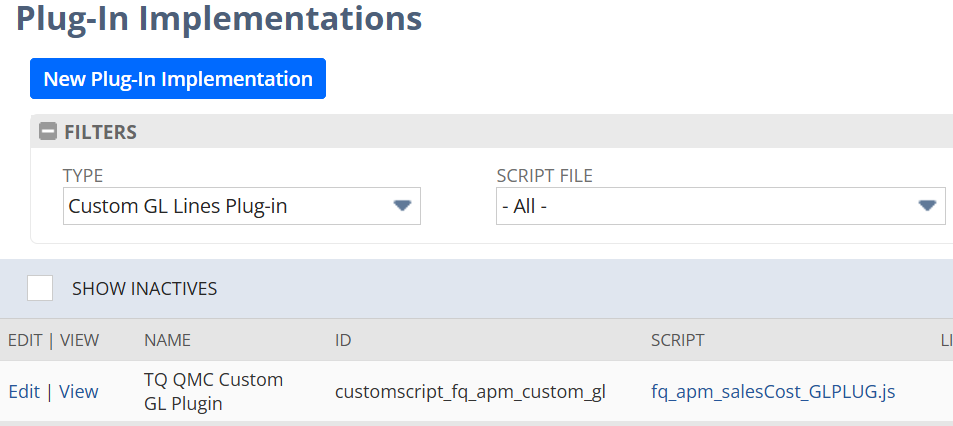
* [ ] Configure Custom GL Plug-In

***

## Need Assistance?

{% hint style="success" %}
If you continue to experience issues after following these installation steps, we recommend reaching out for further assistance.

Please contact us at <support@tradeqloud.com> with a detailed description of the problem. Our dedicated support team is committed to helping you resolve any challenges you may encounter.
{% endhint %}


# Sales Cost - Quick Start

This page provides a simple example to help you get started with Sales Cost.\
For more detailed instructions, refer to other sections throughout this documentation.

***

## Step-By-Step walkthrough

{% hint style="warning" %}

* Ensure all [Prequisites ](/qloud-margin-control/getting-started/prerequisites)are met
* Ensure Application is installed and Custom GL Plug-In is configured
* Ensure the [Setup](/qloud-margin-control/using-qmc/setup-guides/sales-costs-setup) is completed before proceeding
  {% endhint %}

{% stepper %}
{% step %}

### Login to NetSuite

*Important: Use **administrator credentials** to ensure having the necessary permissions.*
{% endstep %}

{% step %}

### Configure TradeQloud Setup

* [ ] Navigate to **TradeQloud** -> **Setup** -> **Setup**
* [ ] Enable **Demand Order Creation**
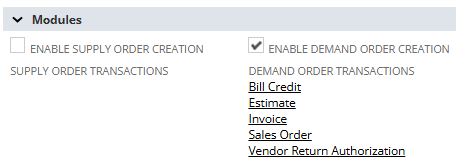
* [ ] Select Bill Credit, Estimate, Invoice, Sales Order, Vendor Return Authorizations in the **Demand Order Transactions** field

<figure><img src="/files/8KOXcIeG0OVB716U1PAx" alt=""><figcaption></figcaption></figure>

* [ ] Enable **Sales Costs**
* [ ] Select Credit Memo, Estimate, Invoice, Sales Order in the **Sales Cost Transactions** field
* [ ] Select applicable Subsidiaries / Locations in the relevant fields
* [ ] Set **Sales Cost Rounding** = 3
* [ ] Set **Default Sales Cost PO Creation Method** = No PO
* [ ] Select **Default Sales Cost Processing Method** = Change Rate and Custom GL Posting
* [ ] Select **Default Sales Cost Custom Price Handling Method** = Always Change Custom Rate
* [ ] Select **Default Percentage Rate Calculation Method** = Starting Rate
* [ ] Set **Automatically Process Sales Cost Variance** = T

{% hint style="info" %}
For detailed information about these settings, refer to the [TQ Setup page](/qloud-margin-control/using-qmc/setup-guides/tq-setup)
{% endhint %}
{% endstep %}

{% step %}

### Item Setup

#### Create a Service for Resale Item

Create a new item to use for Sales Cost Processing where desired to track Sales Costs. On the item select an income account and expense account. New GL accounts may be required.

#### Update Items

Update existing Items and ensure 'Track Sales Cost = T'
{% endstep %}

{% step %}

### Creating a Customer Specific Sales Cost Budget

The following is an example of applying a 10% discount per transaction line to a customer

* [ ] Open a **Customer record**
* [ ] Navigate to **TradeQloud** -> **TQ Sales Cost Budget** -> **New TQ Sales Cost Budget**
* [ ] **Fill in** the following fields
  * [ ] **Sales Cost Item**\
    \&#xNAN;*Specify the Sales Cost Item to be used for costing (from previous step)*
  * [ ] **Calculation Method =** Amount Line %
  * [ ] **Allocation Method** = Amount
  * [ ] **Percent = -10%**\
    \&#xNAN;*Depending on which Calculation Method you select, either the Rate or the Percent field will become active & required*
  * [ ] **Currency =** The default currency used in transactions

{% hint style="info" %}
[More information about Sales Costs Budgets](/qloud-margin-control/using-qmc/examples/sales-costs/sales-costs-budgets)
{% endhint %}
{% endstep %}

{% step %}

### Create First Transaction

* [ ] Create a **Sales Order**
* [ ] Select the **above used Customer**
* [ ] Select an **item (where Track Sales Cost = T)**.
* [ ] Click Add on the transaction line

On the TradeQloud tab you will see the available Sales Cost.
{% endstep %}
{% endstepper %}

***

## Need Assistance?

{% hint style="success" %}
If you continue to experience issues after following these installation steps, we recommend reaching out for further assistance.

Please contact us at <support@tradeqloud.com> with a detailed description of the problem. Our dedicated support team is committed to helping you resolve any challenges you may encounter.
{% endhint %}


# Landed Costs - Quick Start

This page provides a simple example to help you get started with Landed Cost.\
For more detailed instructions, refer to other sections throughout this documentation.

***

## Step-By-Step walkthrough

{% hint style="warning" %}

* Ensure all [Prequisites ](/qloud-margin-control/getting-started/prerequisites)are met
* Ensure Application is installed and Custom GL Plug-In is configured
* Ensure the [Setup](/qloud-margin-control/using-qmc/setup-guides/landed-costs-setup) is completed before proceeding
  {% endhint %}

{% stepper %}
{% step %}

### Login to NetSuite

*Important: Use **administrator credentials** to ensure having the necessary permissions.*
{% endstep %}

{% step %}

### Configure TradeQloud Setup

* [ ] Navigate to **TradeQloud** -> **Setup** -> **Setup**
* [ ] Enable **Supply Order Creation**
* [ ] Select Bill, Inventory Adjustment, Inventory Transfer, Purchase Order, Transfer Order in the **Supply Order Transactions** field

<div align="left"><figure><img src="/files/okTbCYj7Q57ZxYA0bpgT" alt="" width="223"><figcaption></figcaption></figure></div>

* [ ] Enable **Landed Costs**
* [ ] Select Purchase Order in the **Landed Cost Transactions** field
* [ ] Select applicable Subsidiaries / Locations in the relevant fields
* [ ] Set **Landed Cost Rounding** = 3
* [ ] Set **Update IR Rate Saved Search** = TQ QMC - Update Rate
* [ ] Set **Update IR Rate Based on Vendor Bill Rate** = T
* [ ] Select **Default Landed Cost Processing Method** = Create Individual Cost PO
* [ ] Select **Default Primary Landed Cost Variance Method** = Update Inventory Cost (Open Period Only)
* [ ] Select **Default Secondary Landed Cost Variance Method** = Do Nothing
* [ ] Set **Automatically Process Landed Cost Variance** = T

{% hint style="info" %}
For detailed information about these settings, refer to the [TQ Setup page](/qloud-margin-control/using-qmc/setup-guides/tq-setup)
{% endhint %}
{% endstep %}

{% step %}

### Item Setup

**Create a Service For Resale Item**

Create a new item to use for Landed Cost Processing where desired to track Landed Costs. On the item select an income account and expense account. New GL accounts may be required

#### Update Items

Update existing Items and ensure 'Track Landed Cost = T' (for inventory items)
{% endstep %}

{% step %}

### Create Landed Cost Budget - Vendor Specific

* [ ] Open a **Vendor record**
* [ ] Go to **Tab: TradeQloud** -> **TQ Landed Cost Budget** -> **New TQ Landed Cost Budget**
* [ ] **Fill in** the following fields
  * [ ] **Auto-Apply Transactions**\
    \&#xNAN;*Select all the transactions the Landed Cost will be applied to*
  * [ ] **Landed Cost Vendor**\
    \&#xNAN;*Select the Landed Cost Vendor for this budget*
  * [ ] **Landed Cost Item**\
    \&#xNAN;*Specify the Landed Cost Item to be used for costing.*
  * [ ] **Calculation Method**
  * [ ] **Allocation Method**
  * [ ] **Rate / Percent**\
    \&#xNAN;*Depending on which Calculation Method you select, either the Rate or the Percent field will become active & required*
  * [ ] **Currency**
  * [ ] **Primary Landed Cost Variance Method**\
    \&#xNAN;*Depending on the selection the Secondary Landed Cost Variance Method will activate*
  * [ ] **Secondary Landed Cost Variance Method**
* [ ] **Click Save**

{% hint style="info" %}
[More information about Landed Costs Budgets](/qloud-margin-control/using-qmc/examples/landed-costs/landed-cost-budgets)
{% endhint %}
{% endstep %}

{% step %}

### Create First Transaction

Create a Purchase Order, ensure that the item selected is included in the filter, and the discount should be applied!
{% endstep %}
{% endstepper %}

***

## Need Assistance?

{% hint style="success" %}
If you continue to experience issues after following these installation steps, we recommend reaching out for further assistance.

Please contact us at <support@tradeqloud.com> with a detailed description of the problem. Our dedicated support team is committed to helping you resolve any challenges you may encounter.
{% endhint %}


# Using QMC

This section shows you how to work with Qloud Margin Control (QMC) day to day. Start with the setup guides to configure the Sales Cost and Landed Cost modules, then explore worked examples that walk through budgeting, applying costs to transactions, and billing and variance management.

<table data-view="cards"><thead><tr><th></th><th></th><th data-hidden data-card-target data-type="content-ref"></th></tr></thead><tbody><tr><td><strong>Setup Guides</strong></td><td>Configure TradeQloud Setup and the Sales Cost and Landed Cost modules.</td><td><a href="/pages/KLRjDt3MDJLzdQPQEVQv">/pages/KLRjDt3MDJLzdQPQEVQv</a></td></tr><tr><td><strong>Examples</strong></td><td>Worked examples covering budgets, transaction costs, billing and variance.</td><td><a href="/pages/n3bzQXVeS2gc37tSSqks">/pages/n3bzQXVeS2gc37tSSqks</a></td></tr></tbody></table>


# Setup Guides

{% hint style="info" %}
[Open the diagram in Lucidchart](https://lucid.app/documents/embedded/c2386b6a-e5fa-422f-bbda-4dc1b6e24a04)
{% endhint %}

<table data-card-size="large" data-view="cards" data-full-width="false"><thead><tr><th></th><th></th><th></th><th data-hidden data-card-target data-type="content-ref"></th></tr></thead><tbody><tr><td><strong>TradeQloud Setup</strong></td><td>The initial setup and configuration options</td><td></td><td><a href="/pages/Hgbk1RDi5gms6TAQzGuw">/pages/Hgbk1RDi5gms6TAQzGuw</a></td></tr><tr><td><strong>Sales Cost Module Setup</strong></td><td>The setup and configuration options for the Sales Costs Module</td><td></td><td><a href="/pages/YxBixXujf0tfEiJUtQTJ">/pages/YxBixXujf0tfEiJUtQTJ</a></td></tr><tr><td><strong>Landed Cost Module Setup</strong></td><td>The setup and configuration options for the Landed Costs Module</td><td></td><td><a href="/pages/GfImF4CiNowfwwmAzaTe">/pages/GfImF4CiNowfwwmAzaTe</a></td></tr></tbody></table>

***

## Need Assistance?

{% hint style="success" %}
If you continue to experience issues after following one of the setup guides, we recommend reaching out for further assistance.

Please contact us at <support@tradeqloud.com> with a detailed description of the problem. Our dedicated support team is committed to helping you resolve any challenges you may encounter.
{% endhint %}


# TQ Setup

After installation, navigate to the TradeQloud Setup under **TradeQloud > Setup > Setup**

## Setup - Sales Costs

\
**Enable Sales Costs**\
Enables the Sales Cost Functionality

***

**Sales Cost Transactions**\
Select the demand transactions to which sales costs can be applied. After selection, the application will generate Transaction Sales Cost Budget records on the transaction, or it will offer users the option to add these manually to a transaction.

{% hint style="info" %}
It is recommend that **Sales Order & Invoice** is populated in the Sales Cost Transactions field
{% endhint %}

***

**Sales Cost Subsidiaries**\
Select the Subsidiaries that Sales Cost should execute on.

***

**Sales Cost Locations**\
Select the Locations that Sales Cost should execute on.

***

**Sales Cost Rounding**\
Allows specifying the decimal rounding precision for calculated sales cost values. This setting determines how the system rounds off the final amounts of Sales Costs allocated to each item or transaction line, ensuring consistency and accuracy in financial reporting.

{% hint style="info" %}
The recommend **Sales Cost Rounding** is 3 decimals
{% endhint %}

***

**Default Sale Cost PO Creation Method**\
The Cost PO Creation Method defines the standard procedure for generating Purchase Orders (POs) for costs. This setting determines the default value on Customer / Sales Cost Budget / Transaction Cost records but can be changed as required.\
\
[For more information, click here](/qloud-margin-control/using-qmc/setup-guides/sales-costs-setup/po-creation-methods).

***

**Default Sales Cost Processing Method**\
The Sales Cost Processing defines the strategy for how the Sales Cost Record is transacted. For more information on each method, please refer to the User Manual.\
\
[For more information, click here](/qloud-margin-control/using-qmc/setup-guides/sales-costs-setup/sales-cost-processing-methods).

{% hint style="info" %}
It is recommended that **Change Rate and Custom GL Posting** is set as the **Default Sales Cost Processing Method**
{% endhint %}

***

**Default Sales Cost Custom Price Handling Method**\
This setting allows for the differentiation between custom pricing derived from customer master data and custom pricing set on a transaction by a user.\
\
[For more information, click here.](/qloud-margin-control/using-qmc/setup-guides/sales-costs-setup/sales-cost-custom-price-handling)

{% hint style="info" %}
It is recommend that **Always Change Custom Rate** is set as the **Default Sales Cost Custom Price Handling Method**
{% endhint %}

***

**Default Percentage Rate Calculation Method**\
With this setting you can set the default value that's used as the starting value when a percentage Sales Cost is used to increase/decrease the rate.\
\
[For more information, click here.](/qloud-margin-control/using-qmc/setup-guides/sales-costs-setup/sales-cost-percentage-change-method)

{% hint style="info" %}
It is recommended that **Starting Rate** is used in **Default Percentage Rate Calculation Method**
{% endhint %}

***

**Automatically Process Sales Cost Variance**\
This setting allows you to automatically create a Journal when a Sales Cost PO with a variance is billed.

***

## Setup - Landed Costs

**Enable Landed Costs**\
Enables the Landed Cost Functionality

***

**Landed Cost Transactions**\
Select the supply transactions to which sales costs can be applied. After selection, the application will generate Transaction Landed Cost Budget records on the record, or it will offer users the option to add these manually to a transaction.

{% hint style="info" %}
It is recommend that **Purchase Order** is populated in the Landed Cost Transactions field
{% endhint %}

***

**Landed Cost Subsidiaries**\
Select the Subsidiaries that Landed Cost should execute on.

***

**Landed Cost Locations**\
Select the Locations that Landed Cost should execute on.

***

**Landed Cost Rounding**\
Allows specifying the decimal rounding precision for calculated landed cost values. This setting determines how the system rounds off the final amounts of landed costs allocated to each item or transaction line, ensuring consistency and accuracy in financial reporting.

{% hint style="info" %}
The recommend **Landed Cost Rounding** is 3 decimals
{% endhint %}

***

**Update IR Rate Saved Search**

Specifies the saved search used to identify any variances between the Item Receipt Rate and the Vendor Bill Rate. The saved search results identify which receipts are to be updated.

{% hint style="info" %}
It is recommended selecting the default saved search **TQ QMC - Update Rate**, unless there are specific requirements for Item Receipts that should not be updated
{% endhint %}

***

**Update IR Rate based on Vendor Bill Rate**

With this setting, when a Vendor Bill is saved, the rate between the Vendor Bill and the Item Receipt will be compared. Any variance rates will be updated on the Item Receipt.

***

**Default Landed Cost PO Creation Method**\
The Cost PO Creation Method defines the standard procedure for generating Purchase Orders (POs) for costs. This setting determines the default value on Vendor / Landed Cost Budget / Transaction Cost records but can be changed as required.\
\
[For more information, click here](/qloud-margin-control/using-qmc/setup-guides/landed-costs-setup/po-creation-methods).

***

**Default Primary Landed Cost Variance Method**\
The Primary method for handling variances (i.e. discrepancies) between budgeted and actual landed costs.

[For more information, click here](/qloud-margin-control/using-qmc/setup-guides/landed-costs-setup/primary-landed-cost-variance-method).

{% hint style="info" %}
It is recommended to select **Update Inventory Cost (Open Period Only)** as **Default Primary Landed Cost Variance Method**
{% endhint %}

***

**Default Secondary Landed Cost Variance Method**\
The Secondary method for handling variances (i.e. discrepancies) between budgeted and actual landed costs. In case the Primary method is Update Inventory Cost (Open Period Only), this setting is mandatory.

[For more information, click here](/qloud-margin-control/using-qmc/setup-guides/landed-costs-setup/secondary-landed-cost-variance-method).

{% hint style="info" %}
It is recommended to select **Journal to COGS** as the **Default Secondary Landed Cost Variance Method** field
{% endhint %}

***

**Automatically Process Landed Cost Variance**\
This setting allows you to automatically create a Journal when a Landed Cost PO with a variance is billed.

{% hint style="info" %}
It is only recommend that the **Automatically Process Landed Cost Variance** is enabled after one month of transacting using QMC to ensure results are understood before impacting the general ledger
{% endhint %}

***

## Need Assistance?

{% hint style="success" %}
If you continue to experience issues after following this guide, we recommend reaching out for further assistance.

Please contact us at <support@tradeqloud.com> with a detailed description of the problem. Our dedicated support team is committed to helping you resolve any challenges you may encounter.
{% endhint %}


# Landed Costs Setup

The following setup is required before the application can be utilized:

{% hint style="info" %}
[Open the diagram in Lucidchart](https://lucid.app/documents/embedded/23b92851-817e-475e-b85e-af1b10f4b667)
{% endhint %}

### Setup GL Accounts

General Ledger accounts are required to be created to ensure accurate postings to the general ledger.

For each landed cost category utilized, three accounts should be setup, being

* Other Current Liability Account
* COGS Account
* Variance Account

#### Other Current Liability Account

This account is used on the following master data records:

* Landed Cost Category
* Service Item

When an Item Receipt is processed and a Landed Cost is applied, this account is credited. For example, if an Item Receipt is created, and two Landed Costs are Applied (Customs and Transportation):

<div align="left"><figure><img src="/files/lrCIhH9SNwKoeo6yyOaX" alt=""><figcaption></figcaption></figure></div>

The following GL Impact will occur:

<figure><img src="/files/3cfeTYaJUKG7LXQ1tN3i" alt=""><figcaption></figcaption></figure>

When the Vendor Bill is then processed for the Landed Costs, this account is debited.

<div align="left"><figure><img src="/files/FkquqKeQwPWd63tU6iMf" alt=""><figcaption></figcaption></figure></div>

The following GL Impact will occur:

<div align="left"><figure><img src="/files/2SsA9hmZSfmDgWSpo6uC" alt=""><figcaption></figcaption></figure></div>

#### COGS Account

This account is used when posting variances for landed costs to the COGS account.

#### Variance Account

This account is used when posting variances for landed costs to the variance account.

{% hint style="success" %}
It is recommended to use Summary Accounts in the General Ledger. For example
{% endhint %}

<div align="left"><figure><img src="/files/asIB5VB4kIcGig54NJpI" alt=""><figcaption></figcaption></figure></div>

***

### Setup Cost Categories

Landed cost categories identify the expense account costs are posted to when the category is selected. For each landed cost type that will be tracked, a landed cost category is required to be setup.

Below an example of a cost category for 'LC - Transport' using the same account defined above

<div align="left" data-full-width="false"><figure><img src="/files/uXJPKBz3yDeW10HzBLDA" alt=""><figcaption></figcaption></figure></div>

***

### Create Landed Cost Items (Service Items for Resale)

Landed Cost Items are used to include additional charges on purchases orders and vendor bills as separate line items. For example, you use a transport company to deliver items you need. Two bills are received:

* One from the vendor that charges you for the items.
* One from the transport company that charges you only for transporting the items.

When entering the bill for transport, you must select an item to associate the transport expense as a landed cost. Since the transport bill is not associated with an inventory item, you must create a landed cost item record for transport.

***

### Update Existing Vendors

Changes to be made to existing vendor records is limited. On vendor level the **Cost PO creation Method** is to be determined. The Cost PO Creation Method defines the standard procedure for generating Purchase Orders (POs) for costs associated with this particular vendor. This setting determines the default value on Cost Budget / Transaction Cost records but can be changed as required.

<table data-full-width="false"><thead><tr><th width="198">Name</th><th>Description</th></tr></thead><tbody><tr><td>No Cost PO</td><td>This option indicates that no Purchase Order will be created. This is typically used for internal costs.</td></tr><tr><td>Create Individual Cost PO</td><td>This option indicates that a new Purchase Order will be created specifically for this cost.</td></tr><tr><td>Create Grouped Cost PO</td><td>This option indicates that the costs will be grouped together with other costs for the same entity on a Purchase Order .</td></tr><tr><td>Add to Source Transaction</td><td>This option indicates that the costs will be added to the Source Transaction, merging the costs into a single transaction.</td></tr><tr><td>Add to existing PO</td><td>This option indicates that the landed cost should be added to any existing (Cost/Source) Purchase Order. If selected, the Purchase Order must also be selected .</td></tr></tbody></table>

The Cost PO Creation methods application hierarchy is as follows.

{% hint style="info" %}
[Open the diagram in Lucidchart](https://lucid.app/documents/embedded/2c86a932-dc9c-4fb1-961a-4b425d42159a)
{% endhint %}

### Update Existing Items

Tracking Landed Costs for items being purchased must be enabled on Item level. To activate Tracking of Landed Cost set the Item field "**Track Landed Cost**" to Yes.

{% hint style="success" %}
Once setup has been completed, landed cost budgets can now be created.

Please read [Using the Application - Landed Costs ](/qloud-margin-control/using-qmc/examples/landed-costs)for more detail.
{% endhint %}

***

## Need Assistance?

{% hint style="success" %}
If you continue to experience issues after following this guide, we recommend reaching out for further assistance.

Please contact us at <support@tradeqloud.com> with a detailed description of the problem. Our dedicated support team is committed to helping you resolve any challenges you may encounter.
{% endhint %}


# PO Creation Methods

This setting defines the strategies for generating Purchase Orders (POs) related to costs.

Within the application, QMC supports the creation of Purchases Orders to send to Vendors for additional costs. The system will generate a standard NetSuite Purchase Order.

Calculated values on the Cost record are used to determine the item, rates, and amounts on the Purchase Order.

The application supports multiple PO creation methods. The default method is defined on the TradeQloud Setup record, but can be modified on budget / transaction records. The following methods are supported:

<table><thead><tr><th>Name</th><th>Description</th><th data-type="checkbox">Available for Landed Costs?</th><th data-type="checkbox">Available for Sales Costs?</th></tr></thead><tbody><tr><td>No PO</td><td>This option indicates that no Purchase Order will be created. This is typically used for internal costs.</td><td>true</td><td>true</td></tr><tr><td>Create Individual Cost PO</td><td>This option indicates that a new, Purchase Order will be created specifically for this cost.</td><td>true</td><td>true</td></tr><tr><td>Consolidate with other Costs on same PO</td><td>This option indicates that the costs will be grouped together with other costs for the same entity on a Purchase Order.</td><td>true</td><td>true</td></tr><tr><td>Add to Source Transaction</td><td>This option indicates that the costs will be added to the Source Transaction, merging the costs into a single transaction.</td><td>false</td><td>false</td></tr><tr><td>Add to existing PO</td><td>This option indicates that the landed cost should be added to an existing Purchase Order. If selected, the Purchase Order must also be selected.</td><td>false</td><td>false</td></tr></tbody></table>


# Landed Cost PO Creation Methods

This setting determines the default value on Vendor / Landed Cost Budget / Transaction Cost records

The Cost PO Creation Method defines the standard procedure for generating Purchase Orders (POs) for landed costs.

The default method is defined on the TradeQloud Setup record, but can be modified on budget / transaction records. The following methods are supported:

| Name                                    | Description                                                                                                                                      |
| --------------------------------------- | ------------------------------------------------------------------------------------------------------------------------------------------------ |
| No PO                                   | This option indicates that no Purchase Order will be created. This is typically used for internal costs.                                         |
| Create Individual Cost PO               | This option indicates that a new, Purchase Order will be created specifically for this cost.                                                     |
| Consolidate with other Costs on same PO | This option indicates that the costs will be grouped together with other costs for the same entity on a Purchase Order.                          |
| Add to Source Transaction               | This option indicates that the costs will be added to the Source Transaction, merging the costs into a single transaction.                       |
| Add to existing PO                      | This option indicates that the landed cost should be added to an existing Purchase Order. If selected, the Purchase Order must also be selected. |


# Primary Landed Cost Variance Method

The Primary method for handling variances (i.e. discrepancies) between budgeted and actual landed costs. When a Landed Cost Purchase Order is billed and a variance is identified, the application applies this method first (falling back to the Secondary method where required). The following methods are supported:

| Name                                         | Description                                                                                                                                                                                                                                                                                                                                                |
| -------------------------------------------- | ---------------------------------------------------------------------------------------------------------------------------------------------------------------------------------------------------------------------------------------------------------------------------------------------------------------------------------------------------------- |
| Do Nothing                                   | No action is taken to address the landed cost variance. The variance remains unadjusted in the system, allowing users to manually review and handle discrepancies as they see fit.                                                                                                                                                                         |

| Journal to COGS                              | Creates a journal entry to adjust the Cost of Goods Sold (COGS) account for the landed cost variance. This method directly impacts the income statement by recognizing the variance as an expense, ensuring accurate profit and loss reporting.                                                                                                            |
| Journal to Variance                          | Creates a journal entry to a specific variance account to record the landed cost variance. This method segregates the variance from regular COGS and inventory adjustments, allowing for detailed tracking and analysis of landed cost discrepancies.                                                                                                      |
| Update Inventory Cost (Open & Closed Period) | If the related Item Receipt is in an Open Period, it adjusts the landed cost on the Item Receipt to reflect the actual landed cost, ensuring the recorded cost matches the actual cost incurred. If the related Item Receipt is in a Closed Period, an inventory adjustment will be created to account for the variance.                                   |
| Update Inventory Cost (Open Period Only)     | If the related Item Receipt is in an Open Period, it adjusts the landed cost on the Item Receipt to reflect the actual landed cost, ensuring the recorded cost matches the actual cost incurred. If the related Item Receipt is in a Closed Period, no further action is processed. When selecting this option, selecting a Secondary Method is mandatory. |


# Secondary Landed Cost Variance Method

The Secondary method for handling variances (i.e. discrepancies) between budgeted and actual landed costs. It is applied when the Primary method cannot resolve the variance. In case the Primary method is Update Inventory Cost (Open Period Only), this setting is mandatory, as it determines how variances are handled when the related Item Receipt falls in a Closed Period. The following methods are supported:

| Name                | Description                                                                                                                                                                                                                                           |
| ------------------- | ----------------------------------------------------------------------------------------------------------------------------------------------------------------------------------------------------------------------------------------------------- |
| Do Nothing          | No action is taken to address the landed cost variance. The variance remains unadjusted in the system, allowing users to manually review and handle discrepancies as they see fit.                                                                    |
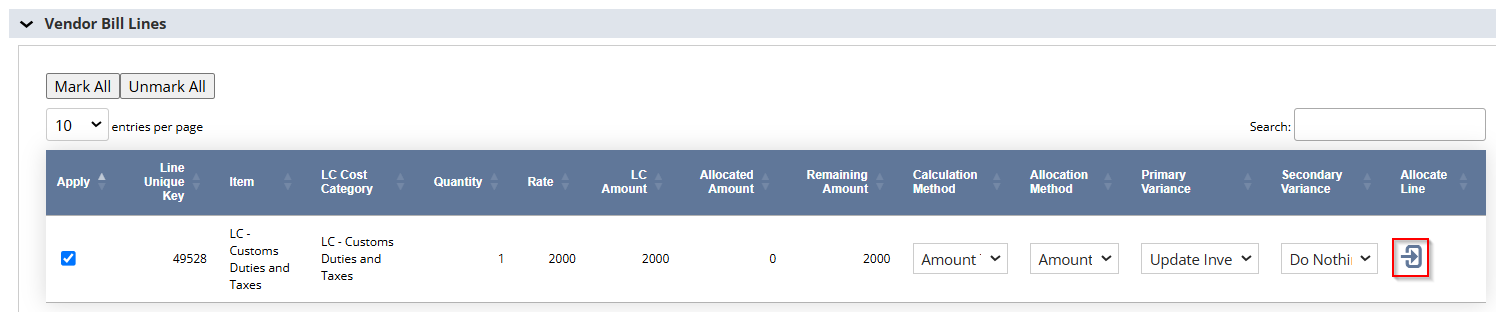
| Journal to COGS     | Creates a journal entry to adjust the Cost of Goods Sold (COGS) account for the landed cost variance. This method directly impacts the income statement by recognizing the variance as an expense, ensuring accurate profit and loss reporting.       |
| Journal to Variance | Creates a journal entry to a specific variance account to record the landed cost variance. This method segregates the variance from regular COGS and inventory adjustments, allowing for detailed tracking and analysis of landed cost discrepancies. |


# Sales Costs Setup

The following setup is required before the application can be utilized

{% hint style="info" %}
[Open the diagram in Lucidchart](https://lucid.app/documents/embedded/d58baeb8-7d34-440f-a586-5bed6ae7efd4)
{% endhint %}

## Setup GL Accounts

General Ledger accounts are required to be created to ensure accurate postings to the general ledger.

For each sales cost item utilized, two accounts should be setup, being

* Income Account - for any Sales Costs with Custom GL Posting, this is the Amount (Debit)
* Expense Account - for any Sales Costs with Custom GL Posting, this is the Amount (Credit)

Here is an example of the accounts on an item:

<figure><img src="/files/1SSUgttzWUmXl3KeZ32s" alt=""><figcaption></figcaption></figure>

And here is an example of a Sales Cost using Custom GL Posting:

<figure><img src="/files/zOHpTlZzAZqHQhklSyGF" alt=""><figcaption></figcaption></figure>

***

### Create Sales Cost Items (Other Charge / Service Items for Resale)

Sales Cost Items are used to include additional charges on sales orders and invoices. These items should be setup as either Other Charge or Service Items for Resale. These items can be used on the following Sales Cost Processing Methods:

* Add as Line Item - Grouped
* Add as Line Item - Individual
* Change Rate
* Change Rate and Custom GL Posting
* Custom GL Posting
* No GL Posting

For more information

{% hint style="info" %}
For more information about the supported Sales Cost Processing methods, read [Using the Application - Sales Costs](/qloud-margin-control/using-qmc/examples/sales-costs).
{% endhint %}

***

### Create Discount Items

Discount Items are used when using Sales Cost Processing Method = Add as Discount Item.

This processing method aligns to standard NetSuite Discount Items., and inserts a discount line underneath each applicable line item. This can be an increase or decrease.

{% hint style="info" %}
For more information about NetSuite discount Items, see [NetSuite Help](https://docs.oracle.com/en/cloud/saas/netsuite/ns-online-help/section_N2248474.html)
{% endhint %}

***

### Update Existing Items

Tracking Sales Costs for Items being Sales must be enabled on Item records.

To enable the Tracking of Sales Costs on Items set the Item field "**Track Sales Cost**" to Yes.

{% hint style="success" %}
Once setup has been completed, sales cost budgets can now be created.

Please read [Using the Application - Sales Costs ](/qloud-margin-control/using-qmc/examples/sales-costs)for more detail.
{% endhint %}

***


# PO Creation Methods

This setting defines the strategies for generating Purchase Orders (POs) related to costs.

Within the application, QMC supports the creation of Purchases Orders to send to Vendors for additional costs. The system will generate a standard NetSuite Purchase Order.

Calculated values on the Cost record are used to determine the item, rates, and amounts on the Purchase Order.

The application supports multiple PO creation methods. The default method is defined on the TradeQloud Setup record, but can be modified on budget / transaction records. The following methods are supported:

<table><thead><tr><th>Name</th><th>Description</th><th data-type="checkbox">Available for Landed Costs?</th><th data-type="checkbox">Available for Sales Costs?</th></tr></thead><tbody><tr><td>No PO</td><td>This option indicates that no Purchase Order will be created. This is typically used for internal costs.</td><td>true</td><td>true</td></tr><tr><td>Create Individual Cost PO</td><td>This option indicates that a new, Purchase Order will be created specifically for this cost.</td><td>true</td><td>true</td></tr><tr><td>Consolidate with other Costs on same PO</td><td>This option indicates that the costs will be grouped together with other costs for the same entity on a Purchase Order.</td><td>true</td><td>true</td></tr><tr><td>Add to Source Transaction</td><td>This option indicates that the costs will be added to the Source Transaction, merging the costs into a single transaction.</td><td>false</td><td>false</td></tr><tr><td>Add to existing PO</td><td>This option indicates that the landed cost should be added to an existing Purchase Order. If selected, the Purchase Order must also be selected.</td><td>false</td><td>false</td></tr></tbody></table>


# Sales Cost Processing Methods

This setting defines the strategy for processing the Sales Cost record when transacting.

Within the application, QMC supports advanced processing methods for how costs should be transacted in the system. Understanding these methods will allow you to configure the application to suit your needs.

The default method is defined on the TradeQloud Setup record, but can be modified on budget / transaction records. The following methods are supported:

| Name                               | Description                                                                                                                                     |
| ---------------------------------- | ----------------------------------------------------------------------------------------------------------------------------------------------- |
| Add as Line Item - Individual      | Will add each sales cost budget as a separate line item on the transaction.                                                                     |
| Add as Line Item - Grouped         | Will group each sales cost budget per sales cost and combines into a transaction line.                                                          |
| Add as Discount Item               | Applies the sales cost as a discount item, inserting a discount line underneath each applicable line item. This can be an increase or decrease. |
| Change Rate with Custom GL Posting | Adjusts the rate on the transaction and posts the sales cost as a custom GL posting based on the item selected.                                 |
| Change Rate                        | Changes (i.e. increases or decreases) the rate on the transaction to include the sales cost, directly altering the transaction amount.          |
| Custom GL Posting                  | Posts the sales cost to the general ledger based on the item selected, without altering the transaction amount or rates.                        |
| No GL Posting                      | Processes the sales cost without posting any entries to the General Ledger, ensuring no financial impact.                                       |

{% hint style="success" %}
It is recommended that **Change Rate and Custom GL Posting** is set as the **Default Sales Cost Processing Method**
{% endhint %}


# Sales Cost Custom Price Handling

This setting determines how lines with a 'Custom' price level are handled

The application allows different handling of lines that have a 'Custom' Price Level associated.

The default method is defined on the TradeQloud Setup record, but can be modified on budget / transaction records.

This setting only applies when:

* The transaction line has ‘Custom’ set as the price level
* A Sales Cost applies that has ‘Rate Change’ set to TRUE

The following methods are supported:

<table data-full-width="false"><thead><tr><th width="266">Name</th><th>Description</th></tr></thead><tbody><tr><td>Always Change Custom Rate</td><td>Sales Cost will modify the rate in all scenarios.</td></tr><tr><td>Change Manually Entered Rates Only</td><td>Sales Cost will modify the rate if a user/integration or script has (manually) changed the rate on the transaction.</td></tr><tr><td>Change Customer/Item Specific Custom Pricing</td><td>Sales Cost will modify the rate if the rate is sourced from the Customer Item Pricing record.</td></tr><tr><td>Never Change Custom Rate</td><td>Sales Cost will never modify the rate.</td></tr></tbody></table>

{% hint style="success" %}
It is recommend that **Always Change Custom Rate** is set as the **Default Sales Cost Custom Price Handling Method**
{% endhint %}


# Sales Cost Percentage Change Method

This setting defines the calculation method used when using percentage change calculation methods.

Within the application, QMC supports the changing of rates using a percentage. For example increasing a price by 10%.

The default method is defined on the TradeQloud Setup record, but can be modified on budget / transaction records. The following methods are supported:

<table data-full-width="false"><thead><tr><th width="270">Name</th><th>Description</th></tr></thead><tbody><tr><td>Starting Rate</td><td>This is the rate (custom or price level) entered on the transaction line during creation of the transaction</td></tr><tr><td>Rate</td><td>This is the calculated price after all sales costs set as 'Change Rate' = TRUE have been applied to the starting rate</td></tr><tr><td>Net Rate</td><td>This is the calculated net rate after all sales costs set as 'Change Rate' = FALSE have been applied</td></tr></tbody></table>

{% hint style="success" %}
It is recommended that **Starting Rate** is used in **Default**
{% endhint %}


# Sales Cost Variance Handling

Sales Cost can track and post variances. The system will automatically create a journal entry to correct any variances if this setting is enabled

The default method is defined on the TradeQloud Setup record, but can be modified on budget / transaction records.

For example a Sales Cost Purchase Order is created for €500 (1000 quantity @ 0,50)

<figure><img src="/files/AUzIGu7muEYyMTBQDCrm" alt=""><figcaption></figcaption></figure>

The following accounts are defined on the SC - Private Labelling Item:

<figure><img src="/files/oSwG3E9IDP05T3sgFxDm" alt=""><figcaption></figcaption></figure>

If a Vendor Bill is then created from the Purchase Order for a rate of 0,75 (resulting in a €250 variance)

<figure><img src="/files/Q1QpBu1Vig6H2Pp3rzb0" alt=""><figcaption></figcaption></figure>

The application will then create a Journal to capture this variance in the general ledger

<figure><img src="/files/OxF0A9qAyV86QGwAbq3s" alt=""><figcaption></figcaption></figure>


# Custom GL Plug-in Setup

The Custom GL Lines Plug-in modifies the general ledger impact of standard and custom transactions. Use the Custom GL Lines Plug-in to comply with a wide range of global accounting standards by applying custom transaction logic that adds lines to the NetSuite GL Impact page.

QMC Sales Cost leverages the NetSuite Custom GL Plug-in to post any costs / discounts to the general ledger. After installation, the Plug-In must be configured.

***

## Plug-In Implementation Configuration

1. Navigate to **Customization > Plug-Ins > Plug-in Implementations**
2. Filter on Type = Custom GL Lines Plug-in

<figure><img src="/files/AZkchjeejajZ5gg2gt0F" alt=""><figcaption></figcaption></figure>

3. Click View
4. Click Configure
5. Asynchronous = T
6. Transaction Type = Credit Memo, Invoice
7. Subsidiaries = All
8. Accounting Books = All

## Manage Plug-In

Once configured, the plug-in must be enabled

1. Navigate to **Customization > Plug-ins > Manage Plug-ins**
2. Check 'TQ QMC Custom GL Plugin
3. Save

## Need Assistance?

{% hint style="success" %}
If you continue to experience issues after following this guide, we recommend reaching out for further assistance.

Please contact us at <support@tradeqloud.com> with a detailed description of the problem. Our dedicated support team is committed to helping you resolve any challenges you may encounter.
{% endhint %}


# Filtering

### Create a Landed / Sales Cost Filter

*This is an optional step*

* [ ] Go to **Menu: TradeQloud** -> **Landed** / **Sales Cost** -> **TQ Landed / Sales Cost Filter** -> **New**
* [ ] **Fill in the following fields**
  * [ ] **Landed / Sales Cost Budget**\
    \&#xNAN;*Select the Budget (from step 1) where this filter will be applied to*
  * [ ] **Filter Type**\
    \&#xNAN;*Depending on the filter type, more fields will become available.*

{% tabs %}
{% tab title="Items" %}

* [ ] Select an pre-created **'Item Saved Search'** as basis for filtering
* [ ] **Select** or **unselect** the **items from the filtering** as required
* [ ] **Click Save**

This will automatically create a **TQ Sales Cost Filter Item Application Record**

If new items are created the match the filter, they will be included by default

{% hint style="info" %}
[More information about Sales Cost Budget Filters](/qloud-margin-control/using-qmc/examples/sales-costs/sales-cost-budget-filters)
{% endhint %}
{% endtab %}

{% tab title="Transaction Body Field" %}

* [ ] Select the **Record Types** this should be applied to
* [ ] Select the Transaction **Field Name** to be filtered on
  * [ ] If the field has any joins, select the desired value in the **Value List**
  * [ ] Select the **Field Data Type** you want to use\
    \&#xNAN;*Only List/Record or Multiple Select can be selected*
* [ ] Select the **Operator**
* [ ] Select the value for the Operator to use in the **Value** field
* [ ] **Click Save**

{% hint style="info" %}
[More information about Sales Cost Budget Filters](/qloud-margin-control/using-qmc/examples/sales-costs/sales-cost-budget-filters)
{% endhint %}
{% endtab %}

{% tab title="Transaction Line Field" %}

* [ ] Select the **Record Types** this should be applied to
* [ ] Select the Transaction **Field Name** to be filtered on
  * [ ] If the field has any joins, select the desired value in the **Value List**
  * [ ] Select the **Field Data Type** you want to use\
    \&#xNAN;*Only List/Record or Multiple Select can be selected*
* [ ] Select the **Operator**
* [ ] Select the value for the Operator to use in the **Value** field
* [ ] **Click Save**

{% hint style="info" %}
[More information about Sales Cost Budget Filters](/qloud-margin-control/using-qmc/examples/sales-costs/sales-cost-budget-filters)
{% endhint %}
{% endtab %}
{% endtabs %}


# Examples

Detailed documentation on how to manage the core modules.

<table data-card-size="large" data-view="cards" data-full-width="false"><thead><tr><th></th><th></th><th></th><th data-hidden data-card-target data-type="content-ref"></th></tr></thead><tbody><tr><td></td><td><strong>TradeQloud Landed Costs</strong></td><td>Learn how to use TradeQloud Landed Cost functionalities</td><td><a href="/pages/Ws7dWVtpVoImvSrxP1kz">/pages/Ws7dWVtpVoImvSrxP1kz</a></td></tr><tr><td></td><td><strong>TradeQloud Sales Costs</strong></td><td>Learn how to use TradeQloud Sales Cost functionalities</td><td><a href="/pages/YrxuXqSlhgVIAw4ZcRY5">/pages/YrxuXqSlhgVIAw4ZcRY5</a></td></tr></tbody></table>


# Landed Costs

{% hint style="info" %}
[Open the diagram in Lucidchart](https://lucid.app/documents/embedded/f629bd61-002d-47c1-b61a-2a0dde683283)
{% endhint %}

* Create Landed Cost Budget records against vendors, items or generic costs
* Automatic application of budget records to transactions, with the ability to add new or modify budget records on a transaction
* Create or add Landed Costs to new or existing Purchase Orders
* Automatic application of Costs to Purchase Orders and Item Receipts without user intervention
* Automatic variance handling and reconciliation

***

## Need Assistance?

{% hint style="success" %}
If you continue to experience issues after following this guide, we recommend reaching out for further assistance.

Please contact us at <support@tradeqloud.com> with a detailed description of the problem. Our dedicated support team is committed to helping you resolve any challenges you may encounter.
{% endhint %}


# Landed Cost Budgets

{% hint style="warning" %}
Please complete the [setup ](/qloud-margin-control/using-qmc/setup-guides/landed-costs-setup)first before proceeding with creating Landed Cost Budgets
{% endhint %}

{% hint style="info" %}
[Open the diagram in Lucidchart](https://lucid.app/documents/embedded/cee78239-bcf0-47fb-b96d-b6b256b4f9d4)
{% endhint %}

### Create Landed Cost Budgets <a href="#create-landed-costs-budgets" id="create-landed-costs-budgets"></a>

When all required setup is finalized Landed Cost Budget records can be created. There are different sources where the Budget records can be created.

<table data-full-width="false"><thead><tr><th width="269">Type</th><th>Description</th></tr></thead><tbody><tr><td>Vendor Landed Cost Budgets</td><td><p>Are Landed Costs to be applied to a single Vendor.<br>To create the Vendor Landed Cost Budget record -</p><p>Open a Vendor Record > <strong>Navigate to TradeQloud > TQ Landed Cost Budget > New TQ Landed Cost Budget</strong></p></td></tr><tr><td>Item Landed Cost Budgets</td><td><p>Are Landed Costs to be applied to a single Item.<br>To create the Item Landed Cost Budget record -</p><p>Open an Item Record > <strong>Navigate to TradeQloud > Landed Cost Budget > New TQ Landed Cost Budget</strong></p></td></tr><tr><td>Generic Landed Cost Budgets</td><td>Navigate <strong>TradeQloud > Landed Cost > TQ Landed Cost Budget > New</strong></td></tr></tbody></table>

When creating a Landed Cost Budget record the following data fields are available.

<table data-full-width="false"><thead><tr><th width="150">Field Name</th><th width="477">Description</th><th>Mandatory</th></tr></thead><tbody><tr><td>Auto-Apply Transactions</td><td>Specify transaction types to which the budget record should be automatically applied.</td><td>No</td></tr><tr><td>Vendor</td><td>Identifies the primary vendor associated with the goods or services being procured. <mark style="color:orange;"><strong>This field is defaulted and shown as inline text when created from Vendor record.</strong></mark></td><td>No</td></tr><tr><td>Item</td><td>Identifies the specific item within transactions that the landed cost is associated with. <mark style="color:orange;"><strong>This field is defaulted and shown as inline text when created from Item record.</strong></mark></td><td>No</td></tr><tr><td>Landed Cost Vendor</td><td>Designates the vendor responsible for additional landed costs. This can be the same as the Vendor.</td><td>Yes</td></tr><tr><td>PO Creation Method</td><td>Defines the approach for generating Purchase Orders for landed costs.</td><td>Yes</td></tr><tr><td>Description</td><td>Provide an overview or details about the budget record. This is shown on the Landed Cost Purchase Order.</td><td>No</td></tr><tr><td>Primary Landed Cost Variance Method</td><td>Select a Primary method for handling discrepancies between estimated and actual landed costs.</td><td>No</td></tr><tr><td>Secondary Landed Cost Variance Method</td><td>Select a Secondary method for handling discrepancies between estimated and actual landed costs. <mark style="color:orange;"><strong>This is mandatory if the primary method is Update Inventory Cost (Open Period Only)</strong></mark></td><td>No</td></tr><tr><td>Landed Cost Item</td><td><p>Specifies the item which is used on the landed Cost Purchase Order.</p><p>The item must be <strong>Other Charge for Purchase</strong> and the native field <strong>‘Can Be Fulfilled / Received’</strong> should be set to <strong>FALSE</strong>.</p></td><td>Yes</td></tr><tr><td>Landed Cost Category</td><td>This is the landed cost item category. This is sourced from the landed cost item</td><td>No</td></tr><tr><td>Calculation Method</td><td>Describes the method used to allocate landed costs to items/transactions.</td><td>Yes</td></tr><tr><td>Rate</td><td>Indicates the rate to use in the cost calculation.</td><td>No</td></tr><tr><td>Percent</td><td>Denotes the percentage used in the calculation of landed costs, relevant for certain calculation methods.</td><td>No</td></tr><tr><td>Currency</td><td>Specifies the currency in which the landed costs are calculated and applied.</td><td>Yes</td></tr></tbody></table>

### Create Landed Cost Budget Filters <a href="#create-landed-cost-budget-filters" id="create-landed-cost-budget-filters"></a>

When a Landed Cost Budget record is saved additional filters for the cost application can be added by creating a **TQ Landed Cost Filter** record. The Landed Cost Filter record is designed to enhance the filtering capability of Landed Cost Budget records that are applied from Entity or Item to the Transaction during the Landed Cost process.

On creation of this records the fields under the Landed Cost Budget Information Field Group are inherited from the Landed Cost Budget Record. Additional data to be provided is based on the selected Filter Type. The following options are available

#### Items <a href="#tq-landed-cost-filter-item-application-records" id="tq-landed-cost-filter-item-application-records"></a>

When this filter type is selected the Item Filter - Field Group is enabled. This filter type requires an Item Saved Search as basis for filtering. Based on the Saved Search Criteria the results are shown in a data table. In this data table the users can select or unselect items from the filtering if required.

When the Filter is saved, the application will automatically create **TQ Landed Cost Filter Item Application Records**. This record is designed to enhance the Item filtering capability on the Landed Cost Filter.

<div data-full-width="false"><figure><img src="/files/UEerfMIN2l4k4LoQRhKe" alt=""><figcaption></figcaption></figure></div>

After selecting 'Apply' and saving the filter, a **TQ Landed Cost Filter Item Application Record** will be created:

<div data-full-width="false"><figure><img src="/files/RZaNZfo2LD5fL4ujhu3l" alt=""><figcaption></figcaption></figure></div>

If new items are created that match the saved search criteria, the system will automatically create a new **TQ Landed Cost Filter Item Application Record.**

#### Transaction Body Field / Transaction Line Field

When either of the Transaction Field filter types is selected the Transaction Filter - Field Group is enabled. Following fields can be configured to create the desired filtering.

<table data-full-width="false"><thead><tr><th width="220">Field Name</th><th>Description</th></tr></thead><tbody><tr><td>Record Types</td><td>Select the transaction types the Landed Cost Budget should be applied to.</td></tr><tr><td>Field Name</td><td>Select the desired Transaction field (Body or Line) to be filtered on.</td></tr><tr><td>Value List</td><td>If applicable, join values are shown to specify the filter value</td></tr><tr><td>Field Data Type</td><td>Will show the field type for the selected field based on the Value List. The field will show as Disabled in case a single option is available. Field as Country of Origin or Item will provide multiple options such as List/Record or Multiselect.</td></tr><tr><td>Operator</td><td><p>Provides options on how the filter is to be applied. Examples are:<br>Field Name = Class<br>Value List = Class</p><p>Operator Options: ANYOF, NONEOF, ISEMPTY, ISNOTEMPTY</p><p>Field Name = Amount</p><p>Value List = NONE</p><p>Operator Options: EQUALTO, NOTEQUALTO, GREATERTHAN, LESSTHEN, etc.</p></td></tr><tr><td>Value</td><td>Value(s) with which the Operator will use to filter</td></tr></tbody></table>

***

## Need Assistance?

{% hint style="success" %}
If you continue to experience issues after following this guide, we recommend reaching out for further assistance.

Please contact us at <support@tradeqloud.com> with a detailed description of the problem. Our dedicated support team is committed to helping you resolve any challenges you may encounter.
{% endhint %}


# Transaction Landed Costs

{% hint style="info" %}
[Open the diagram in Lucidchart](https://lucid.app/documents/embedded/cd7b5b17-30f4-4b0e-a835-a6a30dbb379f)
{% endhint %}

### Creating a Transaction i.e. Purchase Order <a href="#creating-a-transaction-i.e.-purchase-order" id="creating-a-transaction-i.e.-purchase-order"></a>

When creating a Purchase Order, the QMC application introduces additional functionality on the TradeQloud tab.

**Calculation of Landed Cost Budgets**

As transaction lines are entered, any applicable Landed Cost Budgets will be displayed on the Landed Cost Budget field group.

<div data-full-width="false"><figure><img src="/files/kZdcJ4IFOjIAxpC4CyXT" alt=""><figcaption><p>Example of Landed Costs being calculated on transaction entry</p></figcaption></figure></div>

This allows for users to see which landed costs are applicable, before the transaction is saved. Changes can be made as follows:

* Landed Costs can be excluded by checking the **Apply** check-box
* Rates / Percentages can be modified

**Landed Cost Impact**

Another field group displays the impact that the Landed Costs have on the rate, as well as the total cost

<div data-full-width="false"><figure><img src="/files/5fap96jRDffg46mGJ1Pn" alt=""><figcaption><p>Example of Landed Cost Impact Table</p></figcaption></figure></div>

* **Item, Quantity, Rate, Amount** are all sourced from the transaction
* **LC Impact** is calculated as the Total Landed Cost / Quantity
* **Landed Rate** is calculated as the Rate + LC Impact
* **Total Cost** is calculated as the Amount + Landed Cost

### TQ Transaction Landed Cost <a href="#tq-transaction-landed-cost" id="tq-transaction-landed-cost"></a>

When the transaction is saved, the application will create the **TQ Transaction Landed Cost** records (if applicable). This record represents the application of the cost from the budget record. **TQ Transaction Landed Costs** can also be added manually to transactions, or existing records can be modified

### TQ Transaction Landed Cost Allocation <a href="#tq-transaction-landed-cost-allocation" id="tq-transaction-landed-cost-allocation"></a>

The application will also create a **TQ Transaction Landed Cost Allocation** record as a child to the **TQ Transaction Landed Cost** record. The record documents the allocation of each Transaction Landed Cost to individual line items within a transaction. It provides granular details on how landed costs are apportioned across items, ensuring precise cost tracking and financial accuracy in inventory valuation.

{% hint style="danger" %}
The Landed Cost Allocation records cannot be modified by users
{% endhint %}

### Receiving a Purchase Order <a href="#receiving-a-purchase-order" id="receiving-a-purchase-order"></a>

When an Item Receipt is created from a Purchase Order, the application will automatically apply the Landed Cost to the Item Receipt at line-level. It uses information from the **TQ Transaction Landed Cost Allocation** record to determine the amount for each applicable Landed Cost category.

<div align="left" data-full-width="false"><figure><img src="/files/OOqleRl051LDe3r16Qk7" alt=""><figcaption></figcaption></figure></div>

This information is also summarized on the TradeQloud tab.

***

## Need Assistance?

{% hint style="success" %}
If you continue to experience issues after following this guide, we recommend reaching out for further assistance.

Please contact us at <support@tradeqloud.com> with a detailed description of the problem. Our dedicated support team is committed to helping you resolve any challenges you may encounter.
{% endhint %}


# Landed Cost Billing & Variance Management

{% hint style="info" %}
[Open the diagram in Lucidchart](https://lucid.app/documents/embedded/99a86d37-2322-44ec-88e8-86b9e066aecb)
{% endhint %}

{% embed url="<https://lucid.app/lucidchart/99a86d37-2322-44ec-88e8-86b9e066aecb/view>" %}

### Billing a Landed Cost Purchase Order / Variance Management <a href="#billing-a-landed-cost-purchase-order-variance-management" id="billing-a-landed-cost-purchase-order-variance-management"></a>

When Landed Cost Purchases Orders are billed, if any variances are identified, the application will use the Primary Landed Cost Variance Method (and if necessary the Secondary Landed Cost Variance Method) to determine how the variance should be handled. The options are as follows:

<table data-header-hidden data-full-width="false"><thead><tr><th width="166" valign="top">Variance Method</th><th valign="top">Description</th></tr></thead><tbody><tr><td valign="top">Update Inventory Cost (Open Period Only)</td><td valign="top"><p>If the related Item Receipt is in an Open Period, it adjusts the landed cost on the Item Receipt to reflect the actual landed cost. This method ensures that the landed cost recorded on the Item Receipt matches the actual cost incurred, providing accurate cost tracking for inventory items.</p><p>If the related Item Receipt is in a Closed Period, no further action is processed.</p><p>When selecting this option. Selecting a Secondary Method is mandatory.</p></td></tr><tr><td valign="top">Update Inventory Cost (Open &#x26; Closed Period)</td><td valign="top"><p>If the related Item Receipt is in an Open Period, it adjusts the landed cost on the Item Receipt to reflect the actual landed cost. This method ensures that the landed cost recorded on the Item Receipt matches the actual cost incurred, providing accurate cost tracking for inventory items.</p><p>If the related Item Receipt is in a Closed Period, an inventory adjustment will be created to account for the variance.</p></td></tr><tr><td valign="top">Journal to COGS</td><td valign="top">Creates a journal entry to adjust the Cost of Goods Sold (COGS) account for the landed cost variance. This method directly impacts the income statement by recognizing the variance as an expense, ensuring accurate profit and loss reporting.</td></tr><tr><td valign="top">Journal to Variance</td><td valign="top">Creates a journal entry to a specific variance account to record the landed cost variance. This method segregates the variance from regular COGS and inventory adjustments, allowing for detailed tracking and analysis of landed cost discrepancies.</td></tr><tr><td valign="top">Do Nothing</td><td valign="top">No action is taken to address the landed cost variance. The variance remains unadjusted in the system, allowing users to manually review and handle discrepancies as they see fit.</td></tr></tbody></table>

### Stand-Alone Bill Processing <a href="#stand-alone-bill-processing" id="stand-alone-bill-processing"></a>

Vendor Bills can be entered for Landed Costs without any Purchase Orders. If a Bill is entered that has an Item with a Landed Cost Category selected, a new button will appear on the Vendor BIll **Allocate Landed Cost Bill**

<div align="left"><figure><img src="/files/5LsMUzri0WMaPi9w6o8C" alt=""><figcaption></figcaption></figure></div>

After selecting the button, a new page will appear where a user can allocate each Vendor Bill Line. The following fields are required to be populated:

* Calculation Method
* Allocation Method
* Primary Variance
* Secondary Variance

<div data-full-width="false"><figure><img src="/files/CJUsfwjPizizR3n5f3rb" alt=""><figcaption></figcaption></figure></div>

Item Receipts can then be filtered on the next page and selected by clicking the 'Add Line'

<div data-full-width="false"><figure><img src="/files/DDd6PEcAVMQ6YqL71m3n" alt=""><figcaption></figcaption></figure></div>

After selection, the system will automatically calculate the New Total Cost for the item.

Once Submitted, the system will create the appropriate **Transaction Landed Cost** and Transaction Landed Cost Allocation records, and either update the Item Receipt selected, or process the variance.

***

## Need Assistance?

{% hint style="success" %}
If you continue to experience issues after following this guide, we recommend reaching out for further assistance.

Please contact us at <support@tradeqloud.com> with a detailed description of the problem. Our dedicated support team is committed to helping you resolve any challenges you may encounter.
{% endhint %}


# Sales Costs

{% hint style="info" %}
[Open the diagram in Lucidchart](https://lucid.app/documents/embedded/d0afe168-d3dd-478f-b41c-b951f5911da8)
{% endhint %}

* Create Sales Cost Budget records against customers, items or generic costs
* Automatic application of budget records to transactions, with the ability to add new or modify budget records on a transaction
* Create or add Sales Costs to new or existing Sales Orders
* Automatic application of Costs to Sales Orders and Item Fulfilments without user intervention
* Automatic variance handling and reconciliation

## Create Sales Cost Budgets

When all required setup is finalized, Sales Cost Budget records can be created. There are different sources where the Budget records can be created.

<table data-full-width="false"><thead><tr><th width="284">Type</th><th>Description</th></tr></thead><tbody><tr><td>Customer Sales Cost Budgets</td><td><p>Are Sales Costs to be applied to a single Customer?</p><p>Open a Customer Record > <strong>Navigate to TradeQloud > TQ Sales Cost Budget > New TQ Sales Cost Budget</strong></p></td></tr><tr><td>Item Sales Cost Budgets</td><td><p>Are Sales Costs to be applied to a single Item ?</p><p>Open an Item Record > <strong>Navigate to TradeQloud > TQ Sales Cost Budget > New TQ Sales Cost Budget</strong></p></td></tr><tr><td>Generic Sales Cost Budgets</td><td>Navigate <strong>TradeQloud > Sales Cost > TQ Sales Cost Budget > New</strong></td></tr></tbody></table>

When creating a Sales Cost Budget record, the following data fields are available

<table data-full-width="false"><thead><tr><th>Field Name</th><th width="497">Description</th><th>Mandatory</th></tr></thead><tbody><tr><td>Auto-Apply Transactions</td><td>Specify transactions to which the budget record should be automatically applied to.</td><td>No</td></tr><tr><td>Customer</td><td>Identifies the customer associated with the goods or services being sold.</td><td>No</td></tr><tr><td>Item</td><td>Identifies the specific item within transactions that the sales cost is associated with.</td><td>No</td></tr><tr><td>Sales Cost Processing Method</td><td>The Sales Cost Processing defines the strategy for how the Sales Cost Record is transacted.</td><td>Yes</td></tr><tr><td>Description</td><td>Provide an overview or details about the budget record. This is shown on the Sales Cost Purchase Order.</td><td>No</td></tr><tr><td>Sales Cost Item</td><td><p>Specifies the item to be used for costing. This item will appear on transactions and impacts the general ledger.</p><p>The item must be Other Charge for Resale OR Service for Resale and the native field ‘Can Be Fulfilled / Received’ should be set to FALSE.</p></td><td>Yes</td></tr><tr><td>Calculation Method</td><td>Describes the calculation method used to calculate sales costs to items/transactions.</td><td>Yes</td></tr><tr><td>Allocation Method</td><td>Describes the calculation method used to allocate sales costs to items/transactions.</td><td>Yes</td></tr><tr><td>Rate</td><td>Indicates the rate to use in the cost calculation.</td><td>No</td></tr><tr><td>Percent</td><td>Denotes the percentage used in the calculation of sales costs, relevant for certain calculation methods.</td><td>No</td></tr><tr><td>Currency</td><td>Defines the currency to use when transacting.</td><td>Yes</td></tr><tr><td>Custom Price Calculation Method</td><td>This setting allows for the differentiation between custom pricing derived from customer master data and custom pricing set on a transaction by a user.</td><td>No</td></tr><tr><td>Percentage Rate Calculation Method</td><td>Select the default value to use as the starting value when a Sales Cost is used to change the rate.</td><td>No</td></tr><tr><td>Automatically Process Sales Cost Variance</td><td><p>When a Sales Cost PO is billed, if there is a variance then automatically create a Journal for the variance.</p><p>For the Automatic Variance to trigger, this feature must be enabled in TradeQloud Setup too.</p></td><td>No</td></tr><tr><td>PO Creation Method</td><td>Defines the approach for generating Purchase Orders for sales costs.</td><td>No</td></tr><tr><td>Sales Cost Vendor</td><td>Designates the vendor responsible for additional sales costs. This can be the same as the Vendor.</td><td>No</td></tr></tbody></table>

***

## Create Sales Cost Budget Filters

When a Sales Cost Budget record is saved additional filters for the cost application can be added by creating a **TQ Sales Cost Filter** record. The Sales Cost Filter record is designed to enhance the filtering capability of Sales Cost Budget records that are applied during the Sales Cost process.

On creation of these records the fields under the Sales Cost Budget Information Field Group are inherited from the Sales Cost Budget Record. Additional data to be provided is based on the selected Filter Type. The following options are available

**Items**

When this filter type is selected, the Item Filter - Field Group is enabled. This filter type requires an Item Saved Search as basis for filtering. Based on the Saved Search Criteria, the results are shown in a data table. In this data table, the users can select or unselect items from the filtering as required.

When the Filter is saved, the application will automatically create **TQ Sales Cost Filter Item Application Records**. This record is designed to enhance the Item filtering capability on the Sales Cost Filter.

<div data-full-width="false"><figure><img src="/files/BPFg9kjUY7fNd3hl2cCg" alt=""><figcaption></figcaption></figure></div>

After selecting 'Apply' and saving the filter, a **TQ Sales Cost Filter Item Application Record** will be created:

<div data-full-width="false"><figure><img src="/files/f5Xml2NTtpzdrSNq25Sq" alt=""><figcaption></figcaption></figure></div>

If new items are created that match the saved search criteria, the system will automatically create a new **TQ Sales Cost Filter Item Application Record.**

**Transaction Body Field / Transaction Line Field**

When either of the Transaction Field filter types is selected the Transaction Filter - Field Group is enabled. Following fields can be configured to create the desired filtering.

<table data-full-width="false"><thead><tr><th width="220">Field Name</th><th>Description</th></tr></thead><tbody><tr><td>Record Types</td><td>Select the transaction types the Sales Cost Budget should be applied to.</td></tr><tr><td>Field Name</td><td>Select the desired Transaction field (Body or Line) to be filtered on.</td></tr><tr><td>Value List</td><td>If applicable, join values are shown to specify the filter value</td></tr><tr><td>Field Data Type</td><td>Will show the field type for the selected field based on the Value List. The field will show as Disabled in case a single option is available. Field as Country of Origin or Item will provide multiple options such as List/Record or Multiselect.</td></tr><tr><td>Operator</td><td><p>Provides options on how the filter is to be applied. Examples are:<br>Field Name = Class<br>Value List = Class</p><p>Operator Options: ANYOF, NONEOF, ISEMPTY, ISNOTEMPTY</p><p>Field Name = Amount</p><p>Value List = NONE</p><p>Operator Options: EQUALTO, NOTEQUALTO, GREATERTHAN, LESSTHEN, etc.</p></td></tr><tr><td>Value</td><td>Value(s) with which the Operator will use to filter</td></tr></tbody></table>

***

## Creating a Transaction e.g.. Sales Order

When creating a Sales Transaction e.g. Sales Order, the QMC application introduces additional functionality on the TradeQloud tab.

**Calculation of Sales Cost Budgets**

As transaction lines are entered, any applicable Sales Cost Budgets will be displayed on the Sales Cost Budget field group.

This allows for users to see which sales costs are applicable, before the transaction is saved. Changes can be made as follows:

* Sales Costs can be excluded by checking the **Apply** check-box
* Rates / Percents can be modified

**Sales Cost Impact**

Another field group displays the impact that the Sales Costs have on the rate, as well as the total cost

* **Item, Quantity, Rate, Amount** are all sourced from the transaction
* **Starting Rate** is the starting price for Sales Cost Calculations. This is sourced from the customer or item but could be changed on a transaction.
* **SC Impact** is the total Sales Cost applied to the line divided by the quantity.
* **Net Rate** is the rate of selling the item plus/minus all the applicable costs required to deliver it to the customer.
* **Net Amount** is the Net Rate \* Quantity
* **Cost** is the cost of the item
* **Total Cost** is the Cost \* Quantity
* **Margin** is (Net Amount - Cost) / Net Amount

***

## TQ Transaction Sales Cost

When the transaction is saved, the application will create the **TQ Transaction Sales Cost** records (if applicable). This record represents the application of the cost from the budget record. **TQ Transaction Sales Costs** can also be added manually to transactions, or existing records can be modified.

***

## TQ Transaction Sales Cost Allocation

The application will also create a **TQ Transaction Sales Cost Allocation** record as a child to the **TQ Transaction Sales Cost** record. The record documents the allocation of each Transaction Sales Cost to individual line items within a transaction. It provides granular details on how sales costs are apportioned across items, ensuring precise cost tracking and financial accuracy in inventory valuation.

{% hint style="danger" %}
The Sales Cost Allocation records cannot be modified by users
{% endhint %}

***

## Billing a Sales Cost Purchase Order / Variance Management

When Sales Cost Purchases Orders are billed, if any variances are identified, and the Sales Cost Budget has 'Automatically Process Sales Cost Variance' set to TRUE, the application will automatically create a Journal for the variance.

{% hint style="success" %}
For the Automatic Variance to trigger, this feature must be enabled in TradeQloud Setup
{% endhint %}


# Sales Costs Budgets

{% hint style="info" %}
[Open the diagram in Lucidchart](https://lucid.app/documents/embedded/ebbeb3bd-7c57-4f03-874e-ec7f77f9df1f)
{% endhint %}

## Create Sales Cost Budgets <a href="#create-sales-cost-budgets" id="create-sales-cost-budgets"></a>

<table data-full-width="false"><thead><tr><th>Type</th><th>Description</th></tr></thead><tbody><tr><td>Customer Sales Cost Budgets</td><td><p>Are Sales Costs to be applied to a single Customer?</p><p>Open a Customer Record > <strong>Navigate to TradeQloud > TQ Sales Cost Budget > New TQ Sales Cost Budget</strong></p></td></tr><tr><td>Item Sales Cost Budgets</td><td><p>Are Sales Costs to be applied to a single Item ?</p><p>Open an Item Record > <strong>Navigate to TradeQloud > TQ Sales Cost Budget > New TQ Sales Cost Budget</strong></p></td></tr><tr><td>Generic Sales Cost Budgets</td><td>Navigate <strong>TradeQloud > Sales Cost > TQ Sales Cost Budget > New</strong></td></tr></tbody></table>

When creating a Sales Cost Budget record, the following data fields are available

<table data-full-width="false"><thead><tr><th>Field Name</th><th width="497">Description</th><th>Mandatory</th></tr></thead><tbody><tr><td>Auto-Apply Transactions</td><td>Specify transactions to which the budget record should be automatically applied to.</td><td>No</td></tr><tr><td>Customer</td><td>Identifies the customer associated with the goods or services being sold.</td><td>No</td></tr><tr><td>Item</td><td>Identifies the specific item within transactions that the sales cost is associated with.</td><td>No</td></tr><tr><td>Sales Cost Processing Method</td><td>The Sales Cost Processing defines the strategy for how the Sales Cost Record is transacted.</td><td>Yes</td></tr><tr><td>Description</td><td>Provide an overview or details about the budget record. This is shown on the Sales Cost Purchase Order. <mark style="color:red;">This is shown on the Sales Cost Purchase Order.</mark></td><td>No</td></tr><tr><td>Sales Cost Item</td><td><p>Specifies the item to be used for costing. This item will appear on transactions and impacts the general ledger.</p><p>The item must be Other Charge for Resale OR Service for Resale and the native field ‘Can Be Fulfilled / Received’ should be set to FALSE.</p></td><td>Yes</td></tr><tr><td>Calculation Method</td><td>Describes the calculation method used to calculate sales costs to items/transactions.</td><td>Yes</td></tr><tr><td>Allocation Method</td><td>Describes the calculation method used to allocate sales costs to items/transactions.</td><td>Yes</td></tr><tr><td>Rate</td><td>Indicates the rate to use in the cost calculation.</td><td>No</td></tr><tr><td>Percent</td><td>Denotes the percentage used in the calculation of sales costs, relevant for certain calculation methods.</td><td>No</td></tr><tr><td>Currency</td><td><mark style="color:red;">Defines the currency to use when transacting.</mark></td><td>Yes</td></tr><tr><td>Custom Price Calculation Method</td><td>This setting allows for the differentiation between custom pricing derived from customer master data and custom pricing set on a transaction by a user.</td><td>No</td></tr><tr><td>Percentage Rate Calculation Method</td><td>Select the default value to use as the starting value when a Sales Cost is used to change the rate.</td><td>No</td></tr><tr><td>Automatically Process Sales Cost Variance</td><td><p>When a Sales Cost PO is billed, if there is a variance <mark style="color:red;">(and the above field is checked)</mark> then automatically create a Journal for the variance.</p><p>For the Automatic Variance to trigger, this feature must be enabled in TradeQloud Setup too.</p></td><td>No</td></tr><tr><td>PO Creation Method</td><td>Defines the approach for generating Purchase Orders for sales costs.</td><td>No</td></tr><tr><td>Sales Cost Vendor</td><td>Designates the vendor responsible for additional sales costs. <mark style="color:red;">This can be the same as the Vendor.</mark></td><td>No</td></tr></tbody></table>

***

<div data-full-width="true"><figure><img src="/files/BPFg9kjUY7fNd3hl2cCg" alt=""><figcaption></figcaption></figure></div>

<div data-full-width="false"><figure><img src="/files/f5Xml2NTtpzdrSNq25Sq" alt=""><figcaption></figcaption></figure></div>

<table data-full-width="false"><thead><tr><th width="220">Field Name</th><th>Description</th></tr></thead><tbody><tr><td>Record Types</td><td>Select the transaction types the Sales Cost Budget should be applied to.</td></tr><tr><td>Field Name</td><td>Select the desired Transaction field (Body or Line) to be filtered on.</td></tr><tr><td>Value List</td><td>If applicable, join values are shown to specify the filter value</td></tr><tr><td>Field Data Type</td><td>Will show the field type for the selected field based on the Value List. The field will show as Disabled in case a single option is available. Field as Country of Origin or Item will provide multiple options such as List/Record or Multiselect.</td></tr><tr><td>Operator</td><td><p>Provides options on how the filter is to be applied. Examples are:<br>Field Name = Class<br>Value List = Class</p><p>Operator Options: ANYOF, NONEOF, ISEMPTY, ISNOTEMPTY</p><p>Field Name = Amount</p><p>Value List = NONE</p><p>Operator Options: EQUALTO, NOTEQUALTO, GREATERTHAN, LESSTHEN, etc.</p></td></tr><tr><td>Value</td><td>Value(s) with which the Operator will use to filter</td></tr></tbody></table>

## Need Assistance?

{% hint style="success" %}
If you continue to experience issues after following this guide, we recommend reaching out for further assistance.

Please contact us at <support@tradeqloud.com> with a detailed description of the problem. Our dedicated support team is committed to helping you resolve any challenges you may encounter.
{% endhint %}


# Sales Cost Budget Filters

## Filters <a href="#create-sales-cost-budget-filters" id="create-sales-cost-budget-filters"></a>

When a Sales Cost Budget record is saved additional filters for the cost application can be added by creating a **TQ Sales Cost Filter** record. The Sales Cost Filter record is designed to enhance the filtering capability of Sales Cost Budget records that are applied during the Sales Cost process.

On creation of these records the fields under the Sales Cost Budget Information Field Group are inherited from the Sales Cost Budget Record. Additional data to be provided is based on the selected Filter Type. The following options are available

**Items**

When this filter type is selected, the Item Filter - Field Group is enabled. This filter type requires an Item Saved Search as basis for filtering. Based on the Saved Search Criteria, the results are shown in a data table. In this data table, the users can select or unselect items from the filtering as required.

When the Filter is saved, the application will automatically create **TQ Sales Cost Filter Item Application Records**. This record is designed to enhance the Item filtering capability on the Sales Cost Filter.

<div data-full-width="false"><figure><img src="/files/BPFg9kjUY7fNd3hl2cCg" alt=""><figcaption></figcaption></figure></div>

After selecting 'Apply' and saving the filter, a **TQ Sales Cost Filter Item Application Record** will be created:

<div data-full-width="false"><figure><img src="/files/f5Xml2NTtpzdrSNq25Sq" alt=""><figcaption></figcaption></figure></div>

If new items are created that match the saved search criteria, the system will automatically create a new **TQ Sales Cost Filter Item Application Record.**

**Transaction Body Field / Transaction Line Field**

When either of the Transaction Field filter types is selected the Transaction Filter - Field Group is enabled. Following fields can be configured to create the desired filtering.

<table data-full-width="false"><thead><tr><th width="220">Field Name</th><th>Description</th></tr></thead><tbody><tr><td>Record Types</td><td>Select the transaction types the Sales Cost Budget should be applied to.</td></tr><tr><td>Field Name</td><td>Select the desired Transaction field (Body or Line) to be filtered on.</td></tr><tr><td>Value List</td><td>If applicable, join values are shown to specify the filter value</td></tr><tr><td>Field Data Type</td><td>Will show the field type for the selected field based on the Value List. The field will show as Disabled in case a single option is available. Field as Country of Origin or Item will provide multiple options such as List/Record or Multiselect.</td></tr><tr><td>Operator</td><td><p>Provides options on how the filter is to be applied. Examples are:<br>Field Name = Class<br>Value List = Class</p><p>Operator Options: ANYOF, NONEOF, ISEMPTY, ISNOTEMPTY</p><p>Field Name = Amount</p><p>Value List = NONE</p><p>Operator Options: EQUALTO, NOTEQUALTO, GREATERTHAN, LESSTHEN, etc.</p></td></tr><tr><td>Value</td><td>Value(s) with which the Operator will use to filter</td></tr></tbody></table>

***


# Transaction Sales Costs

{% hint style="info" %}
[Open the diagram in Lucidchart](https://lucid.app/documents/embedded/3889b943-1d86-406a-bec0-449abcdee7a9)
{% endhint %}

## Creating a Transaction e.g.. Sales Order <a href="#creating-a-transaction-e.g..-sales-order" id="creating-a-transaction-e.g..-sales-order"></a>

When creating a Sales Transaction e.g. Sales Order, the QMC application introduces additional functionality on the TradeQloud tab.

**Calculation of Sales Cost Budgets**

As transaction lines are entered, any applicable Sales Cost Budgets will be displayed on the Sales Cost Budget field group.

This allows for users to see which sales costs are applicable, before the transaction is saved. Changes can be made as follows:

* Sales Costs can be excluded by checking the **Apply** check-box
* Rates / Percents can be modified

**Sales Cost Impact**

Another field group displays the impact that the Sales Costs have on the rate, as well as the total cost

* **Item, Quantity, Starting Rate Rate, Amount** are all sourced from the transaction
* **Starting Rate** is the starting price for Sales Cost Calculations. This is sourced from the customer or item but could be changed on a transaction.
* **Net Rate** is the rate of selling the item plus/minus all the applicable costs required to deliver it to the customer.
* **Net Amount** is the Net Rate \* Quantity
* **Cost** is the cost of the item. The cost is defined as the location average cost.
* **Total Cost** is the Cost \* Quantity
* **Margin** is (Net Amount - Cost) / Net Amount

***

## TQ Transaction Sales Cost <a href="#tq-transaction-sales-cost" id="tq-transaction-sales-cost"></a>

When the transaction is saved, the application will create the **TQ Transaction Sales Cost** records.

This record represents the application of the cost from the budget record. **TQ Transaction Sales Costs** can also be added manually to transactions, or existing records can be modified.

Sales Cost Budget Filers are also created as **TQ Transaction Sales Cost Filters.** Item filters are stored directly on the transaction sales cost creation.

***

## TQ Transaction Sales Cost Allocation <a href="#tq-transaction-sales-cost-allocation" id="tq-transaction-sales-cost-allocation"></a>

The application will also create a **TQ Transaction Sales Cost Allocation** record as a child to the **TQ Transaction Sales Cost** record. The record documents the allocation of each Transaction Sales Cost to individual line items within a transaction. It provides granular details on how sales costs are apportioned across items, ensuring precise cost tracking and financial accuracy in inventory valuation.

{% hint style="danger" %}
The Sales Cost Allocation records cannot be modified by users
{% endhint %}

***

## Need Assistance?

{% hint style="success" %}
If you continue to experience issues after following this guide, we recommend reaching out for further assistance.

Please contact us at <support@tradeqloud.com> with a detailed description of the problem. Our dedicated support team is committed to helping you resolve any challenges you may encounter.
{% endhint %}


# Sales Costs Billing & Variance Management

How Sales Cost purchase orders are billed, and how variances between budgeted and actual sales costs are handled.

{% hint style="info" %}
[Open the diagram in Lucidchart](https://lucid.app/documents/embedded/8126ecc8-200c-43f0-9d00-bdaf97d93ed0)
{% endhint %}

## Billing a Sales Cost Purchase Order / Variance Management <a href="#billing-a-sales-cost-purchase-order-variance-management" id="billing-a-sales-cost-purchase-order-variance-management"></a>

When Sales Cost Purchases Orders are billed, if any variances are identified, and the Sales Cost Budget has 'Automatically Process Sales Cost Variance' set to TRUE, the application will automatically create a Journal for the variance.

{% hint style="info" %}
For the Automatic Variance to trigger, this feature must be enabled in TradeQloud Setup
{% endhint %}

***

## Need Assistance?

{% hint style="success" %}
If you continue to experience issues after following this guide, we recommend reaching out for further assistance.

Please contact us at <support@tradeqloud.com> with a detailed description of the problem. Our dedicated support team is committed to helping you resolve any challenges you may encounter.
{% endhint %}


# Reporting

Surface margin and cost insights from Qloud Margin Control data.

Every cost Qloud Margin Control applies is stored on dedicated NetSuite custom records, so your margin and cost data is fully available to NetSuite's standard reporting tools — nothing is hidden in a black box.

## Where the data lives

<table data-full-width="false"><thead><tr><th width="300">Data</th><th>Record</th></tr></thead><tbody><tr><td>Landed costs per transaction</td><td><a href="/pages/enica8rzMa8hqpRmX6t9#fq-transaction-landed-cost">Transaction Landed Cost</a> and its <a href="/pages/enica8rzMa8hqpRmX6t9#fq-transaction-landed-cost-allocation">Allocation</a></td></tr><tr><td>Sales costs per transaction</td><td><a href="/pages/enica8rzMa8hqpRmX6t9#tq-transaction-sales-cost">Transaction Sales Cost</a> and its <a href="/pages/enica8rzMa8hqpRmX6t9#tq-transaction-sales-cost-allocation">Allocation</a></td></tr><tr><td>Budgeted vs billed amounts and variance</td><td>Held on the Transaction Cost and Allocation records, in transaction, source and base currency</td></tr></tbody></table>

## Building reports

You can surface this data with any NetSuite reporting tool:

* **Saved Searches** on the Transaction Landed/Sales Cost and Allocation records — the quickest way to list costs, budgeted-vs-billed and variance by item, vendor, customer or period.
* **Reports** (Report Builder) for summarised margin and cost analysis.
* **SuiteAnalytics Workbook** for pivot-style margin analysis across dimensions.

Because the cost and allocation records hold amounts in transaction, source **and** base currency, you can report margin consistently across multi-currency operations.

{% hint style="info" %}
Roles need the relevant Reports / SuiteAnalytics Workbook permissions to use these tools — see [User Roles & Permissions](/qloud-margin-control/administrators-guide/user-roles-and-permissions).
{% endhint %}


# Administrator's Guide

The Administrator's Guide is the technical reference for Qloud Margin Control (QMC). It covers the access roles and permissions QMC installs, the custom records, fields and lists that make up its data model, and the wider NetSuite components the app relies on.

<table data-view="cards"><thead><tr><th></th><th></th><th data-hidden data-card-target data-type="content-ref"></th></tr></thead><tbody><tr><td><strong>User Roles &#x26; Permissions</strong></td><td>The roles and permissions QMC installs and how to assign them.</td><td><a href="/pages/LSdCmd3UbcEE1HZESpeY">/pages/LSdCmd3UbcEE1HZESpeY</a></td></tr><tr><td><strong>Custom Objects</strong></td><td>The custom records, fields and lists that make up the QMC data model.</td><td><a href="/pages/FN4ANtJEt6WkuWgj1L6v">/pages/FN4ANtJEt6WkuWgj1L6v</a></td></tr><tr><td><strong>NetSuite Components</strong></td><td>The wider NetSuite components QMC depends on.</td><td><a href="/pages/7TIqErIRIeu8Avlfi1Ou">/pages/7TIqErIRIeu8Avlfi1Ou</a></td></tr></tbody></table>


# User Roles & Permissions

Roles that use Qloud Margin Control need access to the QMC custom records (Budgets, Transaction Costs, Allocations and the supporting configuration records) together with the NetSuite permissions below. Access to the **TradeQloud Setup** record is controlled separately — see [TradeQloud Setup → User Roles & Permissions](/tradeqloud-setup/administrators-guide/user-roles-and-permissions).

<table data-full-width="false"><thead><tr><th width="209">Subtab</th><th width="198">Permission Name</th><th width="241">Usage Description</th><th>Min, Selectable Lvl</th><th>Min. System Lvl</th></tr></thead><tbody><tr><td>Transactions</td><td>Build Assemblies</td><td>Allows usage of the Assembly Builds task.</td><td>View</td><td></td></tr><tr><td>Reports</td><td>Tax</td><td>Allows usage of the Customize GST on Purchases Detail task.</td><td>View</td><td></td></tr><tr><td>Reports</td><td>Sales</td><td>Allows usage of the Customize Sales by Historical Team Summary (Transaction Date) task.</td><td>View</td><td></td></tr><tr><td>Reports</td><td>SuiteAnalytics Workbook</td><td>Allows usage of the Analytics portlet.</td><td>Edit</td><td>View</td></tr></tbody></table>


# Custom Objects

How the Qloud Margin Control custom records, fields and lists fit together, and a reference to every object.

Qloud Margin Control (QMC) is built on a set of NetSuite **custom records, fields and lists** that work together to apply, allocate, bill and reconcile costs on your transactions. This section is the technical reference for every QMC object. Start with the data model below to understand how the pieces relate — every object name links straight to its reference — then drill into the pages that follow for field-level detail.

## How the QMC data model fits together

QMC has two parallel pillars — **Landed Cost** (costs on the buy side) and **Sales Cost** (costs on the sell side). Both follow the same lifecycle:

{% stepper %}
{% step %}

### Configuration

Shared settings define *how* costs are calculated and posted: the [Cost Calculation Method](/qloud-margin-control/administrators-guide/custom-objects/custom-records#fq-tradeqloud-cost-calculation-method) and [Cost Record Status](/qloud-margin-control/administrators-guide/custom-objects/custom-records#fq-cost-record-status) records, and — configured in the **TradeQloud Setup** app — the [PO Creation Methods](/qloud-margin-control/using-qmc/setup-guides/landed-costs-setup/po-creation-methods), [Variance Methods](/qloud-margin-control/using-qmc/setup-guides/landed-costs-setup/primary-landed-cost-variance-method) and [Sales Cost Processing Methods](/qloud-margin-control/using-qmc/setup-guides/sales-costs-setup/sales-cost-processing-methods). These are set once and reused everywhere.
{% endstep %}

{% step %}

### Budget

A [Landed Cost Budget](/qloud-margin-control/administrators-guide/custom-objects/custom-records#fq-landed-cost-budget) or [Sales Cost Budget](/qloud-margin-control/administrators-guide/custom-objects/custom-records#tq-sales-cost-budget) defines a cost rule — rate/percent, calculation and allocation method, the cost vendor/item, PO-creation method and variance methods. Budgets are loaded against vendors, customers and/or items and can **auto-apply** to matching transactions.
{% endstep %}

{% step %}

### Filters

[Landed Cost Filter](/qloud-margin-control/administrators-guide/custom-objects/custom-records#fq-landed-cost-filter) / [Sales Cost Filter](/qloud-margin-control/administrators-guide/custom-objects/custom-records#tq-sales-cost-filter) records — together with their [Filter Item Application](/qloud-margin-control/administrators-guide/custom-objects/custom-records#fq-landed-cost-filter-item-application) children — refine *which* items and transactions a budget applies to (by item, transaction body field, or transaction line field), so a single budget can target exactly the right lines.
{% endstep %}

{% step %}

### Transaction Cost

When a budget applies to a transaction, a [Transaction Landed Cost](/qloud-margin-control/administrators-guide/custom-objects/custom-records#fq-transaction-landed-cost) or [Transaction Sales Cost](/qloud-margin-control/administrators-guide/custom-objects/custom-records#tq-transaction-sales-cost) record is created, capturing budgeted vs billed amounts across transaction, source and base currencies.
{% endstep %}

{% step %}

### Allocation

A [Transaction Landed Cost Allocation](/qloud-margin-control/administrators-guide/custom-objects/custom-records#fq-transaction-landed-cost-allocation) / [Transaction Sales Cost Allocation](/qloud-margin-control/administrators-guide/custom-objects/custom-records#tq-transaction-sales-cost-allocation) record splits each Transaction Cost down to individual lines and items, giving precise cost tracking and inventory valuation.
{% endstep %}

{% step %}

### Billing & variance

As the cost is billed (vendor bill / PO), QMC compares budgeted vs actual and posts the difference using the configured [Variance Method](/qloud-margin-control/using-qmc/setup-guides/landed-costs-setup/primary-landed-cost-variance-method). The [Cost Record Status](/qloud-margin-control/administrators-guide/custom-objects/custom-records#fq-cost-record-status) tracks where each record sits in this lifecycle, and Sales Cost additionally records its realized GL impact for reconciliation.
{% endstep %}
{% endstepper %}

{% hint style="info" %}
Long-running and bulk operations (for example bulk Sales Cost processing) are queued through [Async Execution Request](/qloud-margin-control/administrators-guide/custom-objects/custom-records#fq-qmc-async-execution-request) records and run in the background.
{% endhint %}

## Reference

<table data-view="cards"><thead><tr><th></th><th></th><th data-hidden data-card-target data-type="content-ref"></th></tr></thead><tbody><tr><td><strong>Custom Records</strong></td><td>Every record type and its fields, grouped by feature.</td><td><a href="/pages/enica8rzMa8hqpRmX6t9">/pages/enica8rzMa8hqpRmX6t9</a></td></tr><tr><td><strong>Transaction Body Fields</strong></td><td>Header-level fields added to transactions.</td><td><a href="/pages/TbClVRdpIMCmlRj8OEk6">/pages/TbClVRdpIMCmlRj8OEk6</a></td></tr><tr><td><strong>Transaction Line Fields</strong></td><td>Line-level fields added to transactions.</td><td><a href="/pages/MbLpyhMJi5phVsSfM1lY">/pages/MbLpyhMJi5phVsSfM1lY</a></td></tr><tr><td><strong>Item Fields</strong></td><td>Fields added to item records.</td><td><a href="/pages/dACDCxo6WujpdpOX9Wyx">/pages/dACDCxo6WujpdpOX9Wyx</a></td></tr><tr><td><strong>Entity Fields</strong></td><td>Fields added to vendor/customer records.</td><td><a href="/pages/IXSoAAEPnNVdSbcyKFKG">/pages/IXSoAAEPnNVdSbcyKFKG</a></td></tr><tr><td><strong>Custom Lists</strong></td><td>Supporting value lists.</td><td><a href="/pages/GnXMGufF2dj7CXRkmBbk">/pages/GnXMGufF2dj7CXRkmBbk</a></td></tr><tr><td><strong>Workflows</strong></td><td>Automation behind QMC.</td><td><a href="/pages/BGOzfOaOqsHAoDm5ZjvP">/pages/BGOzfOaOqsHAoDm5ZjvP</a></td></tr></tbody></table>


# Transaction Line Fields

These line-level fields are added to transaction item lines. **Track Landed Cost** / **Track Sales Cost** are sourced from the item record and decide whether a line is costed; the **Transaction Landed/Sales Cost** fields link the line back to the cost record QMC created for it.

<table data-full-width="false"><thead><tr><th width="124">Field Name</th><th>Field ID</th><th width="309">Field Help</th><th>Field Type</th></tr></thead><tbody><tr><td>Transaction Landed Cost</td><td>custcol_fq_apm_lc_ref_lst</td><td>Associate the transaction line with the transaction landed cost (if the line is added for landed costs).</td><td>Select</td></tr><tr><td>Track Landed Cost</td><td>custcol_fq_apm_lc_track_cb</td><td>If this is checked, landed costs will be applied to the item This is sourced from the item record.</td><td>Check Box</td></tr><tr><td>Transaction Sales Cost</td><td>custcol_fq_apm_sc_ref_lst</td><td>Associates the transaction line with the transaction sales cost record (if the item on the transaction line is added set to track for sales costs and Sales Cost Processing is Enabled).</td><td>Select</td></tr><tr><td>Track Sales Cost</td><td>custcol_fq_apm_sc_track_cb</td><td>If this is checked, sales costs will be applied to the item. This is sourced from the item record.</td><td>Check Box</td></tr></tbody></table>


# Transaction Body Fields

These header-level fields are added to transactions (purchase orders, item receipts, sales orders, invoices, and so on). **Enable Landed Cost Processing** and **Enable Sales Cost Processing** are the master switches — if unchecked, QMC runs no costing scripts on that transaction. The `…_data` / `…_datatablehtml` fields hold processing data and are managed by QMC, not edited directly.

<table data-full-width="false"><thead><tr><th width="143">Field Name</th><th>Field ID</th><th width="289">Field Help</th><th>Field Type</th></tr></thead><tbody><tr><td>QMC Async Task</td><td>custbody_fq_apm_async_task_txt</td><td>Field to display the Qloud Margin Control Async Task.</td><td>Free Form Text</td></tr><tr><td>QMC Async Task Status</td><td>custbody_fq_apm_async_taskstat_txt</td><td>Field to store the Qloud Margin Control Async Task Status.</td><td>Free Form Text</td></tr><tr><td>Landed Cost Data</td><td>custbody_fq_apm_lc_data_ltxt</td><td>Hidden Field to Store the Landed Cost Data on the record for processing.</td><td>Clobtext</td></tr><tr><td>Landed Cost Data HTML</td><td>custbody_fq_apm_lc_datatablehtml_ltxt</td><td>Field to Store the Landed Cost Data Table HTML snapshot on the record for processing.</td><td>Clobtext</td></tr><tr><td>Enable Landed Cost Processing</td><td>custbody_fq_apm_lc_enable_cb</td><td>The 'Enable Landed Cost Processing' checkbox determines whether landed costs are added to transactions.<br><br>If unchecked, no landed scripts will be executed.</td><td>Check Box</td></tr><tr><td>Enable Sales Cost Processing</td><td>custbody_fq_apm_sc_enable_cb</td><td>The 'Enable Sales Cost Processing' checkbox determines whether sales costs are added to transactions.<br><br>If unchecked, no sales cost scripts will be executed.</td><td>Check Box</td></tr><tr><td>Sales Cost Data</td><td>custbody_fq_apm_sc_data_ltxt</td><td>Hidden Field to Store the Sales Cost Data on the record for processing.</td><td>Clobtext</td></tr><tr><td>Sales Cost Data HTML</td><td>custbody_fq_apm_sc_datatablehtml_ltxt</td><td>Field to Store the Sales Cost Data Table HTML snapshot on the record for processing.</td><td>Clobtext</td></tr><tr><td>Update Rate</td><td>custbody_fq_apm_update_rate_cb</td><td>This field - when checked - indicates that the Update Rate will be performed on the Item Receipt.</td><td>Check Box</td></tr></tbody></table>


# Entity Fields

This field is added to **vendor** records. It sets the default **Cost PO Creation Method** for purchase orders generated for that vendor's costs; the default flows onto Cost Budget and Transaction Cost records, where it can be overridden.

<table data-full-width="false"><thead><tr><th width="151">Field Name</th><th width="192">Field ID</th><th width="316">Field Help</th><th>Field Type</th></tr></thead><tbody><tr><td>Cost PO Creation Method</td><td>custentity_fq_apm_cost_po_createmeth_lst</td><td>Cost PO Creation Method defines the standard procedure for generating Purchase Orders (POs) for costs associated with this particular vendor.<br><br>This setting determines the default value on Cost Budget / Transaction Cost records but can be changed as required.</td><td>Select</td></tr></tbody></table>


# Custom Lists

Qloud Margin Control uses these supporting value lists.

| List                     | Internal ID                          | Purpose                                                | Values                                                |
| ------------------------ | ------------------------------------ | ------------------------------------------------------ | ----------------------------------------------------- |
| FQ QMC Cost Source       | `customlist_fq_apm_cost_source`      | Identifies where a cost record originated.             | Master Data, Manual, Bill, Bill Credit, Custom        |
| FQ QMC Filter Field Type | `customlist_fq_apm_filterfield_type` | Categorises the type of field a budget filter targets. | Items, Transaction Body Field, Transaction Line Field |


# Item Fields

These fields are added to item records to control how QMC treats each item. **Track Sales Cost** enables sales-cost tracking (sourced onto transaction lines), **Landed Cost Category** classifies landed-cost items, and **LC COGS Account** / **LC Variance Account** set the GL accounts used when posting landed-cost variances.

<table data-full-width="false"><thead><tr><th width="117">Field Name</th><th width="176">Field ID</th><th width="348">Field Help</th><th>Field Type</th></tr></thead><tbody><tr><td>LC COGS Account</td><td>custitem_fq_apm_lc_cogs_account_lst</td><td>This account is used when posting variances for landed costs to the COGS account.</td><td>Select</td></tr><tr><td>Landed Cost Category</td><td>custitem_fq_apm_lc_cost_category_lst</td><td>Landed Cost Category refers to the classification of various types of expenses included in the total landed cost of goods.<br><br>This category is linked directly to each landed cost item, indicating the nature of the cost, such as freight, duties, taxes, or insurance.<br><br>Assigning a category to landed cost items helps in organizing and tracking expenses more efficiently, enabling more accurate cost analysis and financial reporting.</td><td>Select</td></tr><tr><td>LC Variance Account</td><td>custitem_fq_apm_lc_var_account_lst</td><td>This account is used when posting variances for landed costs to the variance account.</td><td>Select</td></tr><tr><td>Track Sales Cost</td><td>custitem_fq_apm_sc_track_cb</td><td>Check this box to track sales costs associated with this item.</td><td>Check Box</td></tr></tbody></table>


# Custom Records

This page is the full field-level reference for every custom **record type** in Qloud Margin Control, grouped by the feature it supports (Landed Cost, Sales Cost, and shared configuration). For how these records relate to one another, see the [Custom Objects overview](/qloud-margin-control/administrators-guide/custom-objects). Internal IDs (e.g. `customrecord_fq_apm_lc_budget`) are shown so administrators and developers can cross-reference NetSuite directly.

## Record Types

### FQ QMC Async Execution Request

<table data-header-hidden data-full-width="false"><thead><tr><th width="380"></th><th></th></tr></thead><tbody><tr><td>customrecord_fq_apm_async_exec_request</td><td>This is a Custom Record used to store instruction for Asynchronous Processing.</td></tr></tbody></table>

<table data-full-width="false"><thead><tr><th width="139">Field Name</th><th width="169">Field ID</th><th width="318">Field Help</th><th width="143">Field Type</th></tr></thead><tbody><tr><td>Callback Parts</td><td>custrecord_fq_apm_aer_callback_txt</td><td>This stores the Callback Parts for the function that needs to be executed.</td><td>Text</td></tr><tr><td>Error</td><td>custrecord_fq_apm_aer_error_txt</td><td>In case of Error during the Async Execution Request, the message is stored here.</td><td>Text</td></tr><tr><td>Module Path</td><td>custrecord_fq_apm_aer_modulepath_txt</td><td>This stores the Module Path for the File that contains the function that needs to be processed.</td><td>Text</td></tr><tr><td>Parameters</td><td>custrecord_fq_apm_aer_params_ltxt</td><td>This stores the Parameters for the function that needs to be executed.</td><td>Clobtext</td></tr><tr><td>Processed</td><td>custrecord_fq_apm_aer_processed_cb</td><td>This indicates if the Async Execution Request has been processed.</td><td>Check Box</td></tr><tr><td>Record ID</td><td>custrecord_fq_apm_aer_recordid_int</td><td>This stores the Record ID for which this AER executes.</td><td>Integer</td></tr><tr><td>Record Type</td><td>custrecord_fq_apm_aer_recordtype_txt</td><td>This stores the Record Type for which this AER executes.</td><td>Text</td></tr><tr><td>Task ID</td><td>custrecord_fq_apm_aer_taskid_txt</td><td>This stores the Task ID that executes for this AER.</td><td>Text</td></tr></tbody></table>

### FQ TradeQloud Cost Calculation Method

<table data-header-hidden data-full-width="false"><thead><tr><th width="364"></th><th></th></tr></thead><tbody><tr><td>customrecord_fq_apm_cost_calc_method</td><td>The Cost Calculation Method records defines the algorithms or formulas used to compute costs for items in transactions. It specifies how costs like freight, duties, and taxes are allocated ensuring accurate and consistent cost distribution.</td></tr></tbody></table>

<table data-full-width="false"><thead><tr><th>Field Name</th><th>Field ID</th><th width="338">Field Help</th><th>Field Type</th></tr></thead><tbody><tr><td>Available for Landed Costs?</td><td>custrecord_fq_apm_ccm_lc_available_cb</td><td>If checked, the cost calculation method is available to be selected during landed cost processing.</td><td>Check Box</td></tr><tr><td>Available for Sales Costs?</td><td>custrecord_fq_apm_ccm_sc_available_cb</td><td>If checked, the cost calculation method is available to be selected during sales cost processing.</td><td>Check Box</td></tr><tr><td>Description</td><td>custrecord_fq_apm_ccm_description_txt</td><td>The ';Description' field provides a detailed explanation of the selected cost calculation method, illustrating how costs are allocated within a transaction.</td><td>Textarea</td></tr><tr><td>Requires Sustainable Packaging?</td><td>custrecord_fq_apm_ccm_requires_sp_cb</td><td>If checked, the cost calculation method is available only if the sustainable Packaging App is installed</td><td>Check Box</td></tr></tbody></table>

### FQ Landed Cost Budget

<table data-header-hidden data-full-width="false"><thead><tr><th width="297"></th><th></th></tr></thead><tbody><tr><td>customrecord_fq_apm_lc_budget</td><td>The 'Landed Cost Budget' record is designed for planning and managing anticipated additional costs on purchases, including duties, freight, and taxes. It aligns projected expenses with actuals, incorporating details like source transactions, budgeted amounts in local and source currencies, and exchange rates, ensuring effective cost control and financial oversight.</td></tr></tbody></table>

<table data-full-width="false"><thead><tr><th>Field Name</th><th width="176">Field ID</th><th width="326">Field Help</th><th>Field Type</th></tr></thead><tbody><tr><td>Auto-Apply Transactions</td><td>custrecord_fq_apm_lcb_autoappltrans_mlst</td><td>Specify transactions to which the budget record should be automatically applied to.</td><td>Multiselect</td></tr><tr><td>Calculation Method</td><td>custrecord_fq_apm_lcb_calc_method_lst</td><td>Describes the formula or method used to allocate landed costs to items/transactions.</td><td>Select</td></tr><tr><td>Currency</td><td>custrecord_fq_apm_lcb_currency_lst</td><td>Specifies the currency in which the landed costs are calculated and applied.</td><td>Select</td></tr><tr><td>Description</td><td>custrecord_fq_apm_lcb_description_txt</td><td>Provide an overview or details about the budget record. This is shown on the Landed Cost Purchase Order.</td><td>Textarea</td></tr><tr><td>Item</td><td>custrecord_fq_apm_lcb_item_lst</td><td>Identifies the specific item within transactions that the landed cost is associated with.</td><td>Select</td></tr><tr><td>Landed Cost Category</td><td>custrecord_fq_apm_lcb_lc_category_lst</td><td>This is the landed cost item category. This is sourced from the landed cost item.</td><td>Select</td></tr><tr><td>Landed Cost Filters</td><td>custrecord_fq_apm_lcb_lcbfilters_ltxt</td><td>Aggregates the LCB Filters that should apply during the Landed Cost Process.<br><br>Filled in by script.</td><td>Clobtext</td></tr><tr><td>Landed Cost Item</td><td>custrecord_fq_apm_lcb_lc_item_lst</td><td>Specifies the item which is used on the landed Cost Purchase Order.</td><td>Select</td></tr><tr><td>Landed Cost Vendor</td><td>custrecord_fq_apm_lcb_lc_vendor_lst</td><td>Designates the vendor responsible for additional landed costs. This can be the same as the Vendor.</td><td>Select</td></tr><tr><td>Percent</td><td>custrecord_fq_apm_lcb_percent_per</td><td>Denotes the percentage used in the calculation of landed costs, relevant for certain calculation methods.</td><td>Percent</td></tr><tr><td>PO Creation Method</td><td>custrecord_fq_apm_lcb_po_createmeth_lst</td><td>Defines the approach for generating Purchase Orders for landed costs.</td><td>Select</td></tr><tr><td>Primary Landed Cost Variance Method</td><td>custrecord_fq_apm_lcb_privarmeth_lst</td><td>Select a Primary method for handling discrepancies between estimated and actual landed costs.</td><td>Select</td></tr><tr><td>Rate</td><td>custrecord_fq_apm_lcb_rate_flt</td><td>Indicates the rate to use in the cost calculation.</td><td>Float</td></tr><tr><td>Secondary Landed Cost Variance Method</td><td>custrecord_fq_apm_lcb_secvarmeth_lst</td><td>Select a Secondary method for handling discrepancies between estimated and actual landed costs. This is mandatory if the primary method is Update Inventory Cost (Open Period Only).</td><td>Select</td></tr><tr><td>Vendor</td><td>custrecord_fq_apm_lcb_vendor_lst</td><td>Identifies the primary vendor associated with the goods or services being procured.</td><td>Select</td></tr></tbody></table>

### FQ Landed Cost Filter

<table data-header-hidden data-full-width="false"><thead><tr><th width="294"></th><th></th></tr></thead><tbody><tr><td>customrecord_fq_apm_lcb_filter</td><td>The Landed Cost Filter record is designed to enhance the filtering capability of Landed Cost Budget records that are applied from Entity / Item to the Transaction during the Landed Cost process.</td></tr></tbody></table>

<table data-full-width="false"><thead><tr><th>Field Name</th><th width="198">Field ID</th><th width="299">Field Help</th><th>Field Type</th></tr></thead><tbody><tr><td>Applied Items</td><td>custrecord_fq_apm_lcfltr_applyitems_ltxt</td><td>This field displays the Applied Items for this Filter.</td><td>Clobtext</td></tr><tr><td>Auto-Apply Transactions</td><td>custrecord_fq_apm_lcfltr_appltrans_mlst</td><td>This field displays the Autoapply Transactions from Landed Cost Budget Record.</td><td>Multiselect</td></tr><tr><td>Calculation Method</td><td>custrecord_fq_apm_lcfltr_calc_method_lst</td><td>This field displays the Calculation Method from Landed Cost Budget Record.</td><td>Select</td></tr><tr><td>Currency</td><td>custrecord_fq_apm_lcfltr_currency_lst</td><td>This field displays the Currency from Landed Cost Budget Record.</td><td>Select</td></tr><tr><td>Description</td><td>custrecord_fq_apm_lcfltr_description_txt</td><td>This field displays the Description from Landed Cost Budget Record.</td><td>Textarea</td></tr><tr><td>Field Data Type</td><td>custrecord_fq_apm_lcfltr_flddatatype_lst</td><td>This field displays the Filter Field Data Type.</td><td>Select</td></tr><tr><td>Field Data Type ID</td><td>custrecord_fq_apm_lcfltr_flddatatype_int</td><td>This field displays the Filter Field Data Type ID.</td><td>Integer</td></tr><tr><td>Field Script ID</td><td>custrecord_fq_apm_lcfltr_fldscriptid_txt</td><td>This field displays the Filter Field Script ID.</td><td>Text</td></tr><tr><td>Filter Type</td><td>custrecord_fq_apm_lcfltr_filtertype_lst</td><td>This field displays the Filter QMC Field Type.</td><td>Select</td></tr><tr><td>Item Saved Search</td><td>custrecord_fq_apm_lcfltr_itemss_lst</td><td>This field displays the Item Saved Search.</td><td>Select</td></tr><tr><td>Item Table Data HTML</td><td>custrecord_fq_apm_lcfltr_itemdata_ltxt</td><td>This field displays the Item Data Table HTML Definition.</td><td>Clobtext</td></tr><tr><td>Landed Cost Budget</td><td>custrecord_fq_apm_lcfltr_lcb_lst</td><td>This field displays the parent Landed Cost Budget Record.</td><td>Select</td></tr><tr><td>Landed Cost Category</td><td>custrecord_fq_apm_lcfltr_lc_category_lst</td><td>This field displays the Landed Cost Category from Landed Cost Budget Record.</td><td>Select</td></tr><tr><td>Landed Cost Item</td><td>custrecord_fq_apm_lcfltr_lc_item_lst</td><td>This field displays the Landed Cost Item from Landed Cost Budget Record.</td><td>Select</td></tr><tr><td>Landed Cost Vendor</td><td>custrecord_fq_apm_lcfltr_lcvendor_lst</td><td>This field displays the Landed Cost Vendor from Landed Cost Budget Record.</td><td>Select</td></tr><tr><td>Operator</td><td>custrecord_fq_apm_lcfltr_operator_txt</td><td>This field displays the Filter Operator.</td><td>Text</td></tr><tr><td>Percent</td><td>custrecord_fq_apm_lcfltr_percent_per</td><td>This field displays the Percent from Landed Cost Budget Record.</td><td>Percent</td></tr><tr><td>PO Creation Method</td><td>custrecord_fq_apm_lcfltr_pocrtmeth_lst</td><td>This field displays the PO Creation Method from Parent Landed Cost Budget Record.</td><td>Select</td></tr><tr><td>Primary Landed Cost Variance Method</td><td>custrecord_fq_apm_lcfltr_privarmeth_lst</td><td>This field displays the Primary Landed Cost Variance Method from Landed Cost Budget Record.</td><td>Select</td></tr><tr><td>Rate</td><td>custrecord_fq_apm_lcfltr_rate_flt</td><td>This field displays the Rate from Landed Cost Budget Record.</td><td>Float</td></tr><tr><td>Record Type ID</td><td>custrecord_fq_apm_lcfltr_rectype_txt</td><td>This field displays the Filter Record Type ID.</td><td>Clobtext</td></tr><tr><td>Secondary Landed Cost Variance Method</td><td>custrecord_fq_apm_lcfltr_secvarmeth_lst</td><td>This field displays the Secondary Landed Cost Variance Method from Landed Cost Budget Record.</td><td>Select</td></tr><tr><td>Value</td><td>custrecord_fq_apm_lcfltr_value_txt</td><td>This field displays the Filter Value.</td><td>Text</td></tr><tr><td>Value List ID</td><td>custrecord_fq_apm_lcfltr_valuelist_txt</td><td>This field displays the Filter Value Field List ID.</td><td>Text</td></tr><tr><td>Value To</td><td>custrecord_fq_apm_lcfltr_valueto_txt</td><td>This field displays the Filter Value To.</td><td>Text</td></tr><tr><td>Vendor</td><td>custrecord_fq_apm_lcfltr_vendor_lst</td><td>This field displays the Vendor from Landed Cost Budget Record.</td><td>Select</td></tr></tbody></table>

### FQ Landed Cost Filter Item Application

<table data-header-hidden data-full-width="false"><thead><tr><th width="393"></th><th></th></tr></thead><tbody><tr><td>customrecord_fq_apm_lcb_lcfltr_itemapply</td><td>The Landed Cost Filter Item Application record is designed to enhance the Item filtering capability on the Landed Cost Filter.</td></tr></tbody></table>

<table data-full-width="false"><thead><tr><th>Field Name</th><th width="179">Field ID</th><th width="309">Field Help</th><th>Field Type</th></tr></thead><tbody><tr><td>Apply</td><td>custrecord_fq_apm_lcfltria_apply_cb</td><td>This field displays whether the Item is applied to the Landed Cost Filter.</td><td>Check Box</td></tr><tr><td>Item</td><td>custrecord_fq_apm_lcfltria_item_lst</td><td>This field displays the Item.</td><td>Select</td></tr><tr><td>Landed Cost Budget</td><td>custrecord_fq_apm_lcfltria_lcbudget_lst</td><td>This field displays the parent Landed Cost Budget Record.</td><td>Select</td></tr><tr><td>Landed Cost Filter</td><td>custrecord_fq_apm_lcfltria_lcfilter_lst</td><td>This field displays the parent Landed Cost Filter Record.</td><td>Select</td></tr></tbody></table>

### FQ Transaction Landed Cost

<table data-header-hidden data-full-width="false"><thead><tr><th width="417"></th><th></th></tr></thead><tbody><tr><td>customrecord_fq_apm_lc_trans_rec</td><td>This custom record is used to store transaction landed costs records.</td></tr></tbody></table>

<table data-full-width="false"><thead><tr><th>Field Name</th><th width="191">Field ID</th><th width="345">Field Help</th><th>Field Type</th></tr></thead><tbody><tr><td>Applied To Items</td><td>custrecord_fq_apm_tlc_appltoitems_mlst</td><td>This Field displays the Items to which this Transaction Landed Cost is exclusively applied.<br><br>If this Field is empty, the Transaction Landed Cost Budget is not filtered based on Items.</td><td>Multiselect</td></tr><tr><td>Automatically Created</td><td>custrecord_fq_apm_tlc_autocreated_cb</td><td>If this is checked, when the Landed Cost Vendor Bill was processed, the variance has been automatically processed.</td><td>Check Box</td></tr><tr><td>Base Currency</td><td>custrecord_fq_apm_tlc_currency_bsc_lst</td><td>Specifies the base currency in the NetSuite account (sourced from Company Information).</td><td>Select</td></tr><tr><td>Base Exchange Rate</td><td>custrecord_fq_apm_tlc_exchrate_bsc_flt</td><td>Indicates the exchange rate between the Base Currency and the Landed Cost Currency at time of creation.</td><td>Float</td></tr><tr><td>Billed Amount</td><td>custrecord_fq_apm_tlc_amt_billed_flt</td><td>Represents the total billed amount for landed costs in the landed cost currency.</td><td>Float</td></tr><tr><td>Billed Amount (Base Currency)</td><td>custrecord_fq_apm_tlc_amt_billed_bsc_flt</td><td>Represents the total billed amount for landed costs in the base currency.</td><td>Float</td></tr><tr><td>Billed Amount (Source Currency)</td><td>custrecord_fq_apm_tlc_amt_billed_sc_flt</td><td>Represents the total billed amount for landed costs in the source transaction currency.</td><td>Float</td></tr><tr><td>Budgeted Amount</td><td>custrecord_fq_apm_tlc_amt_budget_flt</td><td>Represents the budgeted / total amount for landed costs in the landed cost currency.</td><td>Float</td></tr><tr><td>Budgeted Amount (Source Currency)</td><td>custrecord_fq_apm_tlc_amt_budget_sc_flt</td><td>Represents the budgeted / total amount for landed costs in the source transaction currency.</td><td>Float</td></tr><tr><td>Budgeted Amount (Base Currency)</td><td>custrecord_fq_apm_tlc_amt_budget_bsc_flt</td><td>Represents the budgeted / total amount for landed costs in the base currency.</td><td>Float</td></tr><tr><td>Calculation Data</td><td>custrecord_fq_apm_tlc_calcdata_ltxt</td><td>Shows the Calculation Data as an outcome of the Landed Cost Process.</td><td>Clobtext</td></tr><tr><td>Calculation Method</td><td>custrecord_fq_apm_tlc_calc_method_lst</td><td>Describes the method used to allocate landed costs to items/transactions.</td><td>Select</td></tr><tr><td>Currency</td><td>custrecord_fq_apm_tlc_currency_lst</td><td>Specifies the currency in which the landed costs are calculated and applied.</td><td>Select</td></tr><tr><td>Date/Time Posted</td><td>custrecord_fq_apm_tlc_posted_dt</td><td>This field stores the date and time when the landed cost reconciliation record was created.</td><td>Date/Time</td></tr><tr><td>Description</td><td>custrecord_fq_apm_tlc_description_txt</td><td>Provide an overview or details about the landed cost record. This is shown on the Landed Cost Purchase Order.</td><td>Textarea</td></tr><tr><td>Filter Data</td><td>custrecord_fq_apm_tlc_filterdata_ltxt</td><td>Aggregates the LCB Filters that should apply during the Landed Cost Process.<br><br>Filled in by script.</td><td>Clobtext</td></tr><tr><td>Item Table Data HTML</td><td>custrecord_fq_apm_tlc_itemdata_ltxt</td><td>This field displays the Item Data Table HTML Definition.</td><td>Clobtext</td></tr><tr><td>Landed Cost Budget</td><td>custrecord_fq_apm_tlc_lcb_lst</td><td>Identifies the original landed cost budget record from which the transaction landed cost was created.</td><td>Select</td></tr><tr><td>Landed Cost Category</td><td>custrecord_fq_apm_tlc_lc_category_lst</td><td>This is the landed cost item category. This is sourced from the landed cost item</td><td>Select</td></tr><tr><td>Landed Cost Item</td><td>custrecord_fq_apm_tlc_lc_item_lst</td><td>Specifies the item which is used on the landed Cost Purchase Order. The item must be Other Charge for Purchase and cannot be fulfilled / received.</td><td>Select</td></tr><tr><td>Landed Cost PO</td><td>custrecord_fq_apm_tlc_lcpo_lst</td><td>This links the Transaction Landed Cost to the Landed Coost Purchase Order.</td><td>Select</td></tr><tr><td>Landed Cost Source</td><td>custrecord_fq_apm_tlc_lc_source_lst</td><td>This field displays the landed cost source</td><td>Select</td></tr><tr><td>Landed Cost Status</td><td>custrecord_fq_apm_tlc_lcstatus_lst</td><td>The status field indicates the current stage of the Transaction Landed Cost record in its lifecycle, from creation to resolution. It helps manage and track the progress of landed cost applications, variance handling, and billing.</td><td>Select</td></tr><tr><td>Landed Cost Vendor</td><td>custrecord_fq_apm_tlc_lc_vendor_lst</td><td>Designates the vendor responsible for additional expenses such as freight, duties, or taxes that comprise the landed costs.</td><td>Select</td></tr><tr><td>Landed Cost Vendor Bills</td><td>custrecord_fq_apm_tlc_vbills_mlst</td><td>This links the Transaction Landed Cost record to the Vendor Bills</td><td>Multiselect</td></tr><tr><td>Line Unique Key</td><td>custrecord_fq_apm_tlc_lineuniquekey_int</td><td>Line Unique Key from the Transaction Line.</td><td>Integer</td></tr><tr><td>Percent</td><td>custrecord_fq_apm_tlc_percent_per</td><td>Denotes the percentage used in the calculation of landed costs, relevant for certain calculation methods.</td><td>Percent</td></tr><tr><td>PO Creation Method</td><td>custrecord_fq_apm_tlc_po_createmeth_lst</td><td>PO Creation Method Defines the approach for generating Purchase Orders for landed costs.</td><td>Select</td></tr><tr><td>Primary Landed Cost Variance Method</td><td>custrecord_fq_apm_tlc_privarmeth_lst</td><td>Select a Primary method for handling discrepancies between estimated and actual landed costs.</td><td>Select</td></tr><tr><td>Quantity</td><td>custrecord_fq_apm_tlc_quantity_flt</td><td>Specifies the quantity for the landed cost. This is the quantity on the landed cost purchase order and is always calculated by the script.</td><td>Float</td></tr><tr><td>Rate</td><td>custrecord_fq_apm_tlc_rate_flt</td><td>Indicates the rate to use in the cost calculation.</td><td>Float</td></tr><tr><td>Secondary Landed Cost Variance Method</td><td>custrecord_fq_apm_tlc_secvarmeth_lst</td><td>Select a Secondary method for handling discrepancies between estimated and actual landed costs. This is mandatory if the primary method is Update Inventory Cost (Open Period Only)</td><td>Select</td></tr><tr><td>Source Exchange Rate</td><td>custrecord_fq_apm_tlc_exchrate_sc_flt</td><td>Indicates the exchange rate between the Source Currency and the Landed Cost Currency at time of creation.</td><td>Float</td></tr><tr><td>Source Transaction</td><td>custrecord_fq_apm_tlc_sourc_trans_lst</td><td>Identifies the original transaction to which the landed costs are being applied.</td><td>Select</td></tr><tr><td>Source Transaction Currency</td><td>custrecord_fq_apm_tlc_currency_sc_lst</td><td>Specifies the currency used in the Source Transaction.</td><td>Select</td></tr><tr><td>Supply Order</td><td>custrecord_fq_apm_tlc_inorder_lst</td><td>Refers to the specific supply order linked to the landed costs.</td><td>Select</td></tr><tr><td>Updated Manually</td><td>custrecord_fq_apm_tlc_updated_man_cb</td><td>This field indicates if the landed cost has been updated manually by a user</td><td>Check Box</td></tr><tr><td>Variance Amount</td><td>custrecord_fq_apm_tlc_amt_var_flt</td><td>Represents the variance in the landed cost currency.</td><td>Float</td></tr><tr><td>Variance Amount (Base Currency)</td><td>custrecord_fq_apm_tlc_amt_var_bsc_flt</td><td>Represents the variance in the base currency.</td><td>Float</td></tr><tr><td>Variance Amount (Source Currency)</td><td>custrecord_fq_apm_tlc_amt_var_sc_flt</td><td>Represents the variance in the source transaction cost currency.</td><td>Float</td></tr><tr><td>Variance Transaction</td><td>custrecord_fq_apm_tlc_vartrans_mlst</td><td>This provides a link to the variance transaction(s).</td><td>Multiselect</td></tr><tr><td>Vendor</td><td>custrecord_fq_apm_tlc_vendor_lst</td><td>Specifies the primary vendor from whom the goods are purchased, related to the source transaction.</td><td>Select</td></tr></tbody></table>

### FQ Transaction Landed Cost Allocation

<table data-header-hidden data-full-width="false"><thead><tr><th width="331"></th><th></th></tr></thead><tbody><tr><td>customrecord_fq_apm_lc_trans_alloc</td><td>The Transaction Landed Cost Allocation record documents the distribution/allocation of each Transaction Landed Cost to individual line items within a transaction. It provides granular details on how landed are apportioned across items, ensuring precise cost tracking and financial accuracy in inventory valuation.</td></tr></tbody></table>

<table data-full-width="false"><thead><tr><th>Field Name</th><th width="166">Field ID</th><th width="348">Field Help</th><th>Field Type</th></tr></thead><tbody><tr><td>Applied Item Receipt</td><td>custrecord_fq_apm_tlca_ir_mlst</td><td>Indicates the Item Receipt that the landed cost allocation has been applied to, confirming the receipt of goods and the associated costs.</td><td>Multiselect</td></tr><tr><td>Automatically Created</td><td>custrecord_fq_apm_tlca_autocreated_cb</td><td>If this is checked, when the Landed Cost Vendor Bill was processed, the variance has been automatically processed.</td><td>Check Box</td></tr><tr><td>Base Currency</td><td>custrecord_fq_apm_tlca_currency_bc_lst</td><td>Specifies the base currency.</td><td>Select</td></tr><tr><td>Base Exchange Rate</td><td>custrecord_fq_apm_tlca_exchrate_bc_flt</td><td>Indicates the exchange rate between the Base Currency and the Landed Cost Currency at time of creation.</td><td>Float</td></tr><tr><td>Billed Amount</td><td>custrecord_fq_apm_tlca_amt_billed_flt</td><td>Shows the amount billed for the landed costs in transaction landed cost currency.</td><td>Float</td></tr><tr><td>Billed Amount (Base Currency)</td><td>custrecord_fq_apm_tlca_amt_billed_bc_flt</td><td>Shows the amount billed for the landed costs in base currency.</td><td>Float</td></tr><tr><td>Billed Amount (Source Currency)</td><td>custrecord_fq_apm_tlca_amt_billed_sc_flt</td><td>Shows the amount billed for the landed costs in transaction source currency.</td><td>Float</td></tr><tr><td>Billed Rate</td><td>custrecord_fq_apm_tlca_rat_billed_flt</td><td>Shows the rate billed for the landed costs in transaction landed cost currency.</td><td>Float</td></tr><tr><td>Billed Rate (Source Currency)</td><td>custrecord_fq_apm_tlca_rat_billed_sc_flt</td><td>Shows the rate billed for the landed costs in transaction source currency.</td><td>Float</td></tr><tr><td>Billed Rate (Base Currency)</td><td>custrecord_fq_apm_tlca_rat_billed_bc_flt</td><td>Shows the rate billed for the landed costs in base currency.</td><td>Float</td></tr><tr><td>Budgeted Amount</td><td>custrecord_fq_apm_tlca_amt_budget_flt</td><td>Shows the amount initially budgeted for the landed costs in transaction landed cost currency.</td><td>Float</td></tr><tr><td>Budgeted Amount (Base Currency)</td><td>custrecord_fq_apm_tlca_amt_budget_bc_flt</td><td>Shows the amount initially budgeted for the landed costs in the base currency.</td><td>Float</td></tr><tr><td>Budgeted Amount (Source Currency)</td><td>custrecord_fq_apm_tlca_amt_budget_sc_flt</td><td>Shows the amount initially budgeted for the landed costs in transaction source currency.</td><td>Float</td></tr><tr><td>Budgeted Rate</td><td>custrecord_fq_apm_tlca_rat_budget_flt</td><td>Shows the rate initially budgeted for the landed costs in transaction landed cost currency.</td><td>Float</td></tr><tr><td>Budgeted Rate (Base Currency)</td><td>custrecord_fq_apm_tlca_rat_budget_bc_flt</td><td>Shows the rate initially budgeted for the landed costs in the base currency.</td><td>Float</td></tr><tr><td>Budgeted Rate (Source Currency)</td><td>custrecord_fq_apm_tlca_rat_budget_sc_flt</td><td>Shows the rate initially budgeted for the landed costs in transaction source currency.</td><td>Float</td></tr><tr><td>Calculation Data</td><td>custrecord_fq_apm_tlca_calcdata_ltxt</td><td>Shows the Calculation Data as an outcome of the Landed Cost Process.</td><td>Clobtext</td></tr><tr><td>Currency</td><td>custrecord_fq_apm_tlca_currency_lst</td><td>Specifies the currency in which the landed costs are calculated and applied.</td><td>Select</td></tr><tr><td>Date/Time Posted</td><td>custrecord_fq_apm_tlca_posted_dt</td><td>This field stores the date and time when the landed cost reconciliation record was created.</td><td>Date/Time</td></tr><tr><td>Item</td><td>custrecord_fq_apm_tlca_item_lst</td><td>Identifies the specific item to which the landed cost is allocated, linking the cost directly to the affected inventory</td><td>Select</td></tr><tr><td>Landed Cost Budget</td><td>custrecord_fq_apm_tlca_lcb_lst</td><td>Identifies the original landed cost budget record from which the transaction landed cost distribution was created.</td><td>Select</td></tr><tr><td>Landed Cost PO</td><td>custrecord_fq_apm_tlca_lcpo_lst</td><td>References the Purchase Order created specifically for the landed costs being allocated, ensuring traceability of the expenses.</td><td>Select</td></tr><tr><td>Landed Cost Vendor Bills</td><td>custrecord_fq_apm_tlca_vbills_mlst</td><td>Indicates the Vendor Bill that the landed cost allocation has been billed on.</td><td>Multiselect</td></tr><tr><td>Line Unique Key</td><td>custrecord_fq_apm_tlca_lineuniquekey_int</td><td>A unique identifier for the transaction line within the allocation record, ensuring precise tracking and differentiation of cost allocation</td><td>Integer</td></tr><tr><td>Quantity</td><td>custrecord_fq_apm_tlca_quantity_int</td><td>Displays the quantity for the landed cost allocation.</td><td>Integer</td></tr><tr><td>Source Exchange Rate</td><td>custrecord_fq_apm_tlca_exchrate_sc_flt</td><td>Indicates the exchange rate between the Source Currency and the Landed Cost Currency at time of creation.</td><td>Float</td></tr><tr><td>Source Transaction</td><td>custrecord_fq_apm_tlca_sourc_trans_lst</td><td>Identifies the original transaction to which the landed costs are being applied.</td><td>Select</td></tr><tr><td>Source Transcation Currency</td><td>custrecord_fq_apm_tlca_currency_sc_lst</td><td>Specifies the currency used in the Source Transaction.</td><td>Select</td></tr><tr><td>Supply Order</td><td>custrecord_fq_apm_tlca_inorder_lst</td><td>Denotes the incoming order or shipment to which the landed costs apply.</td><td>Select</td></tr><tr><td>Supply Order Line</td><td>custrecord_fq_apm_tlca_inorderln_lst</td><td>Specifies the particular line within the Incoming Order that is associated with the allocated cost.</td><td>Select</td></tr><tr><td>Transaction Landed Cost</td><td>custrecord_fq_apm_tlca_tlc_lst</td><td>Associates this allocation with a specific Transaction Landed Cost record, detailing the landed costs incurred</td><td>Select</td></tr><tr><td>Variance Amount</td><td>custrecord_fq_apm_tlca_amt_var_flt</td><td>Represents the variance in the landed cost currency.</td><td>Float</td></tr><tr><td>Variance Amount (Base Currency)</td><td>custrecord_fq_apm_tlca_amt_var_bc_flt</td><td>Represents the variance in the base currency.</td><td>Float</td></tr><tr><td>Variance Amount (Source Currency)</td><td>custrecord_fq_apm_tlca_amt_var_sc_flt</td><td>Represents the variance in the source transaction cost currency.</td><td>Float</td></tr><tr><td>Variance Transaction</td><td>custrecord_fq_apm_tlca_vartrans_mlst</td><td>This provides a link to the variance transaction(s).</td><td>Multiselect</td></tr></tbody></table>

### FQ Cost Record Status

<table data-header-hidden data-full-width="false"><thead><tr><th width="333"></th><th></th></tr></thead><tbody><tr><td>customrecord_fq_apm_costrec_status</td><td>The status record indicates the current stage of the Transaction Landed / Sales Cost record in its lifecycle, from creation to resolution. It helps manage and track the progress of landed cost applications, variance handling, and billing.</td></tr></tbody></table>

<table data-full-width="false"><thead><tr><th>Field Name</th><th width="185">Field ID</th><th width="305">Field Help</th><th>Field Type</th></tr></thead><tbody><tr><td>Description</td><td>custrecord_fq_apm_costrec_stat_desc_txt</td><td>The 'Description' field provides a detailed explanation of the Landed / Sales Cost Status.</td><td>Textarea</td></tr></tbody></table>

### TQ Sales Cost Budget

<table data-header-hidden data-full-width="false"><thead><tr><th width="301"></th><th></th></tr></thead><tbody><tr><td>customrecord_fq_apm_sc_budget</td><td><p>The Sales Cost Budget record is designed for planning and managing anticipated additional costs on sales, including duties, freight, and taxes. It aligns projected expenses with actuals ensuring effective cost control and financial oversight.</p><p><br>Budgets can be loaded against customers, items or a combination of both to automate the processing of sales costs.</p></td></tr></tbody></table>

<table data-full-width="false"><thead><tr><th>Field Name</th><th width="210">Field ID</th><th width="296">Field Help</th><th>Field Type</th></tr></thead><tbody><tr><td>Auto-Apply Transactions</td><td>custrecord_fq_apm_scb_autoappltrans_mlst</td><td>Specify transactions to which the budget record should be automatically applied to.</td><td>Multiselect</td></tr><tr><td>Calculation Method</td><td>custrecord_fq_apm_scb_calc_method_lst</td><td>Describes the calculation method used to allocate sales costs to items/transactions.</td><td>Select</td></tr><tr><td>Currency</td><td>custrecord_fq_apm_scb_currency_lst</td><td>Defines the currency to use on the generated Purchase Order.</td><td>Select</td></tr><tr><td>Custom Price Calculation Method</td><td>custrecord_fq_apm_scb_cpm_lst</td><td>This setting allows for the differentiation between custom pricing derived from customer master data and custom pricing set on a transaction by a user.</td><td>Select</td></tr><tr><td>Customer</td><td>custrecord_fq_apm_scb_customer_lst</td><td>Identifies the customer associated with the goods or services being sold.</td><td>Select</td></tr><tr><td>Description</td><td>custrecord_fq_apm_scb_description_txt</td><td>Provide an overview or details about the budget record. This is shown on the Sales Cost Purchase Order.</td><td>Textarea</td></tr><tr><td>Item</td><td>custrecord_fq_apm_scb_item_lst</td><td>Identifies the specific item within transactions that the sales cost is associated with.</td><td>Select</td></tr><tr><td>Percent</td><td>custrecord_fq_apm_scb_percent_per</td><td>Denotes the percentage used in the calculation of sales costs, relevant for certain calculation methods.</td><td>Float</td></tr><tr><td>Percentage Increase Rate Calculation Method</td><td>custrecord_fq_apm_scb_perinccm_lst</td><td>Select the default value to use as the starting value when a Sales Cost is used to increase the rate.</td><td>Select</td></tr><tr><td>Percentage Decrease Rate Calculation Method</td><td>custrecord_fq_apm_scb_perdeccm_lst</td><td>Select the default value to use as the starting value when a Sales Cost is used to decrease the rate.</td><td>Select</td></tr><tr><td>PO Creation Method</td><td>custrecord_fq_apm_scb_po_createmeth_lst</td><td>Defines the approach for generating Purchase Orders for sales costs.</td><td>Select</td></tr><tr><td>Rate</td><td>custrecord_fq_apm_scb_rate_flt</td><td>Indicates the rate to use in the cost calculation.</td><td>Float</td></tr><tr><td>Sales Cost Item</td><td>custrecord_fq_apm_scb_sc_item_lst</td><td>Specifies the item to be used for costing.<br><br>This item will appear on transactions and impacts the general ledger.<br><br>The item must be Other Charge for Resale OR Service for Resale and the native field ‘Can Be Fulfilled / Received’ should be set to FALSE.</td><td>Select</td></tr><tr><td>Sales Cost Filters</td><td>custrecord_fq_apm_scb_scbfilters_ltxt</td><td>Aggregates the SCB Filters that should apply during the Sales Cost Process.<br><br>Filled in by script.</td><td>Clobtext</td></tr><tr><td>Sales Cost Processing Method</td><td>custrecord_fq_apm_scb_processmeth_lst</td><td>The Sales Cost Processing defines the method for processing the Transaction Sales Cost record.</td><td>Select</td></tr><tr><td>Sales Cost Vendor</td><td>custrecord_fq_apm_scb_sc_vendor_lst</td><td>Designates the vendor responsible for additional sales costs. This can be the same as the Vendor.</td><td>Select</td></tr></tbody></table>

### TQ Sales Cost Filter

<table data-header-hidden data-full-width="false"><thead><tr><th width="297"></th><th></th></tr></thead><tbody><tr><td>customrecord_fq_apm_scb_filter</td><td>The Sales Cost Filter record is designed to enhance the filtering capability of Sales Cost Budget records that are applied from Entity / Item to the Transaction during the Sales Cost process.</td></tr></tbody></table>

<table data-full-width="false"><thead><tr><th>Field Name</th><th width="193">Field ID</th><th width="326">Field Help</th><th>Field Type</th></tr></thead><tbody><tr><td>Applied Items</td><td>custrecord_fq_apm_scfltr_applyitems_ltxt</td><td>This field displays the Applied Items for this Filter.</td><td>Clobtext</td></tr><tr><td>Auto-Apply Transactions</td><td>custrecord_fq_apm_scfltr_appltrans_mlst</td><td>This field displays the Autoapply Transactions from Sales Cost Budget Record.</td><td>Multiselect</td></tr><tr><td>Calculation Method</td><td>custrecord_fq_apm_scfltr_calc_method_lst</td><td>This field displays the Calculation Method from Sales Cost Budget Record.</td><td>Select</td></tr><tr><td>Currency</td><td>custrecord_fq_apm_scfltr_currency_lst</td><td>This field displays the Currency from Sales Cost Budget Record.</td><td>Select</td></tr><tr><td>Custom Price Handling</td><td>custrecord_fq_apm_scfltr_cpm_lst</td><td>This field displays the Custom Price Handling from Sales Cost Budget Record.</td><td>Select</td></tr><tr><td>Customer</td><td>custrecord_fq_apm_scfltr_customer_lst</td><td>This field displays the Customer from Sales Cost Budget Record.</td><td>Text</td></tr><tr><td>Description</td><td>custrecord_fq_apm_scfltr_description_txt</td><td>This field displays the Description from Sales Cost Budget Record.</td><td>Textarea</td></tr><tr><td>Field Data Type</td><td>custrecord_fq_apm_scfltr_flddatatype_lst</td><td>This field displays the Filter Field Data Type.</td><td>Select</td></tr><tr><td>Field Data Type ID</td><td>custrecord_fq_apm_scfltr_flddatatype_int</td><td>This field displays the Filter Field Data Type ID.</td><td>Integer</td></tr><tr><td>Field Script ID</td><td>custrecord_fq_apm_scfltr_fldscriptid_txt</td><td>This field displays the Filter Field Script ID.</td><td>Text</td></tr><tr><td>Filter Type</td><td>custrecord_fq_apm_scfltr_filtertype_lst</td><td>This field displays the Filter QMC Field Type.</td><td>Select</td></tr><tr><td>Item Saved Search</td><td>custrecord_fq_apm_scfltr_itemss_lst</td><td>This field displays the Item Saved Search.</td><td>Select</td></tr><tr><td>Item Table Data HTML</td><td>custrecord_fq_apm_scfltr_itemdata_ltxt</td><td>This field displays the Item Data Table HTML Definition.</td><td>Clobtext</td></tr><tr><td>Operator</td><td>custrecord_fq_apm_scfltr_operator_txt</td><td>This field displays the Filter Value Field List ID.</td><td>Text</td></tr><tr><td>Percent</td><td>custrecord_fq_apm_scfltr_percent_per</td><td>This field displays the Percent from Landed Cost Budget Record.</td><td>Float</td></tr><tr><td>Percentage Decrease Rate Calculation Method</td><td>custrecord_fq_apm_scfltr_perdeccm_lst</td><td>This field displays the Percentage Decrease Rate Calculation Method from Sales Cost Budget Record.</td><td>Select</td></tr><tr><td>Percentage Increase Rate Calculation Method</td><td>custrecord_fq_apm_scfltr_perinccm_lst</td><td>This field displays the Percentage Increase Rate Calculation Method from Sales Cost Budget Record.</td><td>Select</td></tr><tr><td>PO Creation Method</td><td>custrecord_fq_apm_scfltr_pocrtmeth_lst</td><td>This field displays the PO Creation Method from Parent Sales Cost Budget Record.</td><td>Select</td></tr><tr><td>Rate</td><td>custrecord_fq_apm_scfltr_rate_flt</td><td>This field displays the Rate from Sales Cost Budget Record.</td><td>Float</td></tr><tr><td>Record Type ID</td><td>custrecord_fq_apm_scfltr_rectype_txt</td><td>This field displays the Filter Record Type ID.</td><td>Clobtext</td></tr><tr><td>Sales Cost Budget</td><td>custrecord_fq_apm_scfltr_scb_lst</td><td>This field displays the parent Sales Cost Budget Record.</td><td>Select</td></tr><tr><td>Sales Cost Item</td><td>custrecord_fq_apm_scfltr_sc_item_lst</td><td>This field displays the Sales Cost Item from Sales Cost Budget Record.</td><td>Select</td></tr><tr><td>Sales Cost Processing Method</td><td>custrecord_fq_apm_scfltr_processmeth_lst</td><td>This field displays the Sales Cost Processing Method from Sales Cost Budget Record.</td><td>Select</td></tr><tr><td>Sales Cost Vendor</td><td>custrecord_fq_apm_scfltr_scvendor_lst</td><td>This field displays the Sales Cost Vendor from Sales Cost Budget Record.</td><td>Select</td></tr><tr><td>Value</td><td>custrecord_fq_apm_scfltr_value_txt</td><td>This field displays the Filter Value.</td><td>Text</td></tr><tr><td>Value List ID</td><td>custrecord_fq_apm_scfltr_valuelist_txt</td><td>This field displays the Filter Field Data Type ID.</td><td>Text</td></tr><tr><td>Value To</td><td>custrecord_fq_apm_scfltr_valueto_txt</td><td>This field displays the Filter Value To.</td><td>Text</td></tr></tbody></table>

### TQ Sales Cost Filter Item Application

<table data-header-hidden data-full-width="false"><thead><tr><th width="377"></th><th></th></tr></thead><tbody><tr><td>customrecord_fq_apm_scb_scfltr_itemapply</td><td>The Sales Cost Filter Item Application record is designed to enhance the Item filtering capability on the Sales Cost Filter.</td></tr></tbody></table>

<table data-full-width="false"><thead><tr><th>Field Name</th><th width="187">Field ID</th><th width="303">Field Help</th><th>Field Type</th></tr></thead><tbody><tr><td>Apply</td><td>custrecord_fq_apm_scfltria_apply_cb</td><td>This field displays whether the Item is applied to the Sales Cost Filter.</td><td>Check Box</td></tr><tr><td>Item</td><td>custrecord_fq_apm_scfltria_item_lst</td><td>This field displays the Item.</td><td>Select</td></tr><tr><td>Sales Cost Filter</td><td>custrecord_fq_apm_scfltria_scfilter_lst</td><td>This field displays the parent Sales Cost Filter Record.</td><td>Select</td></tr><tr><td>Sales Cost Budget</td><td>custrecord_fq_apm_scfltria_scbudget_lst</td><td>This field displays the parent Sales Cost Budget Record.</td><td>Select</td></tr></tbody></table>

### TQ Sales Cost Percentage Change Method

<table data-header-hidden data-full-width="false"><thead><tr><th width="442"></th><th></th></tr></thead><tbody><tr><td>customrecord_fq_apm_sc_perchangemeth</td><td>This record defines the calculation methods available when using percentage change calculation methods.</td></tr></tbody></table>

<table data-full-width="false"><thead><tr><th>Field Name</th><th width="196">Field ID</th><th width="295">Field Help</th><th>Field Type</th></tr></thead><tbody><tr><td>Description</td><td>custrecord_fq_apm_sc_perchm_description</td><td>The Description field provides a detailed explanation of the Sales Cost Percentage Change Method</td><td>Textarea</td></tr><tr><td>Net Rate</td><td>val_fqapm_scpchm_netrate</td><td>This is the rate of selling the item plus/minus all the applicable costs required to deliver it to the customer.<br><br>The Net Rate provides a more accurate reflection of what the company has spent to sell the item.<br><br>It is calculated as the (Gross Amount - Sales Costs) / Quantity.</td><td>Instance</td></tr><tr><td>Rate</td><td>val_fqapm_scpchm_rate</td><td>The price charged to the customer for a single unit of product / service.<br><br>Sales Costs can increase or decrease the rate.</td><td>Instance</td></tr><tr><td>Starting Rate</td><td>val_fqapm_scpchm_startrate</td><td>The starting price for Sales Cost Calculations. This is sourced from the customer or item but could be changed on a transaction.</td><td>Instance</td></tr></tbody></table>

### TQ Sales Cost Processing Method

<table data-header-hidden data-full-width="false"><thead><tr><th width="377"></th><th></th></tr></thead><tbody><tr><td>customrecord_fq_apm_sc_processmeth</td><td>The TQ Sales Cost Processing defines strategy for processing the Sales Cost record when transacting.</td></tr></tbody></table>

<table data-full-width="false"><thead><tr><th>Field Name</th><th width="177">Field ID</th><th width="328">Field Help</th><th>Field Type</th></tr></thead><tbody><tr><td>Add as Line Item - Individual</td><td>val_fqapm_scpm_addasindividual</td><td>This method adds each sales cost budget as a separate line item on the transaction.</td><td>Instance</td></tr><tr><td>Add as Discount Item</td><td>val_fqapm_scpm_addasdiscount</td><td>This method applies the sales cost as a discount item, inserting a discount line underneath each applicable line item. This can be an increase or decrease.</td><td>Instance</td></tr><tr><td>Add as Line Item - Grouped</td><td>val_fqapm_scpm_addasgrouped</td><td>This method groups each sales cost budget per sales cost and then combines into a transaction line.</td><td>Instance</td></tr><tr><td>Change Rate</td><td>val_fqapm_scpm_changerate</td><td>This method changes the rate on the transaction to include the sales cost, directly altering the transaction amount.</td><td>Instance</td></tr><tr><td>Change Rate and Custom GL Posting</td><td>val_fqapm_scpm_changerategl</td><td>This method adjusts the rate on the transaction and posts the sales cost as a custom GL posting based on the item selected.</td><td>Instance</td></tr><tr><td>Custom GL Posting</td><td>val_fqapm_scpm_changegl</td><td>This method posts the sales cost to the general ledger based on the item selected, without altering the transaction amount or rates.</td><td>Instance</td></tr><tr><td>Description</td><td>custrecord_fq_apm_sc_pm_description</td><td>The 'Description' field provides a detailed explanation of the selected sales cost processing, illustrating how costs are processed within a transaction.</td><td>Textarea</td></tr><tr><td>No GL Posting</td><td>val_fqapm_scpm_nogl</td><td>This method processes the sales cost without posting any entries to the General Ledger, ensuring no financial impact.</td><td>Instance</td></tr></tbody></table>

### TQ Transaction Sales Cost Allocation

<table data-header-hidden data-full-width="false"><thead><tr><th width="328"></th><th></th></tr></thead><tbody><tr><td>customrecord_fq_apm_sc_trans_alloc</td><td>The Transaction Sales Cost Allocation record documents the distribution/allocation of each Transaction Sales Cost to individual line items within a transaction. It provides granular details on how landed are apportioned across items, ensuring precise cost tracking and financial accuracy in inventory valuation.</td></tr></tbody></table>

<table data-full-width="false"><thead><tr><th>Field Name</th><th width="194">Field ID</th><th width="301">Field Help</th><th>Field Type</th></tr></thead><tbody><tr><td>Automatically Created</td><td>custrecord_fq_apm_tsca_autocreated_cb</td><td>If this is checked, when the Sales Cost Vendor Bill was processed, the variance has been automatically processed.</td><td>Check Box</td></tr><tr><td>Base Currency</td><td>custrecord_fq_apm_tsca_currency_bc_lst</td><td>Specifies the base currency.</td><td>Select</td></tr><tr><td>Base Exchange Rate</td><td>custrecord_fq_apm_tsca_exchrate_bc_flt</td><td>Indicates the exchange rate between the Base Currency and the Landed Cost Currency at time of creation.</td><td>Float</td></tr><tr><td>Billed Amount</td><td>custrecord_fq_apm_tsca_amt_billed_flt</td><td>Shows the amount billed for the sales costs in transaction sales cost currency.</td><td>Float</td></tr><tr><td>Billed Amount (Base Currency)</td><td>custrecord_fq_apm_tsca_amt_billed_bc_flt</td><td>Shows the amount billed for the sales costs in base currency.</td><td>Float</td></tr><tr><td>Billed Amount (Source Currency)</td><td>custrecord_fq_apm_tsca_amt_billed_sc_flt</td><td>Shows the amount billed for the sales costs in transaction source currency.</td><td>Float</td></tr><tr><td>Billed Rate</td><td>custrecord_fq_apm_tsca_rat_billed_flt</td><td>Shows the rate billed for the sales costs in transaction landed cost currency.</td><td>Float</td></tr><tr><td>Billed Rate (Base Currency)</td><td>custrecord_fq_apm_tsca_rat_billed_bc_flt</td><td>Shows the rate billed for the sales costs in base currency.</td><td>Float</td></tr><tr><td>Billed Rate (Source Currency)</td><td>custrecord_fq_apm_tsca_rat_billed_sc_flt</td><td>Shows the rate billed for the sales costs in transaction source currency.</td><td>Float</td></tr><tr><td>Budgeted Rate</td><td>custrecord_fq_apm_tsca_rat_budget_flt</td><td>Shows the rate initially budgeted for the sales costs in transaction landed cost currency.</td><td>Float</td></tr><tr><td>Budgeted Amount</td><td>custrecord_fq_apm_tsca_amt_budget_flt</td><td>Shows the amount initially budgeted for the sales costs in transaction sales cost currency.</td><td>Float</td></tr><tr><td>Budgeted Amount (Base Currency)</td><td>custrecord_fq_apm_tsca_amt_budget_bc_flt</td><td>Shows the amount initially budgeted for the sales costs in the base currency.</td><td>Float</td></tr><tr><td>Budgeted Rate (Base Currency)</td><td>custrecord_fq_apm_tsca_rat_budget_bc_flt</td><td>Shows the rate initially budgeted for the sales costs in the base currency.</td><td>Float</td></tr><tr><td>Budgeted Rate (Source Currency)</td><td>custrecord_fq_apm_tsca_rat_budget_sc_flt</td><td>Shows the rate initially budgeted for the sales costs in transaction source currency.</td><td>Float</td></tr><tr><td>Budgeted Amount (Source Currency)</td><td>custrecord_fq_apm_tsca_amt_budget_sc_flt</td><td>Shows the amount initially budgeted for the sales costs in transaction source currency.</td><td>Float</td></tr><tr><td>Calculation Data</td><td>custrecord_fq_apm_tsca_calcdata_ltxt</td><td>Shows the Calculation Data as an outcome of the Sales Cost Process.</td><td>Clobtext</td></tr><tr><td>Currency</td><td>custrecord_fq_apm_tsca_currency_lst</td><td>Specifies the currency in which the sales costs are calculated and applied.</td><td>Select</td></tr><tr><td>Date/Time Posted</td><td>custrecord_fq_apm_tsca_posted_dt</td><td>This field stores the date and time when the sales cost reconciliation record was created.</td><td>Date / Time</td></tr><tr><td>Demand Order Line</td><td>custrecord_fq_apm_tsca_outorderln_lst</td><td>Specifies the particular line within the demand order that is associated with the distributed cost.</td><td>Select</td></tr><tr><td>Demand Order</td><td>custrecord_fq_apm_tsca_outorder_lst</td><td>Denotes the demand order or shipment to which the landed costs apply.</td><td>Select</td></tr><tr><td>Item</td><td>custrecord_fq_apm_tsca_item_lst</td><td>Identifies the specific item to which the sales cost is allocated, linking the cost directly to the affected inventory.</td><td>Select</td></tr><tr><td>Line Unique Key</td><td>custrecord_fq_apm_tsca_lineuniquekey_int</td><td>A unique identifier for the transaction line within the allocation record, ensuring precise tracking and differentiation of cost allocation.</td><td>Integer</td></tr><tr><td>Quantity</td><td>custrecord_fq_apm_tsca_quantity_int</td><td>Displays the quantity for the sales cost allocation.</td><td>Integer</td></tr><tr><td>Sales Cost PO</td><td>custrecord_fq_apm_tsca_scpo_lst</td><td>References the Purchase Order created specifically for the sales costs being distributed, ensuring traceability of the expenses.</td><td>Select</td></tr><tr><td>Sales Cost Vendor Bills</td><td>custrecord_fq_apm_tsca_vbills_mlst</td><td>Indicates the Vendor Bill that the landed cost allocation has been billed on.</td><td>Multiselect</td></tr><tr><td>Sales Cost Budget</td><td>custrecord_fq_apm_tsca_scb_lst</td><td>Identifies the original sales cost budget record from which the transaction sales cost allocation was created.</td><td>Select</td></tr><tr><td>Source Exchange Rate</td><td>custrecord_fq_apm_tsca_exchrate_sc_flt</td><td>Indicates the exchange rate between the Source Currency and the Landed Cost Currency at time of creation.</td><td>Float</td></tr><tr><td>Source Transcation Currency</td><td>custrecord_fq_apm_tsca_currency_sc_lst</td><td>Specifies the currency used in the Source Transaction.</td><td>Select</td></tr><tr><td>Source Transaction</td><td>custrecord_fq_apm_tsca_sourc_trans_lst</td><td>Identifies the original transaction to which the sales costs are being applied.</td><td>Select</td></tr><tr><td>Transaction Sales Cost</td><td>custrecord_fq_apm_tsca_tsc_lst</td><td>Associates this allocation with a specific Transaction Sales Cost record, detailing the sales costs incurred</td><td>Select</td></tr><tr><td>Variance Amount</td><td>custrecord_fq_apm_tsca_amt_var_flt</td><td>Represents the variance in the sales cost currency.</td><td>Float</td></tr><tr><td>Variance Amount (Source Currency)</td><td>custrecord_fq_apm_tsca_amt_var_sc_flt</td><td>Represents the variance in the source transaction cost currency.</td><td>Float</td></tr><tr><td>Variance Transaction</td><td>custrecord_fq_apm_tsca_vartrans_mlst</td><td>This provides a link to the variance transaction(s).</td><td>Multiselect</td></tr><tr><td>Variance Amount (Base Currency)</td><td>custrecord_fq_apm_tsca_amt_var_bc_flt</td><td>Represents the variance in the base currency.</td><td>Float</td></tr></tbody></table>

### TQ Transaction Sales Cost

<table data-header-hidden data-full-width="false"><thead><tr><th width="378"></th><th></th></tr></thead><tbody><tr><td>customrecord_fq_apm_sc_trans_rec</td><td>This custom record is used to store transaction sales costs records</td></tr></tbody></table>

<table data-full-width="false"><thead><tr><th>Field Name</th><th width="195">Field ID</th><th width="302">Field Help</th><th>Field Type</th></tr></thead><tbody><tr><td>Applied To Items</td><td>custrecord_fq_apm_tsc_appltoitems_mlst</td><td>This Field displays the Items to which this Transaction Sales Cost is exclusively applied.<br><br>If this Field is empty, the Transaction Sales Cost Budget is not filtered based on Items.</td><td>Multiselect</td></tr><tr><td>Automatically Created</td><td>custrecord_fq_apm_tsc_autocreated_cb</td><td>If this is checked, when the Sales Cost Vendor Bill was processed, the variance has been automatically processed.</td><td>Check Box</td></tr><tr><td>Base Currency</td><td>custrecord_fq_apm_tsc_currency_bsc_lst</td><td>Specifies the base currency in the NetSuite account (sourced from Company Information).</td><td>Select</td></tr><tr><td>Base Exchange Rate</td><td>custrecord_fq_apm_tsc_exchrate_bsc_flt</td><td>Indicates the exchange rate between the Base Currency and the Sales Cost Currency at time of creation.</td><td>Float</td></tr><tr><td>Billed Amount</td><td>custrecord_fq_apm_tsc_amt_billed_flt</td><td>Represents the total billed amount for sales costs in the sales cost currency.</td><td>Float</td></tr><tr><td>Billed Amount (Base Currency)</td><td>custrecord_fq_apm_tsc_amt_billed_bsc_flt</td><td>Represents the total billed amount for sales costs in the base currency.</td><td>Float</td></tr><tr><td>Billed Amount (Source Currency)</td><td>custrecord_fq_apm_tsc_amt_billed_sc_flt</td><td>Represents the total billed amount for sales costs in the source transaction currency.</td><td>Float</td></tr><tr><td>Budgeted Amount</td><td>custrecord_fq_apm_tsc_amt_budget_flt</td><td>Represents the budgeted / total amount for sales costs in the sales cost currency.</td><td>Float</td></tr><tr><td>Budgeted Amount (Base Currency)</td><td>custrecord_fq_apm_tsc_amt_budget_bsc_flt</td><td>Represents the budgeted / total amount for sales costs in the base currency.</td><td>Float</td></tr><tr><td>Budgeted Amount (Source Currency)</td><td>custrecord_fq_apm_tsc_amt_budget_sc_flt</td><td>Represents the budgeted / total amount for sales costs in the source transaction currency.</td><td>Float</td></tr><tr><td>Calculation Data</td><td>custrecord_fq_apm_tsc_calcdata_ltxt</td><td>Shows the Calculation Data as an outcome of the Sales Cost Process.</td><td>Clobtext</td></tr><tr><td>Calculation Method</td><td>custrecord_fq_apm_tsc_calc_method_lst</td><td>Describes the method used to allocate sales costs to items/transactions.</td><td>Select</td></tr><tr><td>Currency</td><td>custrecord_fq_apm_tsc_currency_lst</td><td>Specifies the currency in which the sales costs are calculated and applied.</td><td>Select</td></tr><tr><td>Custom Price Calculation Method</td><td>custrecord_fq_apm_tsc_cpm_lst</td><td>This fields defines how Sales Cost should handle custom pricing.<br><br>It allows for the differentiation between custom pricing derived from customer master data and custom pricing set on a transaction by a user.<br><br>This setting only applies when:<br>- The transaction line has ‘Custom’ set as the price level<br>- A Sales Cost applies that has ‘Change Rate set to TRUE<br><br>The following options are available:<br>- Always Change Custom Rate - If selected, Sales Cost will modify the rate in all scenarios.<br>- Change Manually Entered Rates Only - If selected, Sales Cost will modify the rate if a user/script has manually changed the rate on the transaction.<br>- Change Customer/Item Specific Pricing - if selected, Sales Cost will modify the rate if the rate is sourced from the Customer Item Pricing record.<br><br>Never Change Custom Rate - if selected, Sales Cost will never modify the rate.</td><td>Select</td></tr><tr><td>Customer</td><td>custrecord_fq_apm_tsc_customer_lst</td><td>Specifies the customer related to the source transaction</td><td>Select</td></tr><tr><td>Date/Time Posted</td><td>custrecord_fq_apm_tsc_posted_dt</td><td>This field stores the date and time when the sales cost reconciliation record was created.</td><td>Date / Time</td></tr><tr><td>Demand Order</td><td>custrecord_fq_apm_tsc_outorder_lst</td><td>Refers to the specific demand order linked to the sales costs.</td><td>Select</td></tr><tr><td>Description</td><td>custrecord_fq_apm_tsc_description_txt</td><td>Provide an overview or details about the sales cost record. This is shown on the Sales Cost Purchase Order.</td><td>Textarea</td></tr><tr><td>Filter Data</td><td>custrecord_fq_apm_tsc_filterdata_ltxt</td><td>Aggregates the SCB Filters that should apply during the Sales Cost Process.<br><br>Filled in by script.</td><td>Clobtext</td></tr><tr><td>Item Table Data HTML</td><td>custrecord_fq_apm_tsc_itemdata_ltxt</td><td>This field displays the Item Data Table HTML Definition.</td><td>Clobtext</td></tr><tr><td>Line Unique Key</td><td>custrecord_fq_apm_tsc_lineuniquekey_int</td><td>Line Unique Key from the Transaction Line.</td><td>Integer</td></tr><tr><td>Percent</td><td>custrecord_fq_apm_tsc_percent_per</td><td>Denotes the percentage used in the calculation of sales costs, relevant for certain calculation methods.</td><td>Percent</td></tr><tr><td>Percentage Decrease Rate Calculation Method</td><td>custrecord_fq_apm_tsc_perdeccm_lst</td><td>Select the default value to use as the starting value when a Sales Cost is used to decrease the rate.</td><td>Select</td></tr><tr><td>Percentage Increase Rate Calculation Method</td><td>custrecord_fq_apm_tsc_perinccm_lst</td><td>Select the default value to use as the starting value when a Sales Cost is used to increase the rate.</td><td>Select</td></tr><tr><td>PO Creation Method</td><td>custrecord_fq_apm_tsc_po_createmeth_lst</td><td>PO Creation Method. Defines the approach for generating Purchase Orders for sales costs.</td><td>Select</td></tr><tr><td>Quantity</td><td>custrecord_fq_apm_tsc_quantity_flt</td><td>Specifies the quantity for the sales cost. This is the quantity on the sales cost purchase order and is always calculated by the script.</td><td>Float</td></tr><tr><td>Rate</td><td>custrecord_fq_apm_tsc_rate_flt</td><td>Indicates the rate to use in the cost calculation.</td><td>Float</td></tr><tr><td>Sales Cost Budget</td><td>custrecord_fq_apm_tsc_scb_lst</td><td>Identifies the original sales cost budget record from which the transaction sales cost was created</td><td>Select</td></tr><tr><td>Sales Cost Item</td><td>custrecord_fq_apm_tsc_sc_item_lst</td><td>Specifies the item which is used on the Sales Cost Purchase Order. The item must be Other Charge / Service for Purchase and cannot be fulfilled / received.</td><td>Select</td></tr><tr><td>Sales Cost PO</td><td>custrecord_fq_apm_tsc_scpo_lst</td><td>This links the Transaction Sales Cost to the Sales Cost Purchase Order.</td><td>Select</td></tr><tr><td>Sales Cost Processing Method</td><td>custrecord_fq_apm_tsc_processmeth_lst</td><td>The Sales Cost Processing defines the method for processing the Transaction Sales Cost record.</td><td>Select</td></tr><tr><td>Sales Cost Source</td><td>custrecord_fq_apm_tsc_sc_source_lst</td><td>This field displays the sales cost source</td><td>Select</td></tr><tr><td>Sales Cost Status</td><td>custrecord_fq_apm_tsc_scstatus_lst</td><td>The status field indicates the current stage of the Transaction Sales Cost record in its lifecycle, from creation to resolution. It helps manage and track the progress of sales cost applications, variance handling, and billing.</td><td>Select</td></tr><tr><td>Sales Cost Vendor</td><td>custrecord_fq_apm_tsc_sc_vendor_lst</td><td>Designates the vendor responsible for additional expenses such as freight, duties, or taxes that comprise the sales costs.</td><td>Select</td></tr><tr><td>Sales Cost Vendor Bills</td><td>custrecord_fq_apm_tsc_vbills_mlst</td><td>This links the Transaction Sales Cost record to the Vendor Bills.</td><td>Multiselect</td></tr><tr><td>Source Exchange Rate</td><td>custrecord_fq_apm_tsc_exchrate_sc_flt</td><td>Indicates the exchange rate between the Source Currency and the Sales Cost Currency at time of creation.</td><td>Float</td></tr><tr><td>Source Transaction</td><td>custrecord_fq_apm_tsc_sourc_trans_lst</td><td>Identifies the original transaction to which the sales costs are being applied.</td><td>Select</td></tr><tr><td>Source Transaction Currency</td><td>custrecord_fq_apm_tsc_currency_sc_lst</td><td>Specifies the currency used in the Source Transaction.</td><td>Select</td></tr><tr><td>Updated Manually</td><td>custrecord_fq_apm_tsc_updated_man_cb</td><td>This field indicates if the sales cost has been updated manually by a user</td><td>Check Box</td></tr><tr><td>Variance Amount</td><td>custrecord_fq_apm_tsc_amt_var_flt</td><td>Represents the variance in the sales cost currency.</td><td>Float</td></tr><tr><td>Variance Amount (Base Currency)</td><td>custrecord_fq_apm_tsc_amt_var_bsc_flt</td><td>Represents the variance in the base currency.</td><td>Float</td></tr><tr><td>Variance Amount (Source Currency)</td><td>custrecord_fq_apm_tsc_amt_var_sc_flt</td><td>Represents the variance in the source transaction cost currency.</td><td>Float</td></tr><tr><td>Variance Transaction</td><td>custrecord_fq_apm_tsc_vartrans_mlst</td><td>This provides a link to the variance transaction(s).</td><td>Multiselect</td></tr></tbody></table>


# Workflows

Qloud Margin Control uses one workflow to drive background processing.

| Workflow               | Internal ID                    | What it does                                                                                                                                                                                                                                                                                         |
| ---------------------- | ------------------------------ | ---------------------------------------------------------------------------------------------------------------------------------------------------------------------------------------------------------------------------------------------------------------------------------------------------- |
| FQ QMC Async Execution | `customworkflow_fq_apm_aer_wf` | Runs when an **Async Execution Request** record is created. If the request is still unprocessed, it invokes the queued function (module path + callback + parameters) so long-running and bulk operations — such as bulk Sales Cost processing — run in the background instead of blocking the user. |


# NetSuite Components

Qloud Margin Control is built on top of native NetSuite — it reads and writes standard transactions and posts to your general ledger, so the right NetSuite features must be enabled before QMC can do its work. This page summarises the native components QMC works with. For the exact features and accounting preferences to switch on, see [Prerequisites](/qloud-margin-control/getting-started/prerequisites).

## Transactions QMC works with

* **Landed Cost** is applied to **Purchase Orders**, **Item Receipts** and **Vendor Bills**, and flows through to **Item Fulfilments**.
* **Sales Cost** is applied to **Sales Orders**, **Invoices** and **Credit Memos**.

QMC adds its [transaction body and line fields](/qloud-margin-control/administrators-guide/custom-objects/transaction-body-fields) to these records and links each costed line to the cost records it creates.

## Native features QMC relies on

* **Accounting & General Ledger** — QMC posts cost and variance amounts to GL accounts.
* **Inventory** — for cost of goods sold and inventory valuation.
* **Purchasing** (A/P, Purchase Orders, Advanced Receiving) — required for Landed Cost.
* **Sales** (A/R, Sales Orders, Advanced Shipping) — required for Sales Cost.
* **NetSuite Landed Cost** — QMC's landed-cost allocation builds on NetSuite's native Landed Cost feature and the *Landed Cost Allocation Per Line* accounting preference.
* **SuiteAnalytics, Saved Searches & Reports** — QMC's cost data is available to NetSuite's reporting tools; see [Reporting](/qloud-margin-control/reporting).

{% hint style="info" %}
The exact NetSuite features, accounting preferences and matching TradeQloud Setup options are listed on the [Prerequisites](/qloud-margin-control/getting-started/prerequisites) page.
{% endhint %}


# FAQ and Troubleshooting

<table data-card-size="large" data-view="cards" data-full-width="false"><thead><tr><th></th><th></th><th></th><th data-hidden data-card-target data-type="content-ref"></th></tr></thead><tbody><tr><td><strong>Common Questions</strong></td><td>Whether you're looking for quick solutions or clarifications, this section is designed to provide you with the information you need</td><td></td><td><a href="/pages/xQtiBazmDDI4ZG9300wY">/pages/xQtiBazmDDI4ZG9300wY</a></td></tr><tr><td><strong>Performance Optimizations</strong></td><td>Designed to help you enhance performance and streamline processes.</td><td></td><td><a href="/pages/sGJ2lEBVhwrPkTwrU72e">/pages/sGJ2lEBVhwrPkTwrU72e</a></td></tr></tbody></table>

***

{% hint style="success" %}

## Bug Reports

If you encounter an issue with the app, we encourage you to report it to us.\
Please send your bug reports to <support@tradeqloud.com>, and our team will respond promptly.
{% endhint %}


# Common questions

On this page you’ll find answers to the most commonly asked questions. Whether you're looking for quick solutions or clarifications, this section is designed to provide you with the information you need. Browse through the categories or search for specific topics to easily find the answers you're seeking.

***

## General

<details>

<summary>How does QMC integrate with my NetSuite environment?</summary>

QMC seamlessly integrates into your standard NetSuite Order to Cash and Procure to Pay processes.

The application is quick to install and configure, working natively within NetSuite so that most users won’t even notice it’s an additional app.

There are no external integrations required - all functionality and code resides in and is controlled by the TradeQloud Setup app.

</details>

<details>

<summary>What types of costs can QMC manage?</summary>

QMC automates the capture and allocation of any costs associated with inventory procurement and distribution. Typical costs used are:

* Freight and transportation
* Customs duties and import taxes
* Discounts & Commissions
* Documentation fees<br>

By automating these cost entries, QMC ensures that your financial data remains accurate and up to date.

</details>

<details>

<summary>How does the advanced filtering feature work?</summary>

The advanced filtering feature lets you define custom rules and criteria to determine when and how additional costs should be applied to transactions. Create TQ Landed / Sales Cost Filter records and select any of:

* Transaction Body Fields
* Transaction Line Fields
* Item Fields

When transacting, the filters are applied automatically, but item lines can be included / excluded by modifying the Transaction Landed / Sales Cost records

</details>

<details>

<summary>What is automated variance management?</summary>

Automated variance management in QMC compares budgeted costs with actual incurred costs (from Vendor Bills).

When discrepancies arise, the system identifies the variance by updating the Transaction Landed / Sales Cost Records and populates the Variance Amount fields.

The variances are then automatically reconciled (if the feature is enabled) or the variance can be manually reconciled using the bulk Manage Variance pages.

This reduces manual intervention and ensures that your financial records accurately reflect true costs. This process helps you quickly identify and address any cost deviations, supporting more reliable margin analysis.

</details>

<details>

<summary>What if I need help or run into issues with QMC?</summary>

We offer multiple avenues for support:

* **Documentation:** Refer to our detailed user guides and troubleshooting sections of this user guide.
* **Support Desk:** Contact our dedicated support team for personalized assistance.

\
If you encounter any issues or have further questions, our support channels are ready to help.

</details>

<details>

<summary>How can I provide feedback or request new features?</summary>

Your feedback is crucial to our continuous improvement. You can submit feedback or feature requests by contacting our support team. We review all submissions carefully to help guide future updates and enhancements.

</details>

***

## Landed Cost Management

<details>

<summary>What are landed costs and why are they important?</summary>

Landed cost refers to all expenses incurred to get inventory to its final destination. This includes costs such as freight, insurance, customs duties, import taxes, and documentation fees.

By accurately capturing these costs, your business gains a true picture of inventory costs, which is crucial for precise margin calculations and pricing decisions.

</details>

<details>

<summary>How does QMC automate landed cost management?</summary>

QMC automatically captures additional procurement costs that are typically entered manually in NetSuite.

Using configurable rules, it allocates costs directly to purchase transactions, eliminating data entry errors and ensuring all associated expenses are tracked and applied consistently.

</details>

<details>

<summary>Can I customize the rules for landed cost allocation?</summary>

Yes. QMC’s configurable settings allow you to tailor cost allocation rules to fit your business requirements.

You can define additional allocation method rules by creating new **TQ Cost Allocation Method** records and populating the transaction line field ID for how the cost should be allocated. By default the application includes:

* Amount
* Quantity
* Purchase Unit

</details>

<details>

<summary>How does QMC handle multi-currency transactions for landed costs?</summary>

QMC is designed to support multi-currency environments, ensuring that all landed cost elements—such as freight, customs duties, and insurance fees—are accurately calculated in your transactional currency.

The application automatically applies transaction exchange rates , helping maintain consistent and accurate cost calculations across different currencies.

</details>

***

## Sales Cost Management

<details>

<summary>What is sales cost management within QMC?</summary>

Sales cost management in QMC focuses on automating and accurately capturing additional expenses and discounts related to sales transactions.

These costs might include commissions, shipping expenses, and other fees that impact the net profit of each sale. This module ensures that all sales-related costs are factored into margin calculations.

</details>

<details>

<summary>How does QMC capture additional sales costs automatically?</summary>

QMC integrates seamlessly into your standard NetSuite sales process. As sales transactions are recorded, QMC applies predefined rules to automatically allocate any associated costs. This minimizes the need for manual adjustments and ensures that every expense is recorded in real time.

</details>

<details>

<summary>How does QMC ensure accurate margin calculations for sales transactions?</summary>

By automating the capture and allocation of sales costs, QMC reduces errors and discrepancies that may occur with manual entry. This automated approach allows you to calculate margins accurately by including all relevant costs, which helps you understand the true profitability of each sale.

</details>

***

## Can't find your question?

{% hint style="success" %}
If you don’t find the answer to your question on this page, feel free to reach out to us at <support@tradeqloud.com>. Our team is ready to assist you and will respond to your inquiry promptly.
{% endhint %}

***


# Optimizing Performance

Qloud Margin Control runs scripts on the transactions and records you tell it to. Most performance gains come from limiting that work to where it is genuinely needed and letting heavy jobs run in the background. The optimizations below are ordered from highest to lowest impact.

***

## Optimizations

### Only enable cost processing where you need it

Every transaction with **Enable Landed Cost Processing** or **Enable Sales Cost Processing** ticked — and every line whose item is set to **Track Landed/Sales Cost** — triggers QMC scripts. Limiting these is the single biggest lever.

1. On item records, only set **Track Sales Cost** / a **Landed Cost Category** for items that actually carry costs.
2. On transaction types that never need costing, leave the **Enable …** body fields unticked.

***

### Narrow budget auto-application with filters

A budget set to auto-apply is evaluated against every matching transaction. Tight [filters](/qloud-margin-control/using-qmc/setup-guides/filtering) (by item, transaction body field or transaction line field) mean QMC evaluates far fewer transactions and lines.

1. Add filters so budgets only target the relevant customers, vendors or items.
2. Avoid broad "apply to everything" budgets where a filtered budget would do.

***

### Use bulk & background processing for high volume

For large transactions or mass updates, let QMC process in the background instead of inline:

* **Bulk Sales Cost processing** hands work to a scheduled Map/Reduce job rather than processing on save.
* Heavy operations are queued as **Async Execution Requests** and run in the background, so users are not blocked.

***

## Good to know

{% hint style="info" %}
QMC runs nightly maintenance jobs — a **rate-sync** (aligning Item Receipt and Vendor Bill rates) and a **record-alignment** clean-up. Records may briefly appear out of sync until these jobs run.
{% endhint %}

***

## Still experiencing issues?

{% hint style="success" %}
If the optimizations above did not achieve the desired results, please email us at <support@tradeqloud.com> with a detailed explanation of the issue. Our team will reach out to you promptly.
{% endhint %}


# Release Notes

The version history for Qloud Margin Control, most recent first.

{% content-ref url="/pages/neHiuU758YzTAFWkPXHK" %}
[v1.1 (Jun 2026)](/qloud-margin-control/release-notes/v1.1-jun-2026)
{% endcontent-ref %}

{% content-ref url="/pages/bNwpyYW5tTsLFrOtBX1W" %}
[v1.0 (Nov 2024)](/qloud-margin-control/release-notes/v1.0-nov-2024)
{% endcontent-ref %}


# v1.1 (Jun 2026)

Release notes for Qloud Margin Control v1.1 (June 2026).

The **v1.1** release builds on the foundations of v1.0 with a major focus on **Sales Cost** flexibility — editable sales costs, bulk processing across many transactions and richer budget filtering — alongside platform-wide licensing, performance and GL-impact improvements.

## New features

* **Sales Cost editing** — sales costs applied to a transaction can now be reviewed and adjusted directly, backed by dedicated transaction Sales Cost, allocation and impact records that keep budgeted, applied and posted amounts in sync. See [Sales Cost Processing Methods](/qloud-margin-control/using-qmc/setup-guides/sales-costs-setup/sales-cost-processing-methods).
* **Bulk processing for Sales Cost** — apply and reprocess sales costs across large volumes of transactions in a single background (Map/Reduce) run, with automatic re-application of the matching Sales Cost Budgets. Ideal for period-end catch-ups and back-dated rate changes.
* **Budget filter fields & CSV import** — Landed Cost Budget and Sales Cost Budget filters now expose dedicated fields that can be populated via CSV import, making it far quicker to load and maintain large sets of budget rules. See [Filtering](/qloud-margin-control/using-qmc/setup-guides/filtering) and [Sales Cost Budget Filters](/qloud-margin-control/using-qmc/examples/sales-costs/sales-cost-budget-filters).
* **Licensing & version management** — integrated FoodQloud / TradeQloud licensing with an enhanced app list, license-validation flow and release-tag confirmation. See [License Validation](/tradeqloud-setup/administrators-guide/license-validation) and [Setup & Version Management](/setup-and-version-management).

## Enhancements

* **GL impact accuracy** — improved GL Impact behaviour for partial invoices and unique-key handling, so partial and multi-stage billing posts cleanly without duplicate or mismatched impact lines.
* **Custom Change Rate handling** — more reliable follow-up manipulation of Change Rate transaction lines when transactions are edited or re-resolved.
* **Performance & filtering** — a new caching mechanism, smarter query-string sourcing and execution measurement speed up filter evaluation on high-volume transactions.
* **Cleaner records** — Sales Cost and impact queries now omit inactive records, and orphaned transaction sales-cost impact records are cleaned up automatically.

## Fixes

* Numerous stability and accuracy fixes arising from customer testing, covering sales-cost allocation, variance posting and multi-currency edge cases.

{% hint style="info" %}
Qloud Margin Control requires the **TradeQloud Setup** app to be installed and licensed first. See [Prerequisites](/qloud-margin-control/getting-started/prerequisites).
{% endhint %}


# v1.0 (Nov 2024)

Release notes for Qloud Margin Control v1.0 (November 2024).

The first release of **Qloud Margin Control**, bringing profitability and cost management to NetSuite transactions.

## Highlights

* **Landed Cost** — budget, allocate, bill and reconcile additional costs (freight, duties, taxes) on inbound purchases, with configurable calculation, allocation and PO-creation methods.
* **Sales Cost** — apply cost changes to sales transactions using flexible processing methods (line item, discount, rate change, or GL posting), including a custom GL plug-in.
* **Budgets & Filters** — define a cost rule once and auto-apply it to the right transactions using item, transaction-body and transaction-line filters.
* **Variance handling** — compare budgeted vs actual costs and post the difference using primary and secondary variance methods.
* **Multi-currency** — track budgeted and billed amounts across transaction, source and base currencies.

{% hint style="info" %}
Qloud Margin Control requires the **TradeQloud Setup** app to be installed and licensed first. See [Prerequisites](/qloud-margin-control/getting-started/prerequisites).
{% endhint %}