# Sales Costs

{% embed url="<https://lucid.app/documents/embedded/d0afe168-d3dd-478f-b41c-b951f5911da8>" fullWidth="false" %}

* Create Sales Cost Budget records against customers, items or generic costs
* Automatic application of budget records to transactions, with the ability to add new or modify budget records on a transaction
* Create or add Sales Costs to new or existing Sales Orders
* Automatic application of Costs to Sales Orders and Item Fulfilments without user intervention
* Automatic variance handling and reconciliation

## Create Sales Cost Budgets

When all required setup is finalized, Sales Cost Budget records can be created. There are different sources where the Budget records can be created.

<table data-full-width="false"><thead><tr><th width="284">Type</th><th>Description</th></tr></thead><tbody><tr><td>Customer Sales Cost Budgets</td><td><p>Are Sales Costs to be applied to a single Customer?</p><p></p><p>Open a Customer Record > <strong>Navigate to TradeQloud > TQ Sales Cost Budget > New TQ Sales Cost Budget</strong></p></td></tr><tr><td>Item Sales Cost Budgets</td><td><p>Are Sales Costs to be applied to a single Item ?</p><p></p><p>Open an Item Record > <strong>Navigate to TradeQloud > TQ Sales Cost Budget > New TQ Sales Cost Budget</strong></p></td></tr><tr><td>Generic Sales Cost Budgets</td><td>Navigate <strong>TradeQloud > Sales Cost > TQ Sales Cost Budget > New</strong></td></tr></tbody></table>

When creating a Sales Cost Budget record, the following data fields are available

<table data-full-width="false"><thead><tr><th>Field Name</th><th width="497">Description</th><th>Mandatory</th></tr></thead><tbody><tr><td>Auto-Apply Transactions</td><td>Specify transactions to which the budget record should be automatically applied to.</td><td>No</td></tr><tr><td>Customer</td><td>Identifies the customer associated with the goods or services being sold.</td><td>No</td></tr><tr><td>Item</td><td>Identifies the specific item within transactions that the sales cost is associated with.</td><td>No</td></tr><tr><td>Sales Cost Processing Method</td><td>The Sales Cost Processing defines the strategy for how the Sales Cost Record is transacted.</td><td>Yes</td></tr><tr><td>Description</td><td>Provide an overview or details about the budget record. This is shown on the Sales Cost Purchase Order. <mark style="color:red;">This is shown on the Sales Cost Purchase Order.</mark></td><td>No</td></tr><tr><td>Sales Cost Item</td><td><p>Specifies the item to be used for costing. This item will appear on transactions and impacts the general ledger. </p><p></p><p>The item must be Other Charge for Resale OR Service for Resale and the native field ‘Can Be Fulfilled / Received’ should be set to FALSE.</p></td><td>Yes</td></tr><tr><td>Calculation Method</td><td>Describes the calculation method used to calculate sales costs to items/transactions.</td><td>Yes</td></tr><tr><td>Allocation Method</td><td>Describes the calculation method used to allocate sales costs to items/transactions.</td><td>Yes</td></tr><tr><td>Rate</td><td>Indicates the rate to use in the cost calculation.</td><td>No</td></tr><tr><td>Percent</td><td>Denotes the percentage used in the calculation of sales costs, relevant for certain calculation methods.</td><td>No</td></tr><tr><td>Currency</td><td><mark style="color:red;">Defines the currency to use when transacting.</mark></td><td>Yes</td></tr><tr><td>Custom Price Calculation Method</td><td>This setting allows for the differentiation between custom pricing derived from customer master data and custom pricing set on a transaction by a user.</td><td>No</td></tr><tr><td>Percentage Rate Calculation Method</td><td>Select the default value to use as the starting value when a Sales Cost is used to change the rate.</td><td>No</td></tr><tr><td>Automatically Process Sales Cost Variance</td><td><p>When a Sales Cost PO is billed, if there is a variance <mark style="color:red;">(and the above field is checked)</mark> then automatically create a Journal for the variance. </p><p></p><p>For the Automatic Variance to trigger, this feature must be enabled in TradeQloud Setup too.</p></td><td>No</td></tr><tr><td>PO Creation Method</td><td>Defines the approach for generating Purchase Orders for sales costs.</td><td>No</td></tr><tr><td>Sales Cost Vendor</td><td>Designates the vendor responsible for additional sales costs. <mark style="color:red;">This can be the same as the Vendor.</mark></td><td>No</td></tr></tbody></table>

***

## Create Sales Cost Budget Filters

When a Sales Cost Budget record is saved additional filters for the cost application can be added by creating a **TQ Sales Cost Filter** record. The Sales Cost Filter record is designed to enhance the filtering capability of Sales Cost Budget records that are applied during the Sales Cost process.

On creation of these records the fields under the Sales Cost Budget Information Field Group are inherited from the Sales Cost Budget Record. Additional data to be provided is based on the selected Filter Type. The following options are available

**Items**

When this filter type is selected, the Item Filter - Field Group is enabled. This filter type requires an Item Saved Search as basis for filtering. Based on the Saved Search Criteria, the results are shown in a data table. In this data table, the users can select or unselect items from the filtering as required.

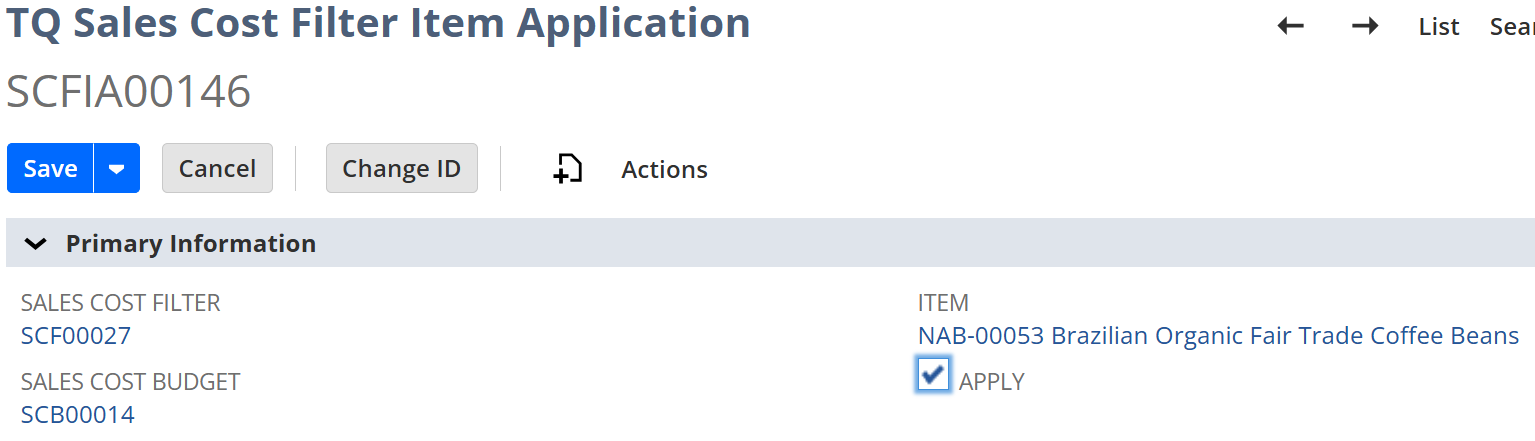
When the Filter is saved, the application will automatically create **TQ Sales Cost Filter Item Application Records**. This record is designed to enhance the Item filtering capability on the Sales Cost Filter.

<div data-full-width="false"><figure><img src="https://3422641029-files.gitbook.io/~/files/v0/b/gitbook-x-prod.appspot.com/o/spaces%2FMzVAkLHuKD7fofWoLeMK%2Fuploads%2FMHPPyntXzm4fwKZTqc38%2Fimage.png?alt=media&#x26;token=4808b5ff-3967-439b-bd90-39cc07118099" alt=""><figcaption></figcaption></figure></div>

After selecting 'Apply' and saving the filter, a **TQ Sales Cost Filter Item Application Record** will be created:

<div data-full-width="false"><figure><img src="https://3422641029-files.gitbook.io/~/files/v0/b/gitbook-x-prod.appspot.com/o/spaces%2FMzVAkLHuKD7fofWoLeMK%2Fuploads%2FWkUypQe2xCodzB35iCR4%2Fimage.png?alt=media&#x26;token=a1b3ea9d-46df-44a7-9513-a76fbc92bd92" alt=""><figcaption></figcaption></figure></div>

If new items are created that match the saved search criteria, the system will automatically create a new **TQ Sales Cost Filter Item Application Record.**

**Transaction Body Field / Transaction Line Field**

When either of the Transaction Field filter types is selected the Transaction Filter - Field Group is enabled. Following fields can be configured to create the desired filtering.

<table data-full-width="false"><thead><tr><th width="220">Field Name</th><th>Description</th></tr></thead><tbody><tr><td>Record Types</td><td>Select the transaction types the Sales Cost Budget should be applied to.</td></tr><tr><td>Field Name</td><td>Select the desired Transaction field (Body or Line) to be filtered on. </td></tr><tr><td>Value List</td><td>If applicable, join values are shown to specify the filter value</td></tr><tr><td>Field Data Type</td><td>Will show the field type for the selected field based on the Value List. The field will show as Disabled in case a single option is available. Field as Country of Origin or Item will provide multiple options such as List/Record or Multiselect. </td></tr><tr><td>Operator</td><td><p>Provides options on how the filter is to be applied. Examples are:<br>Field Name = Class<br>Value List = Class  </p><p>Operator Options: ANYOF, NONEOF, ISEMPTY, ISNOTEMPTY</p><p></p><p>Field Name = Amount</p><p>Value List = NONE</p><p>Operator Options: EQUALTO, NOTEQUALTO, GREATERTHAN, LESSTHEN, etc. </p></td></tr><tr><td>Value</td><td>Value(s) with which the Operator will use to filter</td></tr></tbody></table>

***

## Creating a Transaction e.g.. Sales Order

When creating a Sales Transaction e.g. Sales Order, the QMC application introduces additional functionality on the TradeQloud tab.

**Calculation of Sales Cost Budgets**

As transaction lines are entered, any applicable Sales Cost Budgets will be displayed on the Sales Cost Budget field group.

**REPLACE SCREENSHOT ONCE 5892 is resolved**

This allows for users to see which sales costs are applicable, before the transaction is saved. Changes can be made as follows:

* Sales Costs can be excluded by checking the **Apply** check-box
* Rates / Percents can be modified

**Sales Cost Impact**

Another field group displays the impact that the Sales Costs have on the rate, as well as the total cost

**REPLACE SCREENSHOT ONCE 5892 is resolved**

* **Item, Quantity, Rate, Amount** are all sourced from the transaction
* **Starting Rate** is the starting price for Sales Cost Calculations. This is sourced from the customer or item but could be changed on a transaction.
* **SC Impact** is ....
* **Net Rate** is the rate of selling the item plus/minus all the applicable costs required to deliver it to the customer.
* **Net Amount** is the Net Rate \* Quantity
* **Cost** is the cost of the item
* **Total Cost** is the Cost \* Quantity
* **Margin** is (Net Amount - Cost) / Net Amount&#x20;

***

## TQ Transaction Sales Cost

When the transaction is saved, the application will create the **TQ Transaction Sales Cost** records (if applicable). This record represents the application of the cost from the budget record. **TQ Transaction Sales Costs** can also be added manually to transactions, or existing records can be modified.

***

## TQ Transaction Sales Cost Allocation

The application will also create a **TQ Transaction Sales Cost Allocation** record as a child to the **TQ Transaction Sales Cost** record. The record documents the allocation of each Transaction Sales Cost to individual line items within a transaction. It provides granular details on how sales costs are apportioned across items, ensuring precise cost tracking and financial accuracy in inventory valuation.

{% hint style="danger" %}
The Sales Cost Allocation records cannot be modified by users
{% endhint %}

***

## Billing a Sales Cost Purchase Order / Variance Management

When Sales Cost Purchases Orders are billed, if any variances are identified, and the Sales Cost Budget has 'Automatically Process Sales Cost Variance' set to TRUE, the application will automatically create a Journal for the variance.

{% hint style="success" %}
For the Automatic Variance to trigger, this feature must be enabled in TradeQloud Setup
{% endhint %}